How to configure Gmail on iPhone
Learn how to configure Gmail on iPhone, set Gmail as your default email app, and get more from your inbox with built-in AI features and add-ons. This guide shows how to install Gmail, connect your Google account, enable Smart Reply and Smart Compose, and use Gemini to summarize emails, draft replies, and compose messages. It also covers Gmail add-ons for creating, updating, sharing, and managing contacts from emails with AI Auto Updater for Shared Contacts. Whether you use Gmail personally or with Google Workspace, this guide covers settings and tools to manage Gmail on iPhone.
Configure Gmail on iPhone: Download the Gmail app, sign in with your Google account, and start managing your Gmail inbox directly from your iPhone.
Make Gmail your default mail app: Set Gmail as the default so email links automatically open in Gmail instead of Apple Mail.
Enable Gmail’s built-in AI features: Turn on Smart Reply and Smart Compose to get reply suggestions and writing assistance while composing emails.
Use Gemini in Gmail: Eligible Google Workspace or premium users can use Gemini to summarize email threads, draft replies, suggest responses, and help compose messages.
Extend Gmail with add-ons: Gmail add-ons connect additional tools and services directly to your inbox.
Automate contact management from emails: AI Auto Updater for Shared Contacts can create contact cards from email signatures and let you update, share, and add comments to contacts directly from Gmail.

Many iPhone users prefer Gmail over Apple’s native Mail app. The Gmail app offers a simple, familiar experience, especially for those who previously used Android or grew up with a Gmail account through school.
It’s also a must if your organization runs on Google workspace.
Beyond usability, Gmail is widely trusted as a secure login method across countless platforms (CRMs, Instagram, Facebook, Chatgpt etc..), making it a preferred choice compared to iCloud sign-in, which fewer platforms support.
In fact, Gmail is one of the most downloaded apps on iPhone, right alongside WhatsApp. Its popularity comes from both its ease of use and Google’s powerful features and third-party addons, including AI-powered tools.
This step-by-step guide shows you how to configure Gmail on your iPhone using the Gmail app
1.Install Gmail App and set is as default account
Follow these steps to quickly install Gmail on your iPhone and set it as your default email app.
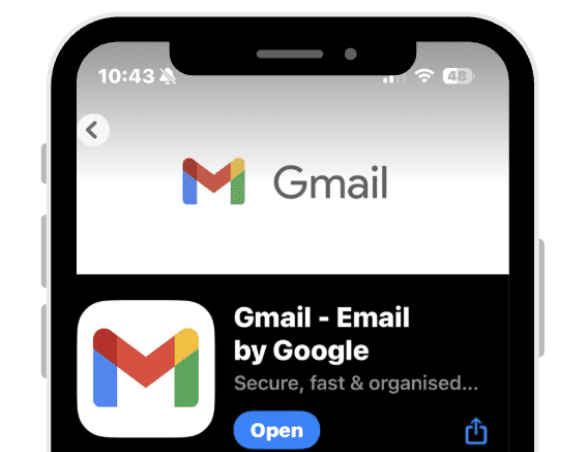
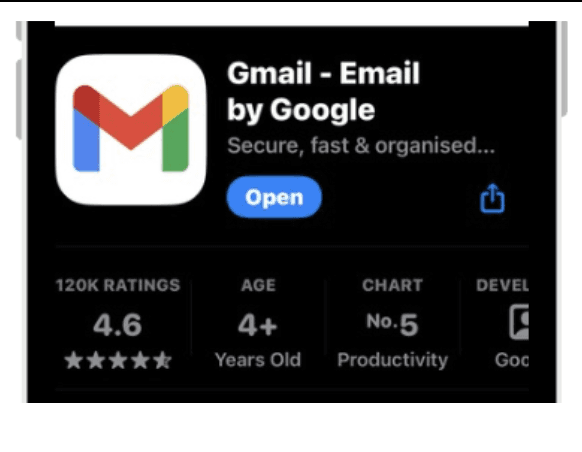
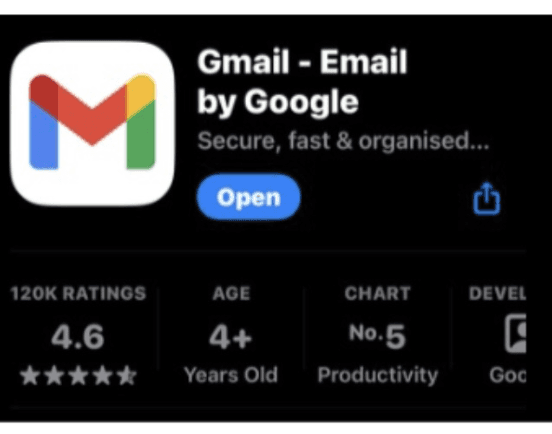
Download Gmail from the App Store
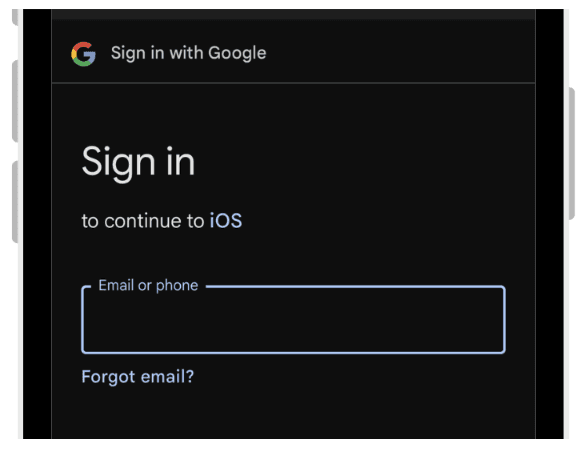
Sign in with your Google credentials and you will be logged in
 |  |
|
|
1.1 Make Gmail your default mail app
Making Gmail your default ensures all email links open in Gmail instead of Apple Mail. This keeps all your emails in one place and avoids switching between different apps
Go to Settings
Click on Gmail
Scroll and tap Default Mail App
Ensure Gmail is selected
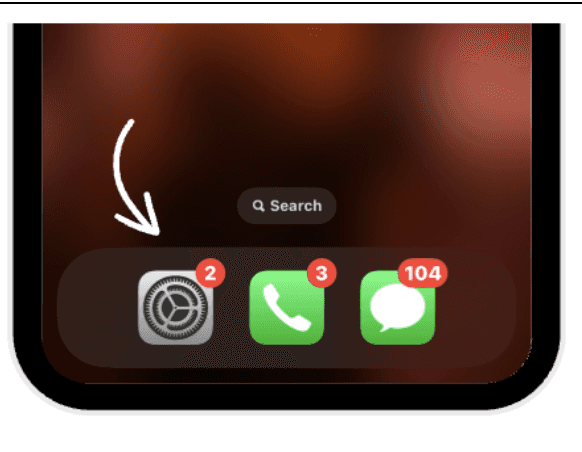 | 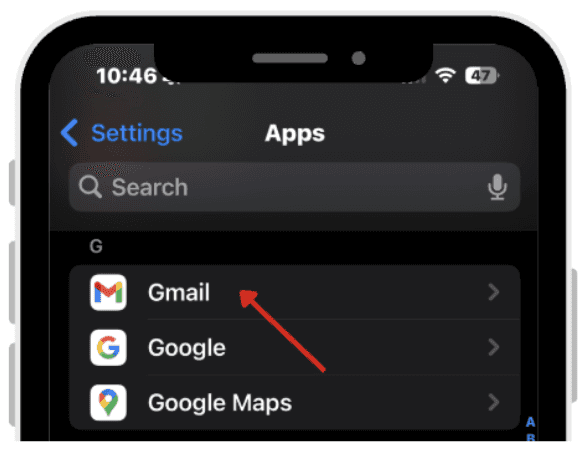 |
|
|
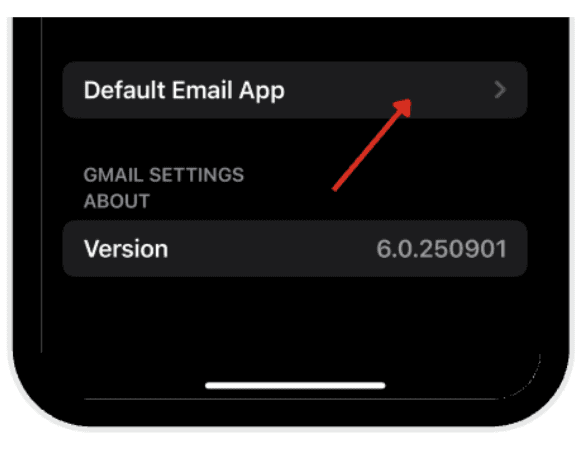 | 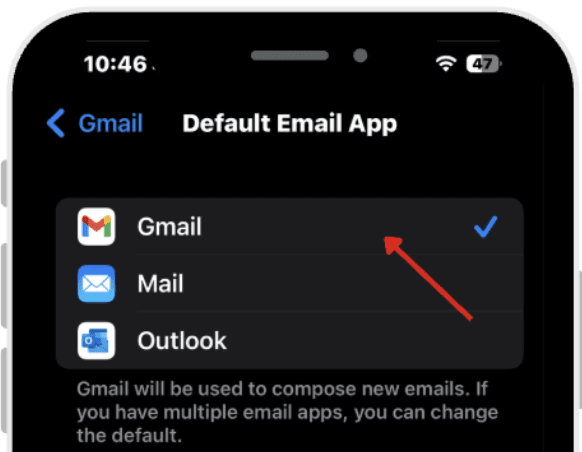 |
|
|
2.AI Features in your inbox :
The Gmail app on iPhone integrates Google’s AI tools to make your email smarter and more efficient. These features help you save time, keep your contacts updated, and respond faster.
These features are part of what makes Gmail so popular, with many users preferring it over Apple’s Mail app. If it interests you, the following features are worth acknowledging.
. Free AI features that come built into Gmail:
Smart reply: Quick, relevant response suggestions for faster replies to emails.
Smart compose: Suggests text as you type, helping you finish sentences faster and write emails more efficiently.
2.1.How to Enable Free AI Features in Gmail
To use Suggested Replies and Conversation Summary (free features), you can follow these steps:
Open the Gmail app.
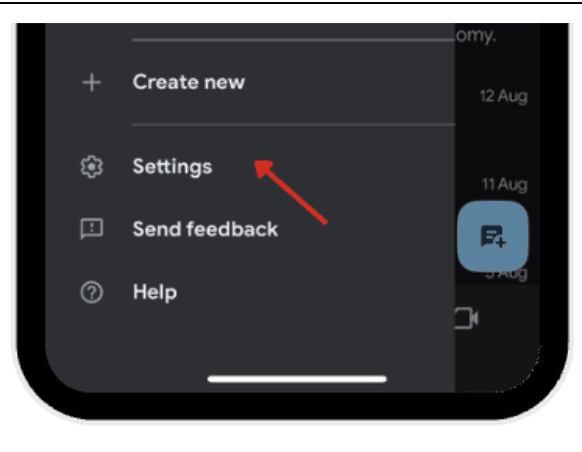
Tap the menu (☰) and go to Settings.
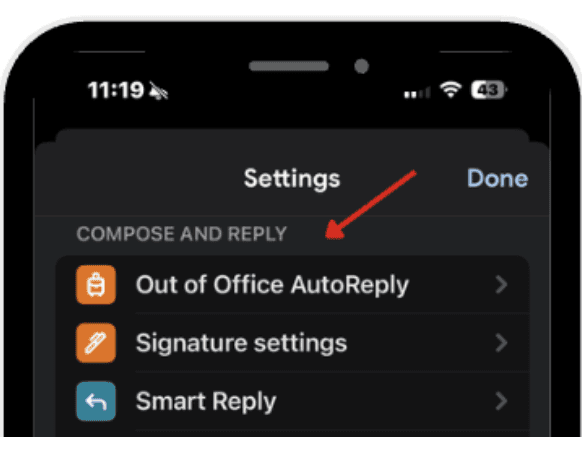
Scroll down to Compose and Reply.
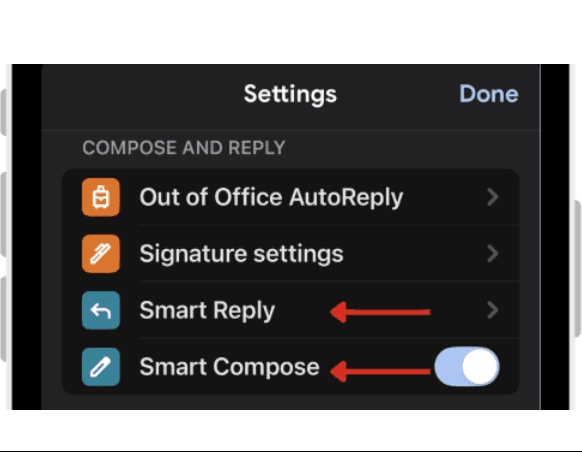
Enable the options you want, such as Smart Reply and Smart Compose.
 |  |
|
|
 |  |
|
|
Now when composing emails, you can use Gmail's Smart Reply and Smart Compose features, available for free
2.2.How to access Gemini AI-features in Gmail for iPhone
Gemini features are available only to users with a premium subscription or a Google Workspace account with Gemini features enabled. These tools help you work smarter within Gmail by offering AI assistance for writing, summarizing, and responding to emails.
If you have a premium Google account or Gemini features enabled for your Google workspace account you can enjoy:
Conversation Summary: Where long email threads are automatically condensed into easy to read summaries.
Gemini AI Assistant: Access Google’s AI assistant within Gmail to help you generate drafts, summarize messages, or choose different phrases/sentences as replies.
Suggested Replies: Quick, one-tap options for common responses.
Help to Compose a Message: Use Gemini to assist in writing or editing your email.
2.2.1.Steps to Use Gemini in Gmail:
First, make Sure You Have a Premium Subscription. This is required to access all Gemini AI features
Open the Gmail App
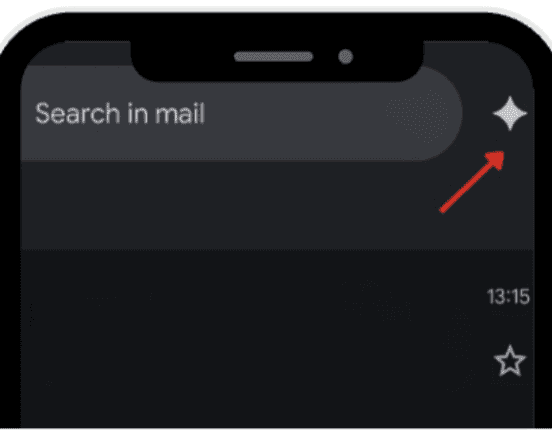
For Gemini, tap the ✦ icon in your Gmail to launch AI assistance
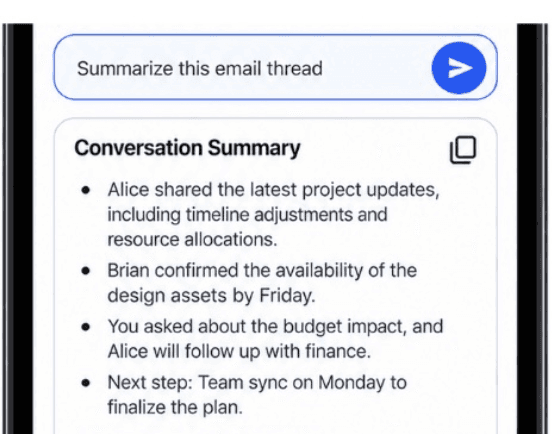
Enter a Gemini Prompt such as “Summarize this email thread” to use the Conversation Summary feature
Or “Write a reply for me” to use Gemini AI Assistant for drafting responses
When Composing Emails, tap the pen and spark ✦ icon in the top-right corner to access Gemini tools.
Here, you can use Suggested Replies for quick one-tap options for common responses
Or you can get help composing a message by using Gemini AI Assistant for writing drafts or brainstorming.
 |  |
|
|
 |  |
|
|
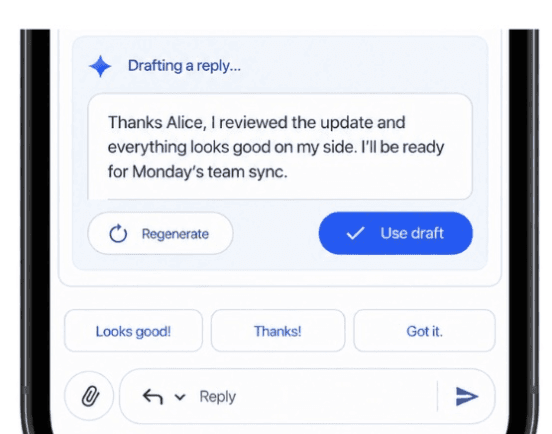 | 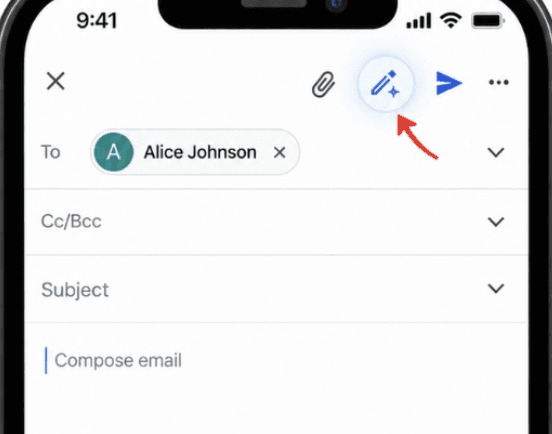 |
5. Or “Write a reply for me” to use Gemini AI Assistant for drafting responses | 6. When Composing Emails, tap the pen and spark ✦ icon in the top-right corner to access Gemini tools. |
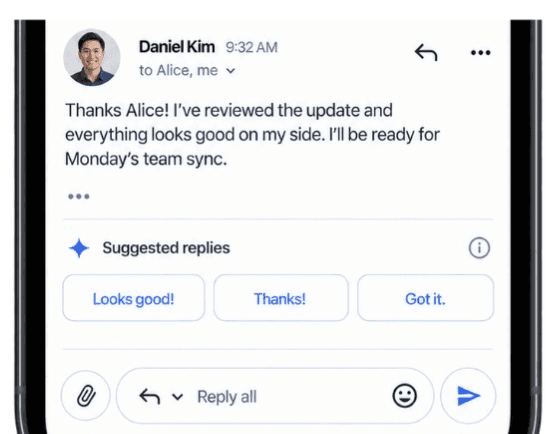 | 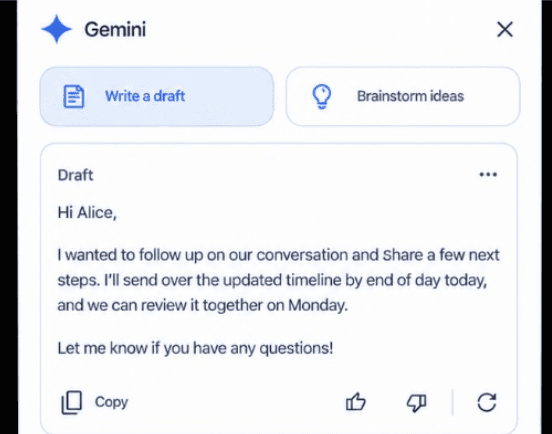 |
7. Here, you can use Suggested Replies for quick one-tap options for common responses | 8. Or you can get help composing a message by using Gemini AI Assistant for writing drafts or brainstorming. |
Note: Full access to Gemini AI in Gmail requires a Google One AI Premium plan or an eligible Google Workspace subscription.
2.3.Simplify Gmail Contact Management with Automation:
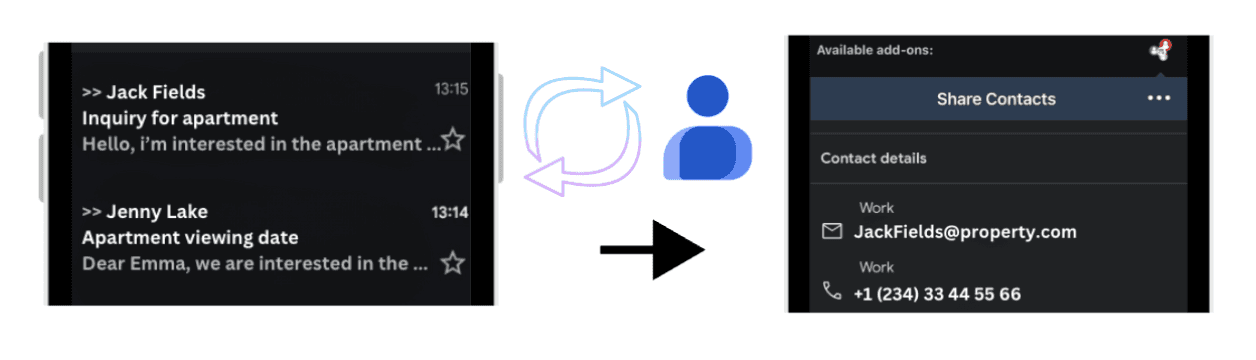
If you want to make contact creation and sharing even easier, you can combine Gmail with the Shared Contacts AI Auto Updater add-on. This integration streamlines the process, automatically updating your address book with contact details from emails, providing a seamless and simple experience.
Contacts Automation: Gmail can detect new email signatures or contact details in an email and update your address book with the Shared Contacts AI Auto Updater Gmail Addon.
3.Gmail Addon
Gmail on iPhone also supports add-ons that integrate with useful tools, like project management apps, CRM systems, or file-sharing services. Add-ons let you use other tools within Gmail, so you don’t need to switch between apps. So basically, they help you stay in Gmail without opening multiple apps or going back and forth.
You can browse all the add-ons available for Gmail on this page.
For instance, a recommended addon for if you don’t want to manually create or update contacts every time you receive an email from a customer is AI Auto Updater for Shared Contacts. This addon can automate the process for you by detecting contact information from the email and updating the contact information.
If this sounds like the solution you’ve been looking for, here’s what you need to do:
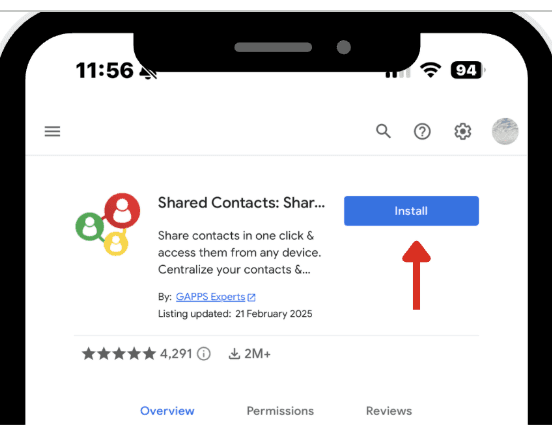
On your iPhone, open a browser and go to the Google Workspace Marketplace.
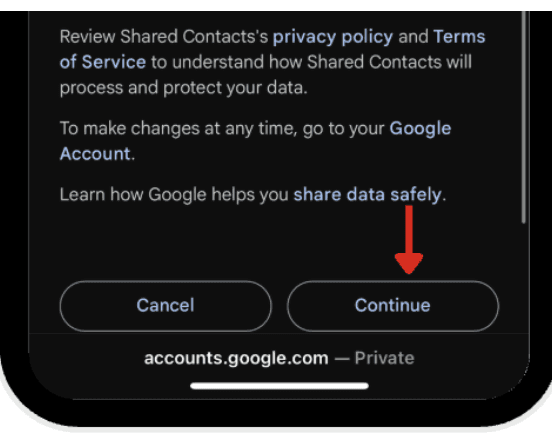
Once the installation is complete, you’ll be redirected to the Google sign-in page to grant AI Auto Updater for Shared Contacts permission to connect with your account. Click continue
 |  |
| |
 | |
|
Your Gmail account is now successfully connected with AI Auto Updater for Shared Contacts.
Now to Enjoy the Features of the AI Auto Updater for Shared Contacts in Gmail:
Open your Gmail account
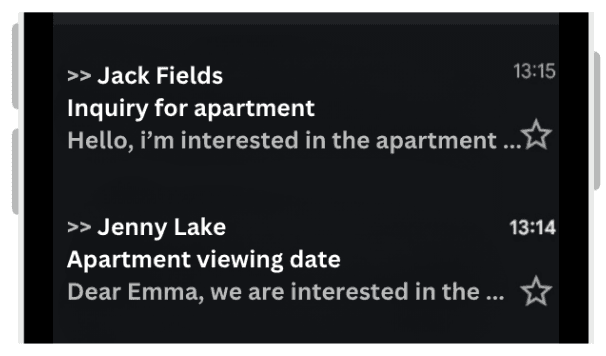
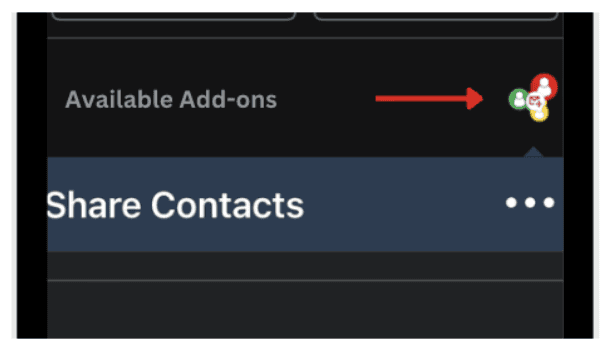
Open an email and scroll down to see available Add-ons. Tap the AI Auto Updater for Shared Contacts icon.
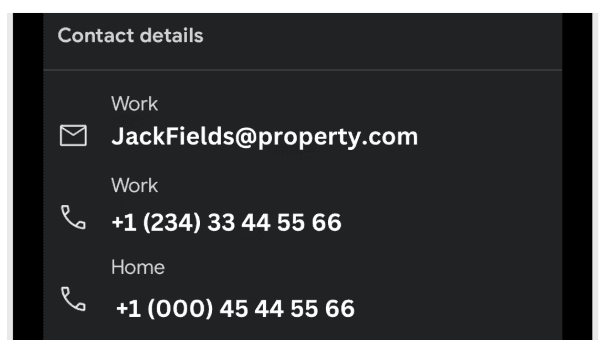
After tapping the icon, a contact card is created from the signature of the email. You’ll be able to see the sender’s contact details.
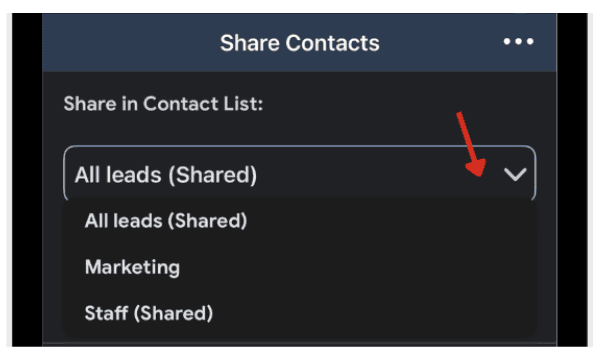
After the contact card is created, you can share the contact to another list by clicking the dropdown button and selecting the contact list you want to share the contact with.
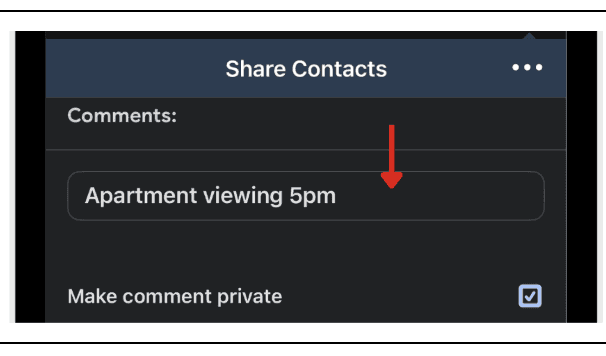
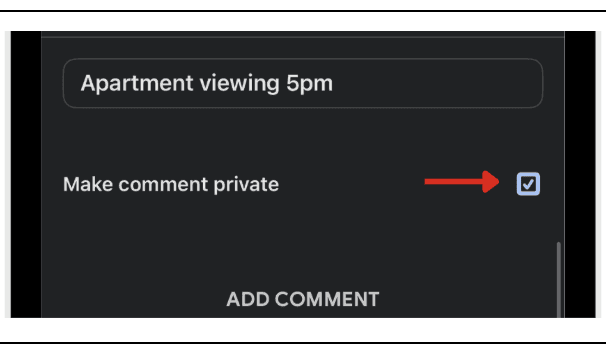
If you want to add a comment to the contact, scroll down and type your comment.
You can make the comment private by checking the ‘Make comment private’ box.
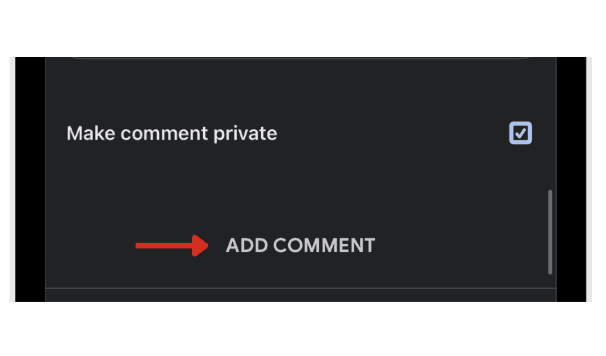
Save the Comment by clicking ‘add comment’, and it will appear under the contact
 |  |
|
|
 |  |
|
|
 |  |
|
|
 | |
|
By following these steps, you can easily create, update, and share contact information directly from Gmail with the AI Auto Updater for Shared Contacts. It streamlines contact management and ensures your contact lists are always up-to-date.
Conclusion
Setting up Gmail on your iPhone ensures you get the familiar, reliable experience that so many users prefer over Apple’s Mail app. By making Gmail your default, you keep all emails in one place without switching between apps.
With AI features like suggested replies, conversation summaries, and Gemini prompts, Gmail becomes more than just an inbox, it’s a productivity tool. And with add-ons like ContactsFlow, you can keep contacts synced and shared across your team automatically. Together, these steps make managing communication on your iPhone simpler, smarter, and more efficient.
Leave a comment :
No comments yet. Be the first!