How to know who did what in a Google Spreadsheet
Learn how to track changes in Google Sheets and see who edited your spreadsheet. This guide explains how to use Version History, Cell Edit History, and the Activity Dashboard to monitor edits, restore older versions, and view user activity. Whether you’re collaborating with a team or troubleshooting mistakes, these built-in Google Sheets tools help keep your spreadsheet accurate, organized, and secure.
Use Version History to see who edited a Google Spreadsheet and when.
Restore older spreadsheet versions if mistakes were made.
Check the edit history of individual cells to track specific changes.
Use the Activity Dashboard to monitor views, edits, and user interactions.
Improve collaboration, accountability, and data accuracy in shared spreadsheets.

1. Introduction
Google Spreadsheets are perfect for working with others. But sometimes, especially when many people are involved, it's important to know who made which change, when it happened, and what was changed.
This can help if something goes wrong and you need to find out where the mistake happened, or if you just want to track progress over time. Luckily, Google Sheets has built-in tools that make it easy to keep track of all changes and know who did what, when.
2. Using Version History to See Who Edited What
2.1. Accessing Version History
Version History is a powerful feature that lets you see all the changes made to a document, including who made the change and when. It’s a great way to track major updates and find mistakes.
To access Version History:
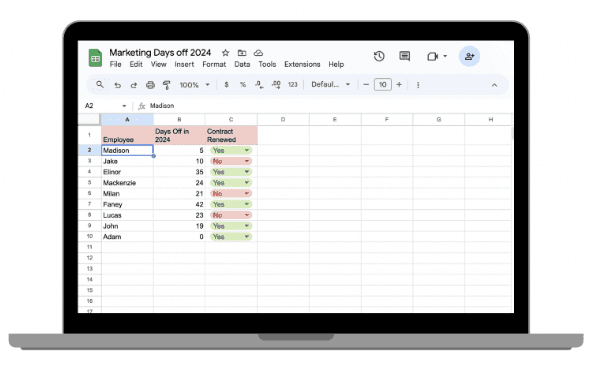
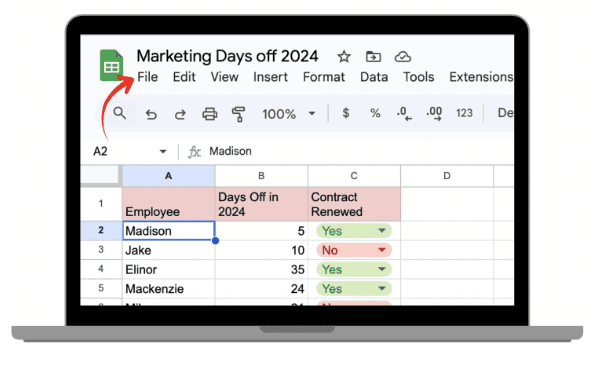
Open Google Spreadsheet.
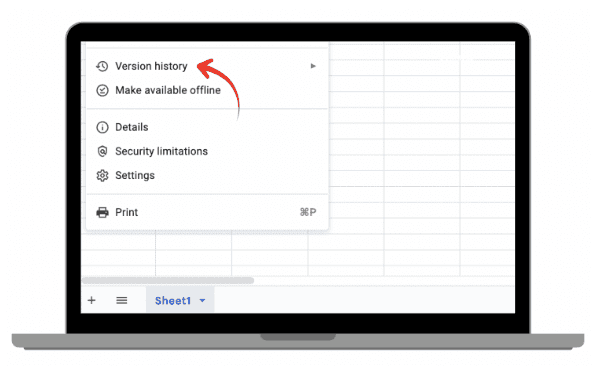
Click on File in the top-left corner.
Scroll down to Version history and click on See version history.
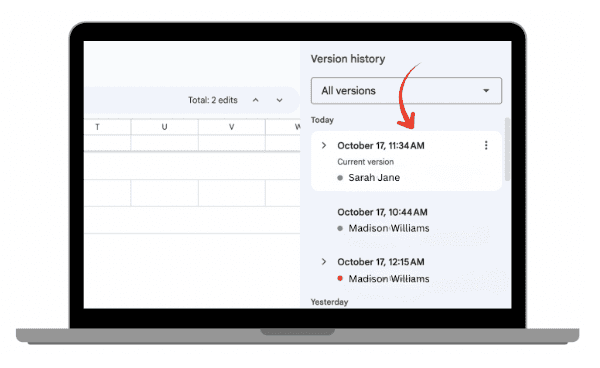
On the right-hand side, you’ll see a timeline of all changes made to the document. You can click on any version to see what the spreadsheet looked like at that time.
 |  |
|
|
 |  |
|
|
2.2. Viewing and Restoring Older Versions
Once you access Version History, you can:
See who made each change by hovering over the version.
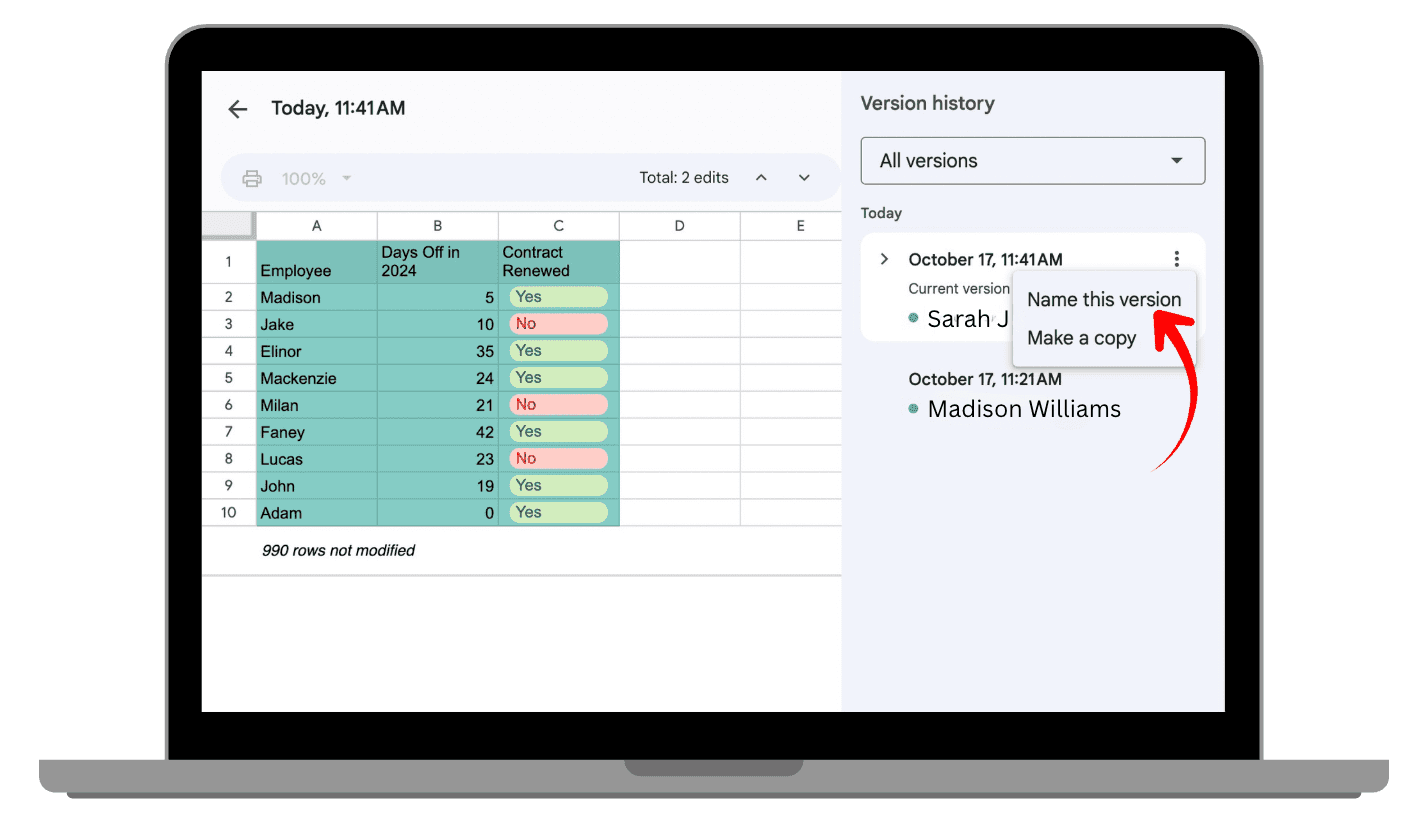
Restore a previous version by selecting it and clicking Restore this version.
You can also rename versions by clicking on the three dots next to a specific version for easy reference.
This is useful if you need to undo a mistake or go back to a previous version of the document.
3. Using Cell Edit History to Track Changes in Specific Cells
3.1. Viewing Cell Edit History
Sometimes, you don’t want to look at the entire spreadsheet, you only care about what changed in a specific cell. Google Sheets makes this easy.
To view the edit history of a specific cell:
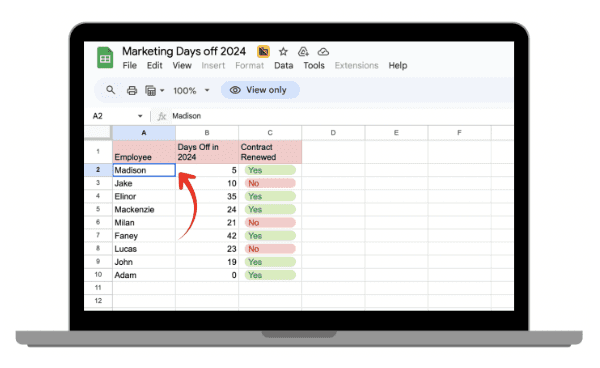
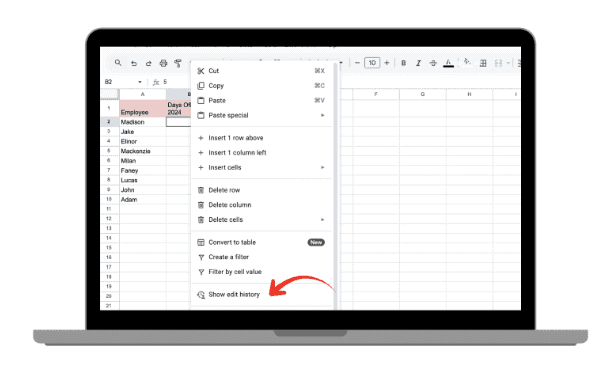
Right click on the cell you want to check.
Select Show edit history from the dropdown.
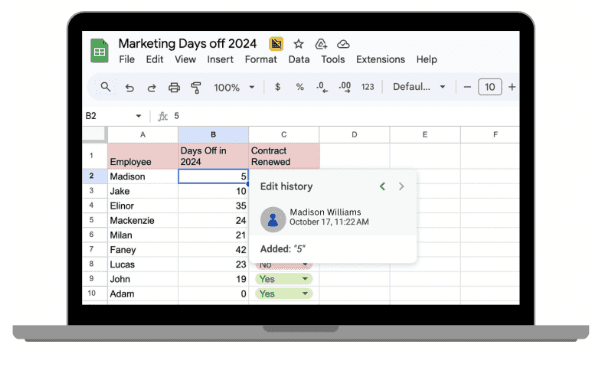
A sidebar will appear showing the changes made to that cell, including: The date and time of the change, the user who made the change, and the previous value and the updated value.
 |  |
|
|
 | |
|
4. Using the Activity Dashboard to Track Views and Edits
If you're not just worried about edits but also about who’s viewing or interacting with your sheet, Google Sheets’ Activity Dashboard is another useful tool. This dashboard shows a detailed report of who viewed the sheet, when, and what changes were made.
To access the Activity Dashboard:
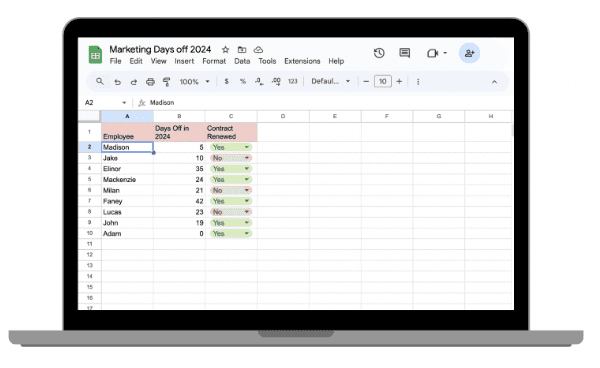
Open Google Spreadsheet.
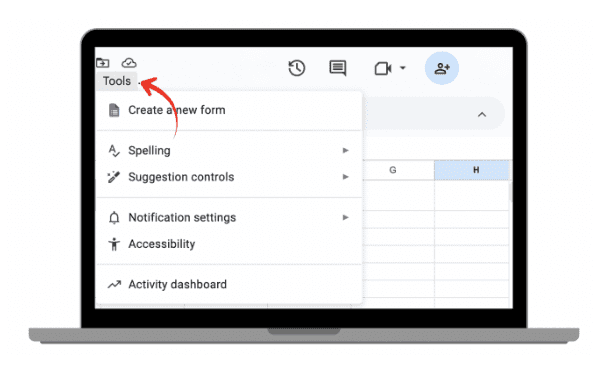
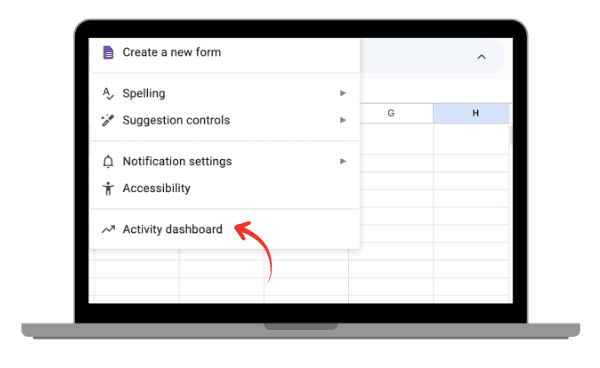
Click on Tools in the menu bar.
Select Activity dashboard.
 |  |
|
|
 | |
|
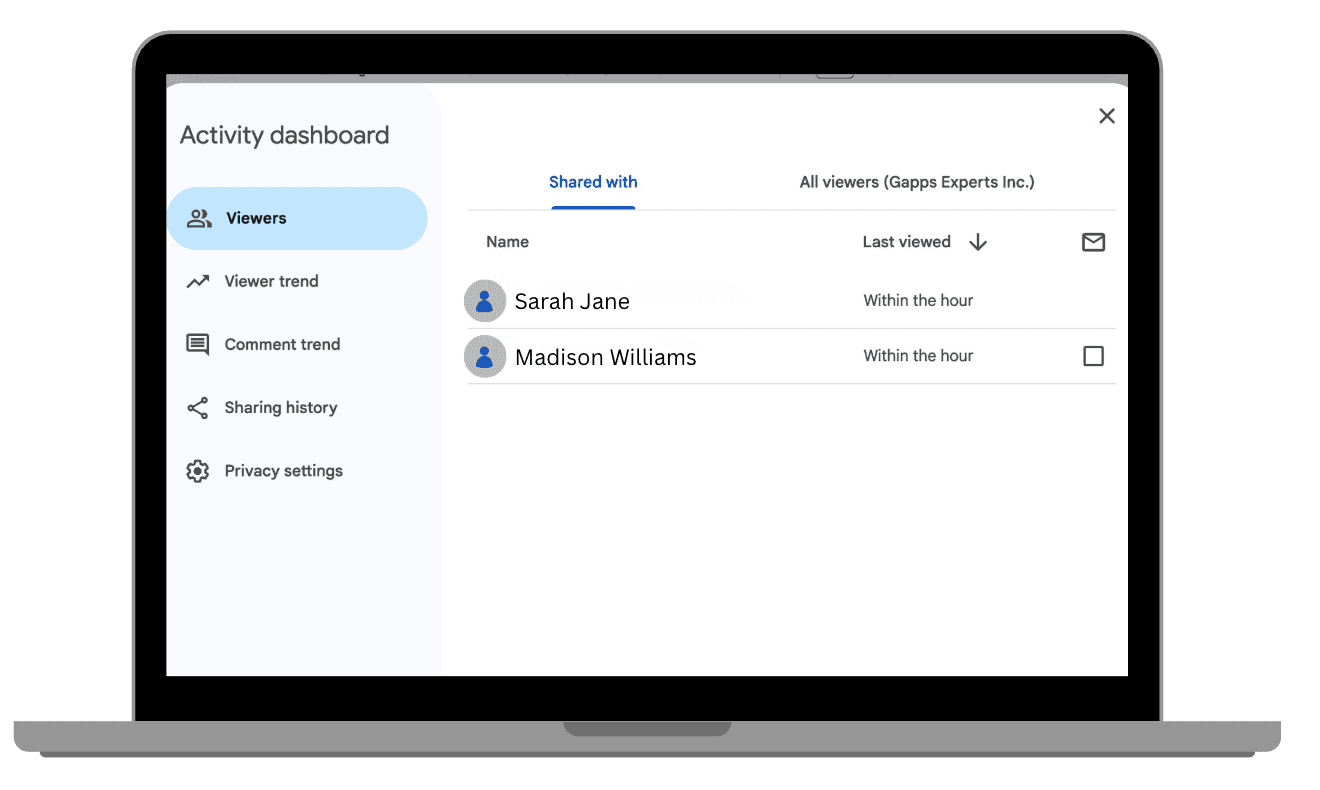
The Activity Dashboard shows:
Who has viewed the document and when.
Who has edited the sheet.
The last modification made to the file.
Conclusion
Google Spreadsheets provides all the tools you need to stay on top of changes, whether you’re tracking edits in Version History, checking specific cell edits, or monitoring who’s viewing and interacting with your sheet.
By utilizing these tools, you can keep your data secure, organized, and accurate.
Leave a comment :
No comments yet. Be the first!