How to delegate your email management to Gemini
Learn how to delegate email management to Google Gemini in Gmail. This guide explains how to use Gemini to summarize your emails, long email threads, answer inbox questions, extract action items, and draft replies automatically. Includes setup instructions for Google Workspace admins and end users, plus step-by-step workflows for inbox triage, AI-assisted email writing, and productivity optimization in Gmail.
Gemini in Gmail can summarize your emails (inbox) automatically.
Users can ask Gemini questions about inbox content using natural language.
“Help me write” generates AI-powered email replies and follow-ups.
Google Workspace admins can enable Gemini from the Admin console.
Gemini is available on eligible Google Workspace and Google One AI Premium plans.
AI-assisted inbox triage reduces time spent reading and writing emails.
Users remain in control by reviewing summaries and drafts before sending.
Gemini works on both desktop Gmail and the Gmail mobile app.
Gmail Q&A can help locate action items, deadlines, and conversations faster.
Combining human review with AI assistance improves email efficiency and organization

Email is still where most work happens but it’s also where a lot of time is lost. Google’s Gemini, now integrated into Gmail for eligible accounts, is designed to act like an assistant inside your inbox: it can summarize long threads, help you find information, and draft replies for you.
1. What does it mean to “delegate email management” to Gemini?
Google describes Gemini in Gmail as “a super-smart assistant” that can summarize long emails, find information quickly, and suggest replies. You stay in control of your inbox, but you let Gemini do most of the heavy lifting:
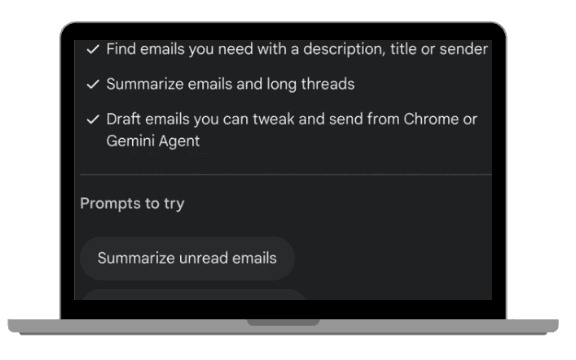
summarize important emails of the day
summarizing long threads
extracting key actions and dates
drafting replies and follow-ups
answering questions about your inbox content
2. Prerequisites: what you need before you start
Gemini in Gmail is available to users on specific Google Workspace plans (e.g. Gemini Business, Enterprise, Education tiers) and Google One AI Premium.
You likely have access if:
your organization has purchased Gemini for Google Workspace, or
you have Google One AI Premium on a personal Google account.
If you’re not sure, check:
your Google Workspace admin (for work accounts), or
the Gemini / Google One subscription page in your personal Google Account.
2.2. For Workspace admins: enable Gemini for your domain (one-time setup)
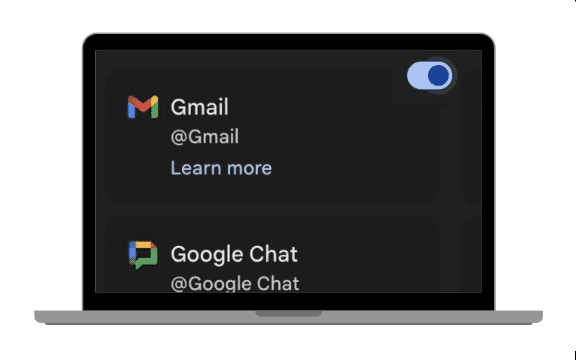
If you are a Google Workspace admin, enabling Gemini broadly is typically done from the Admin console. A 2025 guide on Gemini for Gmail describes the process as:
Step-by-step (admin):
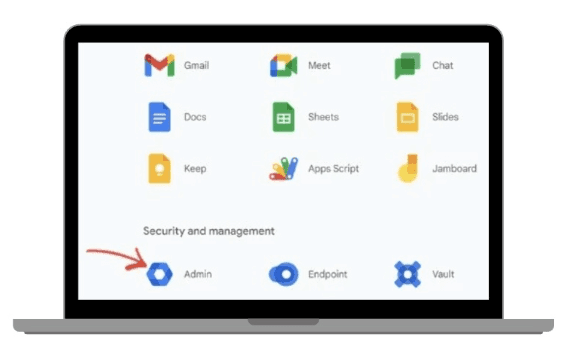
Sign in to the Google Admin console (admin.google.com) with your admin account.
Go to Apps → Google Workspace → Gemini / Generative AI or the “Generative AI” section (the exact label may vary slightly by edition and language).
Confirm that Gemini for Workspace (and any related services such as “Gemini app”) are turned ON for the organizational units who should use it.
Save your changes.
Once this is done, users in those org units should start seeing Gemini options in Gmail as the feature rolls out.
 |  |
|
|
 |  |
|
|
2.3. For end users: confirm Gemini is available in Gmail
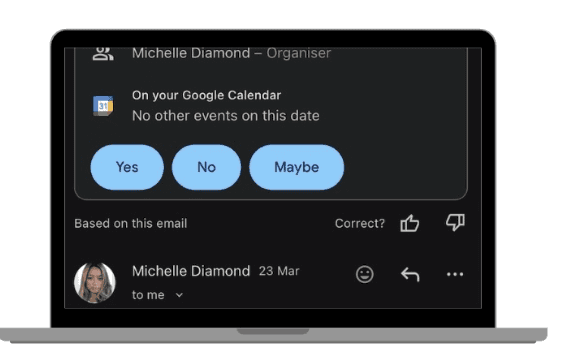
Google’s own documentation explains that users can access Gemini in Gmail through:
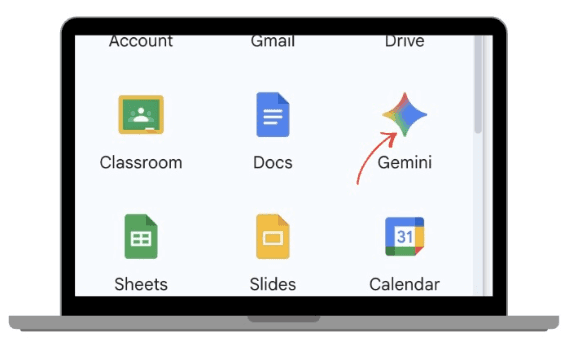
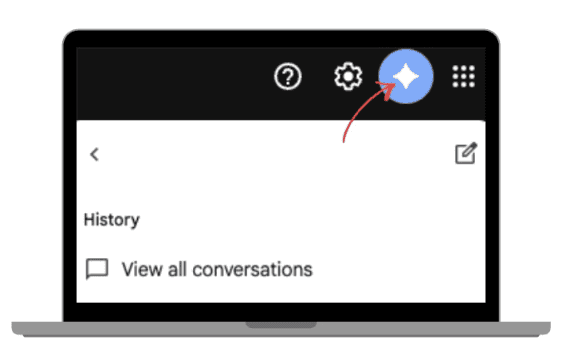
a Gemini star icon in the Gmail interface, and
chips like “Summarize this email” on long threads.
Check on web/desktop:
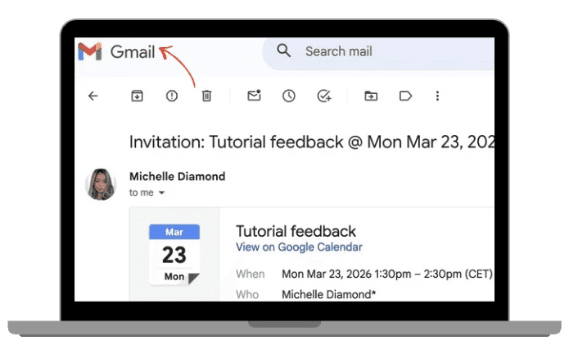
Open Gmail in your browser.
On a long email thread, look for a “Summarize this email” chip or a Gemini icon (often a dark star or dedicated button).
If you see it, Gemini is active for your account.
Check on mobile (Android / iOS):
Open the Gmail app.
Open a long email or thread.
Look for a summarize chip, or a Gemini icon at the top.
If you don’t see any of this, your account or region may not yet be supported, or Gemini may not be enabled by your admin.
 |  |
|
|
 |  |
|
|
3. The easiest workflow: let Gemini handle inbox triage
The simplest way to “delegate” is to make Gemini your first pass on new emails:
Gemini summarizes long threads.
You ask Gemini targeted questions instead of reading everything.
Gemini drafts replies that you review and send.
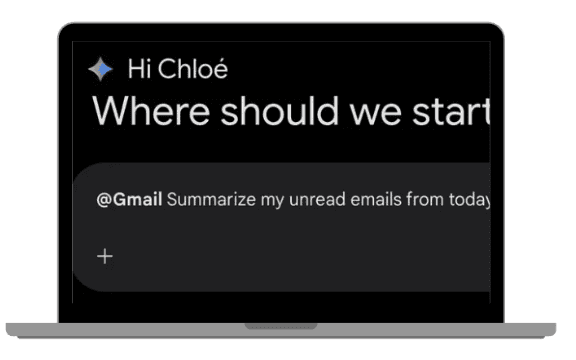
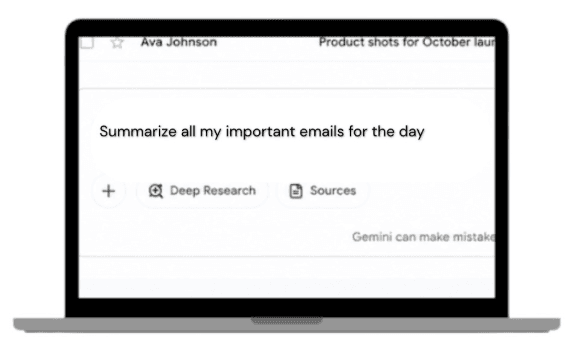
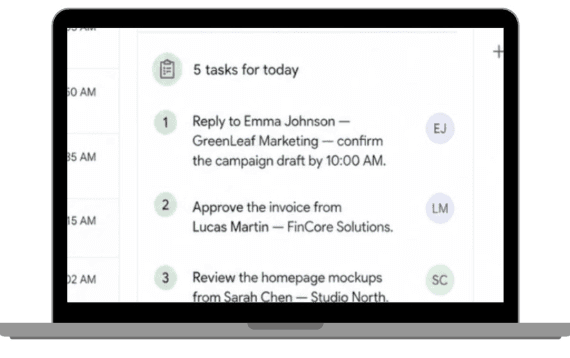
3.1 Step 1 - Ask Gemini to summarize your important emails of the day
One of the most practical ways to delegate email management is to use Gemini as your daily inbox briefing assistant. Instead of manually scanning dozens of emails every morning, you can ask Gemini to summarize your most important messages and action items in a few seconds.
Step-by-step:
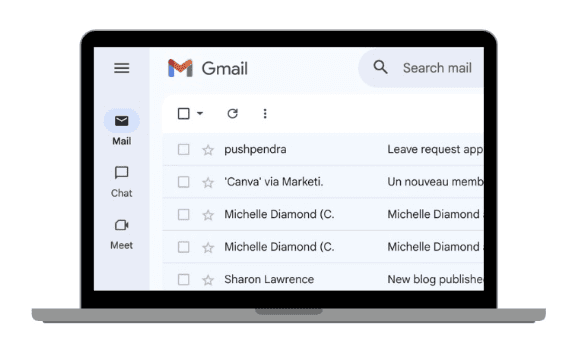
Open Gmail in the morning.
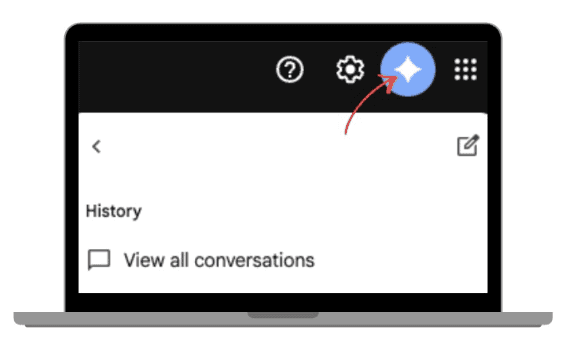
Click the Gemini / Q&A icon in Gmail.
Type a request such as:
“Summarize my important emails from today.”
“What are the urgent emails I received this morning?”
“List action items from unread emails.”
“What meetings, deadlines, or follow-ups should I know about today?”
Review Gemini’s generated summary.
 |  |
|
|
 |  |
|
|
3.2. Step 2 – Use Gemini to summarize long threads
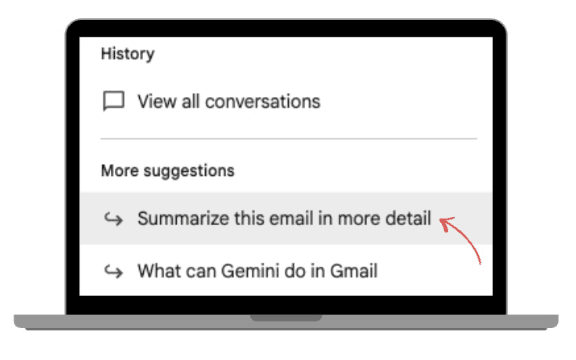
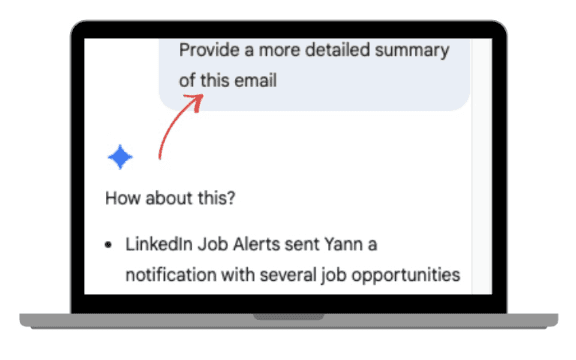
Google’s documentation and multiple independent reviews confirm that Gemini in Gmail can summarize long emails and threads into a few key points.
Here’s how to do it,
Open a long email thread in Gmail.
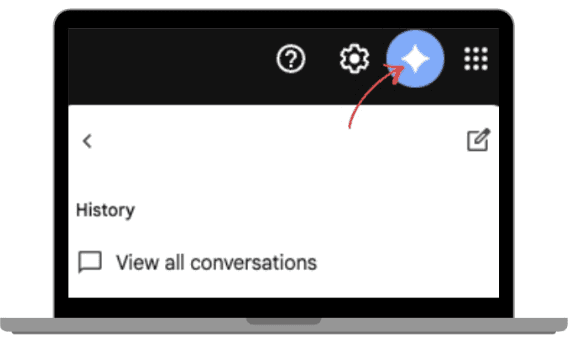
Click the “Summarize this email” chip or the Gemini icon (label and design may vary slightly).
Wait for Gemini to generate a short summary.
Skim the summary to understand:
what’s being asked
what decisions were made
any dates, deadlines, or next steps
This immediately reduces reading time without delegating your inbox to another person.
 |  |
|
|
 |  |
|
|
3.3. Step 3 – Ask Gemini questions about your inbox
Google’s “Gmail Q&A” feature lets you ask Gemini natural-language questions about your inbox, like “show me all emails from my lawyer this week” or “what did the supplier say about pricing?”
Step-by-step:
Open Gmail.
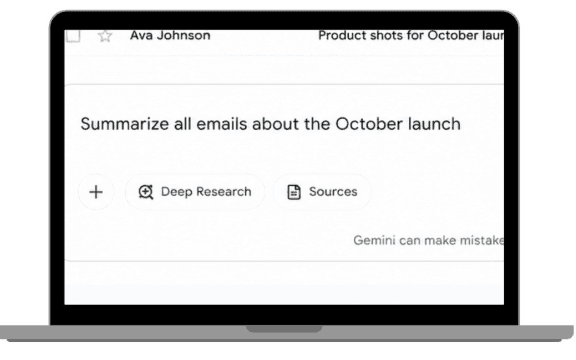
Click the Gemini / Q&A icon (for example, the black Gemini star).
Type a question, such as:
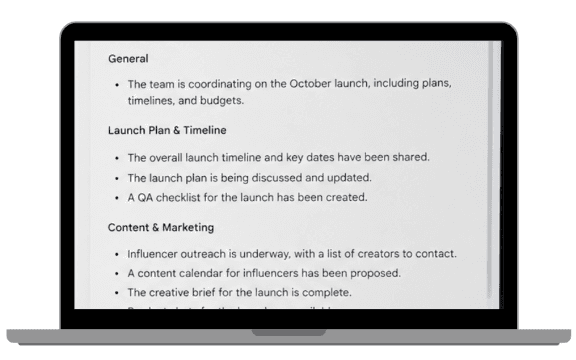
“Summarize all emails about the October launch.”
“What are the latest action items from my HR emails?”
Review Gemini’s answer, which is generated using content from your inbox (and, for some features, from Drive or Calendar where supported).
Instead of digging through search results, you delegate the “search + interpret” step to Gemini and only verify the output.
| |
|
|
 |  |
|
|
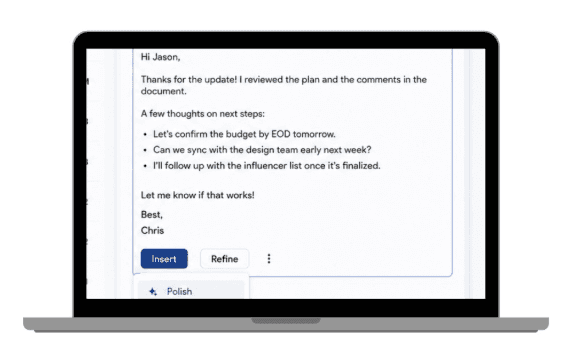
3.4. Step 4 – Use Gemini to draft replies (Help me write)
The “Help me write” feature in Gmail lets Gemini draft emails based on a short prompt or an existing email. Google’s help pages explain that you can open a compose window and click “Help me write” to generate and refine drafts.
Step-by-step (desktop):
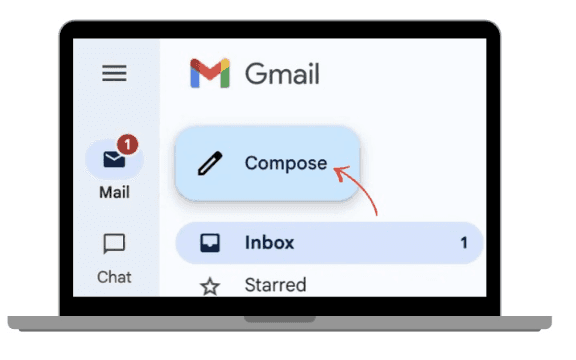
In Gmail, click Compose (or open a reply).
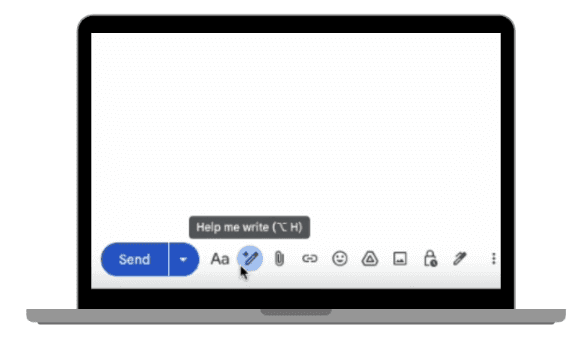
At the bottom of the compose window, click “Help me write”.
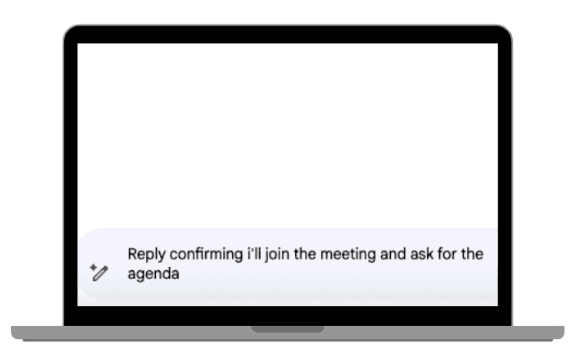
Type a concise prompt, for example:
“Reply confirming I’ll join the meeting and ask for the agenda.”
“Politely decline this invitation and thank them for thinking of me.”
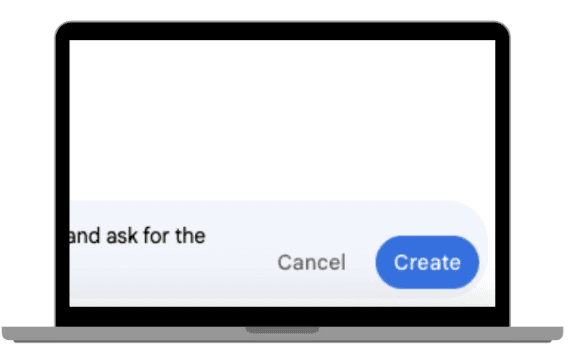
Click Create.
Review the draft and, if needed, use options such as Polish, Formalize, Elaborate, Shorten to adjust tone and length.
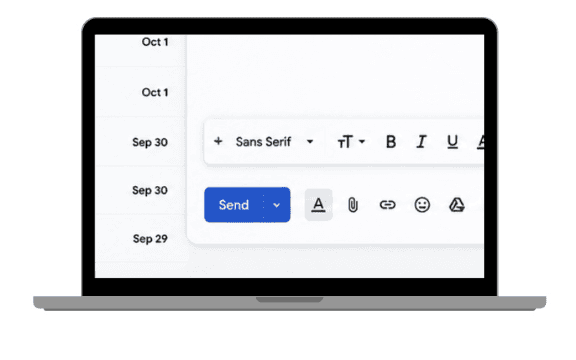
Make final edits yourself and click Send.
By making this your default habit, you effectively delegate most of the writing to Gemini while keeping control over the final message.
 |  |
|
|
 |  |
|
|
 |  |
|
|
Conclusion
In short, using Gemini inside Gmail offers a practical and low-friction way to delegate much of your email workload whether you’re a solo professional trying to stay on top of dozens of threads, or an executive working with an assistant. By letting Gemini do the heavy lifting (summaries, triage, reply drafts, follow-up extraction) while you or your assistant retain control over final decisions and sending, you can dramatically reduce time spent in the inbox and focus on what really matters. As long as you remain mindful of privacy settings and double-check important content, this hybrid human + AI approach can turn your inbox from a chore into a tool more efficient, manageable, and under your control.
Leave a comment :
No comments yet. Be the first!