How to Share iPhone Contacts (2026 Guide)
Sharing an iPhone contact is easy, but keeping that contact updated across multiple people is where Apple’s built-in sharing reaches its limits. This guide explains how to share individual contacts from your iPhone, why those contacts stop syncing after they’re sent, and how to create shared contact lists that stay synchronized across your entire team. You’ll also learn how to control editing permissions, collaborate in real time, and keep customer information accurate on every device.
Learn how to share an individual contact directly from the iPhone Contacts app.
Understand why Apple’s contact sharing creates separate copies instead of synced contacts.
Discover how to create shared contact lists that automatically stay updated for everyone.
Control who can view contacts and who can edit them with permission settings.
Keep customer notes, phone numbers, and contact details synchronized across your team.
Sync Google Contacts and Google Workspace contacts with iPhones.
Improve collaboration for sales, real estate, customer support, healthcare, field service, and other teams that share contacts daily.


Introduction
Sharing contacts seems simple until you need to keep them updated across your team. Imagine managing a real estate company: you meet new clients daily and want to share prospects with fellow agents responsible for specific districts.
Apple lets you send contacts one by one, but here's the catch: once shared, that contact becomes disconnected from any future updates. So if a colleague adds a note like “Contact the client’s spouse for viewings” you’ll never see it, and that can lead to missed opportunities.
In this guide, you’ll learn not just how to send iPhone contacts, but how to set up fully synced, shared lists, so your whole team always has the latest details and information, no matter who updates it.
How to share iPhone contacts
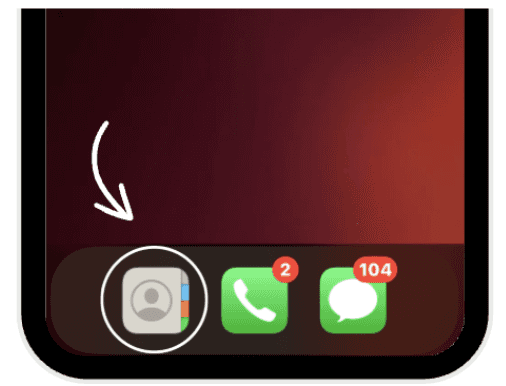
Open Contacts: Launch the Contacts app on your iPhone.
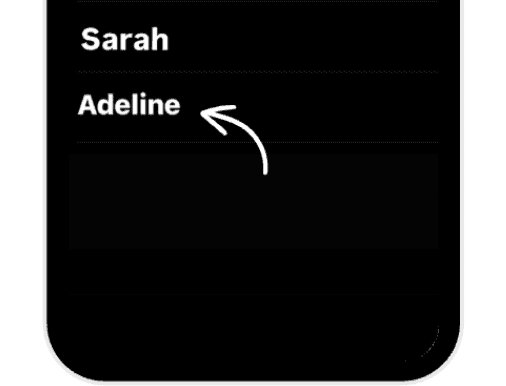
Select Contact: Navigate to the specific contact you wish to share.
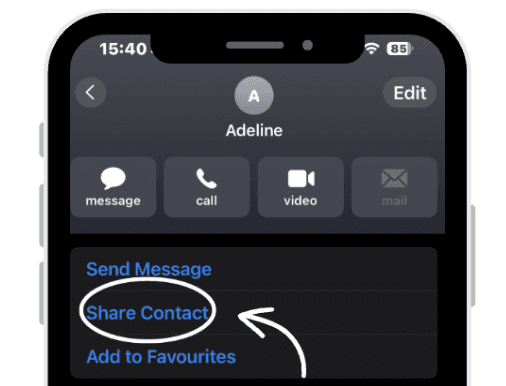
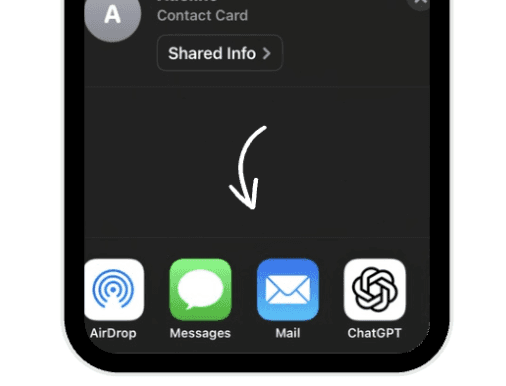
Share Card: Scroll down and tap on "Share contact."
Choose App and Recipient: Select the application you want to use to send the contact and then choose the person you want to send it to.
 |  |
|
|
 |  |
|
|
Step by step guide to Share Contact Lists On Iphone
The solution apple provides has limitations, the contacts will be unsynchronized across colleagues. Once you share them, your teammates end up with their own separate copies and any changes you make later won’t show up on their end and the changes they make will be unknown to you.
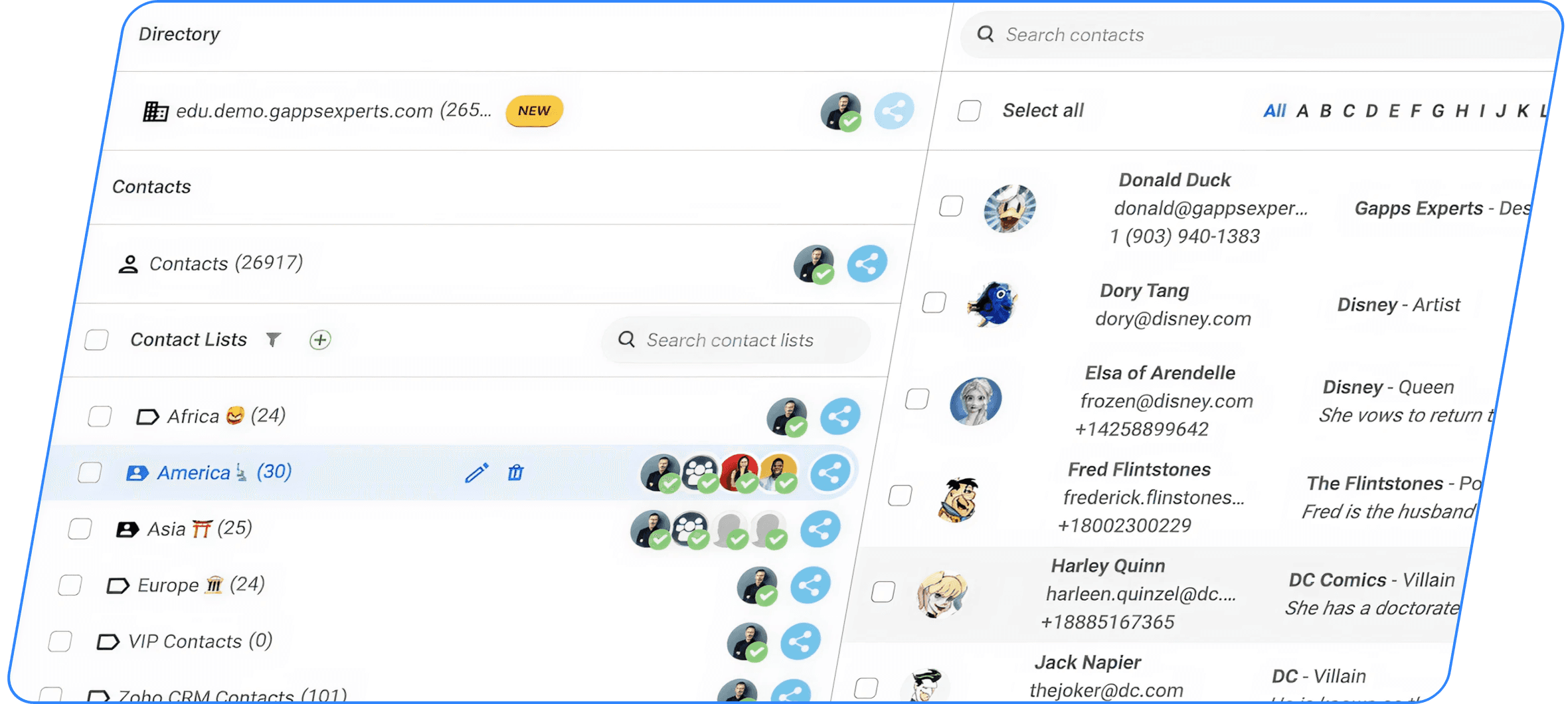
Luckily, there’s one app on the App Store that makes contact sharing easy and actually keeps everyone in sync. You can create contact lists directly from your iPhone, or pull in your existing Google Contacts and then share those lists with your team. Your colleagues will see real-time updates and, if you allow it, can add or edit contacts too. All you need to install it is a Gmail account.
Everyone can see updates as they happen and even add their own if you give them the right permissions, so the information stays fresh and accurate for everyone. All you need to get started is a Gmail account to sign in.
How to sync and share contacts on your Iphone
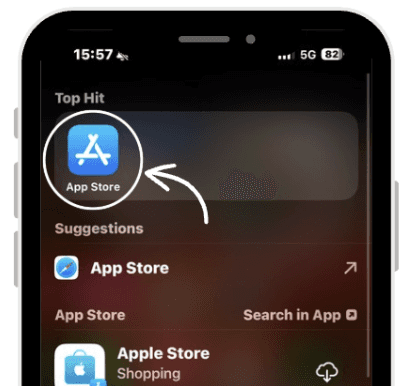
Go the app store
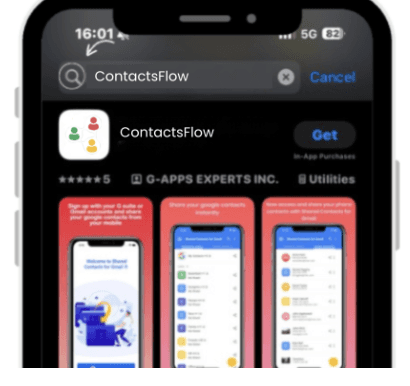
Search ContactsFlow™
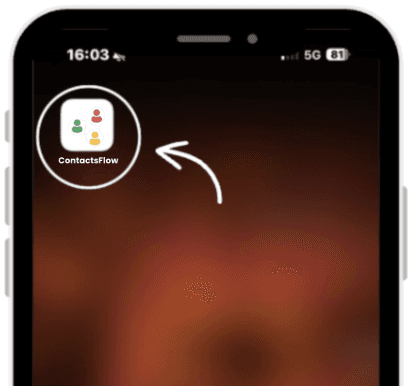
Download the application
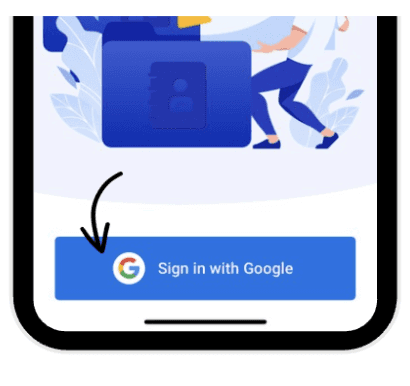
Sign in with your google account
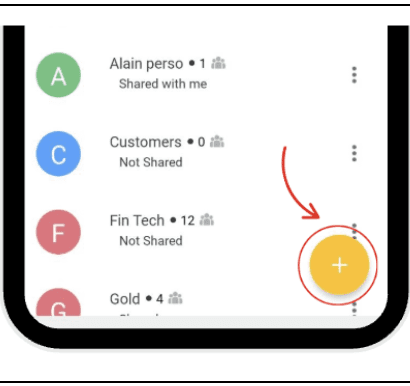
Create the contact list you want to share
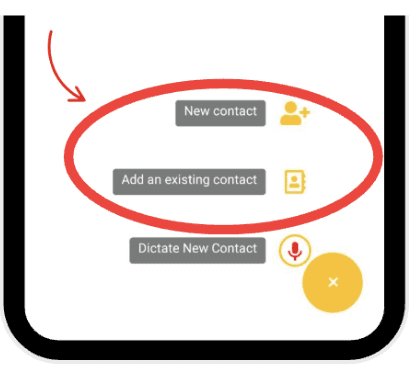
Add the phone contacts of your choice to that list
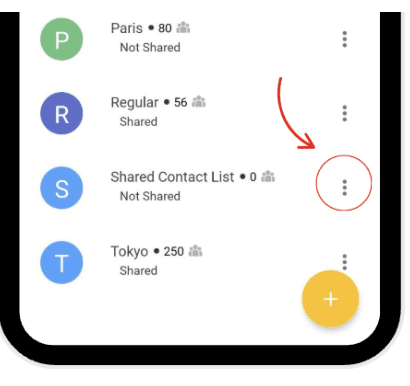
Tap on the 3 dots next to the list you created
Share the list with your colleagues
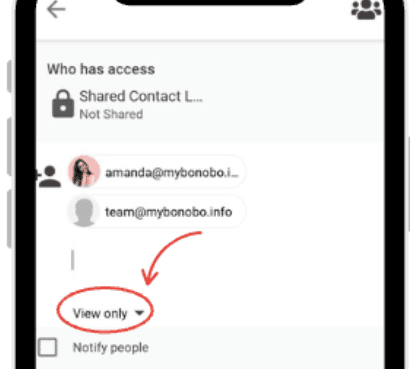
If you want them to add contacts to the list, give them the “Can Edit” permission
If you want them to only view the contacts, keep the default permission “View Only”
Set the permissions you want them to have on the shared list
That’s it! Now, whenever someone with “Can Edit” permission updates or adds a contact, the changes are instantly synced across everyone’s devices.
You can also add notes to contacts to keep track of important details and conversations.
Prefer working on a bigger screen? You can manage your contacts from our web app as well: https://app.contactsflow.ai
Try it yourself, it's free forever.
 |  |
|
|
 |  |
|
|
 |  |
|
|
 |  |
|
|
 |  |
|
|
Note that this later solution comes with a small fee: Plans start at $1.99.

Apple’s contact sharing isn’t enough for teams that need to work together smoothly. Fortunately, this app helps you go beyond those limitations:
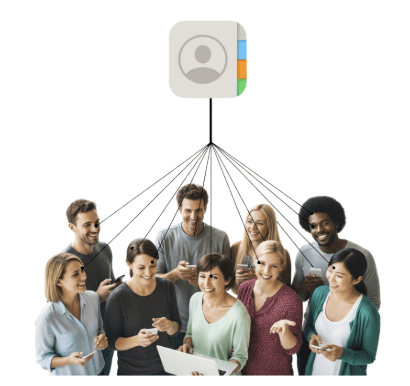
With a truly shared contact database, your team stays in sync. Everyone gets up-to-date information, and thanks to caller ID, they’ll always know who’s calling, even if the contact was added by someone else.
But it’s not just about sharing customer info. This app can also turn voice notes or business card photos into new contacts automatically.
It even syncs your Google Contacts and Google Workspace Directory straight to iPhones.
Give it a try and see for yourself.
Leave a comment :
No comments yet. Be the first!