How to automatically collect contact information from a voice call or a voice mail
This guide explains how to automatically collect contact information from live voice calls, voicemails, and emails. Using voice recording, AI transcription, and business card scanning, you can instantly create or update contact cards without taking manual notes. The result is a structured, always-updated contact database that captures every conversation detail.
Contact information can be captured automatically from live voice calls.
Voicemails can be transferred directly into structured contact records.
AI transcription converts speech into searchable contact data.
Business card scanning automatically fills contact fields.
Emails can be transformed into contact cards via Gmail add-ons.
Contact records remain continuously updated with conversation history.

Have you ever finished a great conversation, only to realize you forgot half the details later? Maybe you tried scribbling notes while talking or convinced yourself you’d remember everything. The truth is, when we split our attention, listening and writing at the same time, we tend to lose focus. Our brain can’t be 100% into the conversation, and valuable information just slips away.
That’s why recording the information right when it happens is the smartest way to ensure you never lose track. Whether it’s a live meeting, a phone call, or even a voicemail, there are simple methods to capture, store, and update everything directly into your contact card.
Let’s walk step by step through how you can do this.
If it’s a Live Conversation:
1.1 Record in a Contact Manager
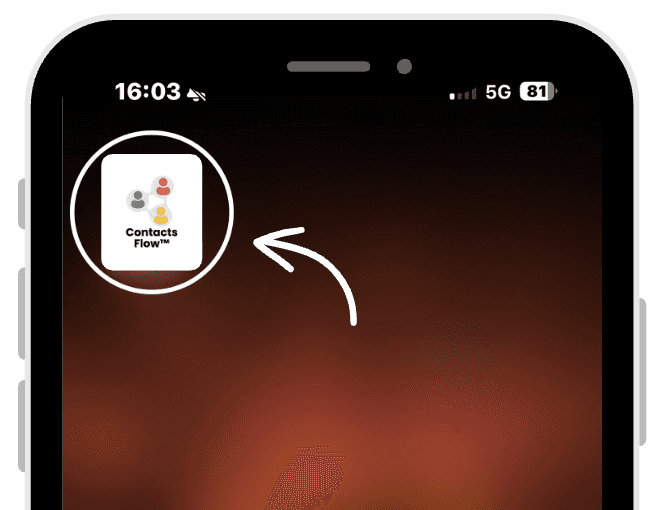
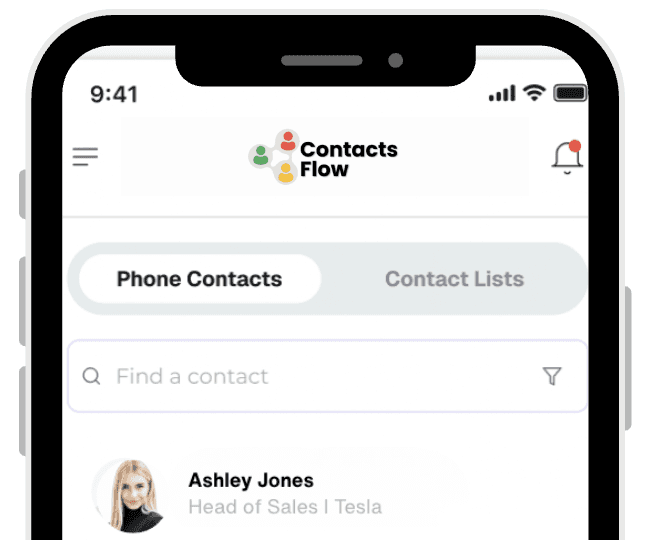
Preliminarily, make sure to open the application ContactsFlow™ and set up custom fields like “Buyers, New Customer, etc.
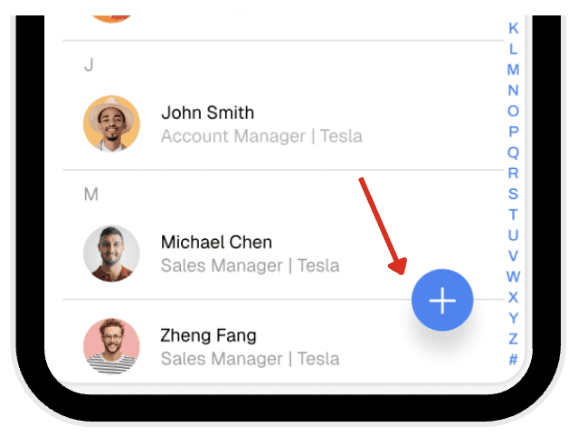
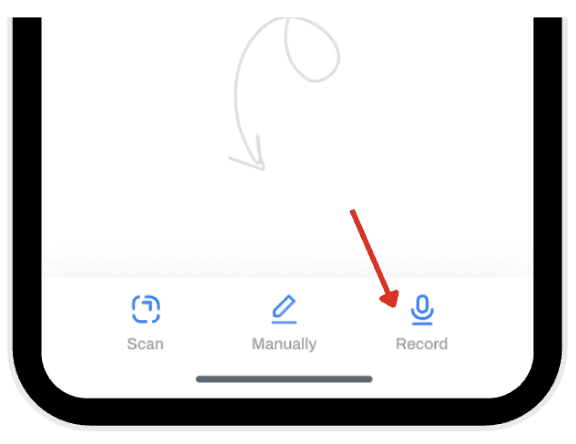
Tap record and press allow, to give the app permission to access your microphone.
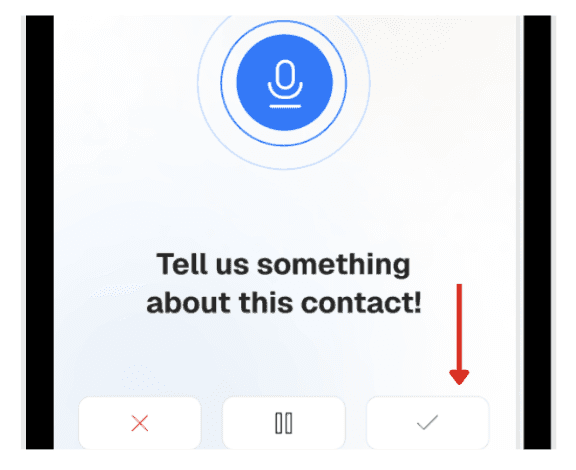
Record the conversation; the system converts your speech to text and click the tick icon to confirm.
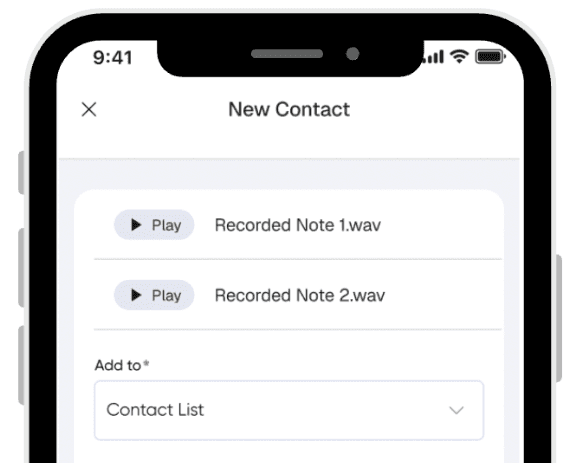
Your voice recording will appear. In the add to section select your preferred contact list.
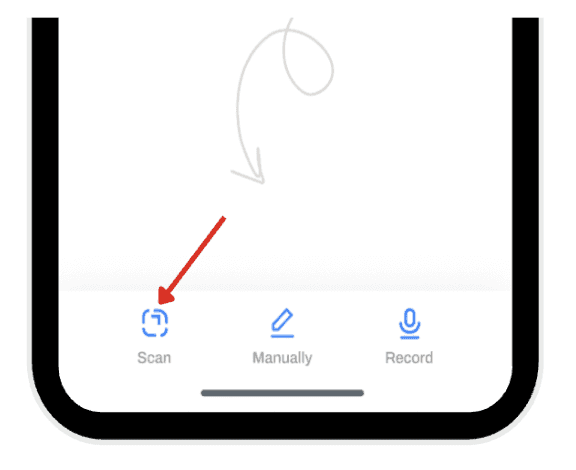
You can also scan a business card or brochure by pressing the scan icon.
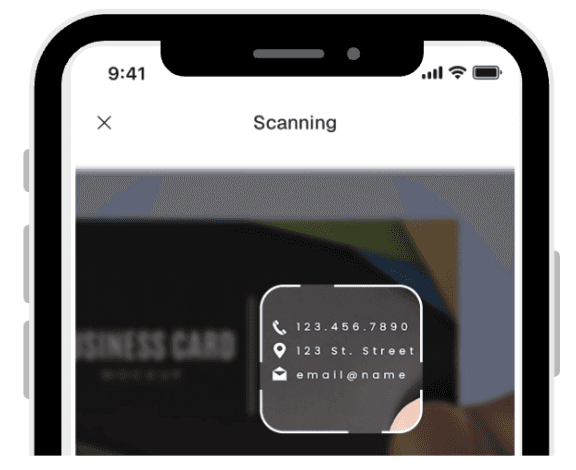
Upload or take a picture of the business card or image into the app. AI scans the card and auto-fills fields of the contact.
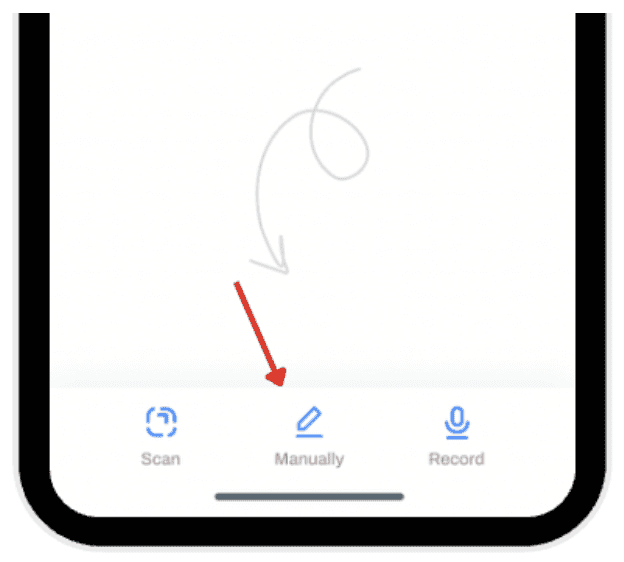
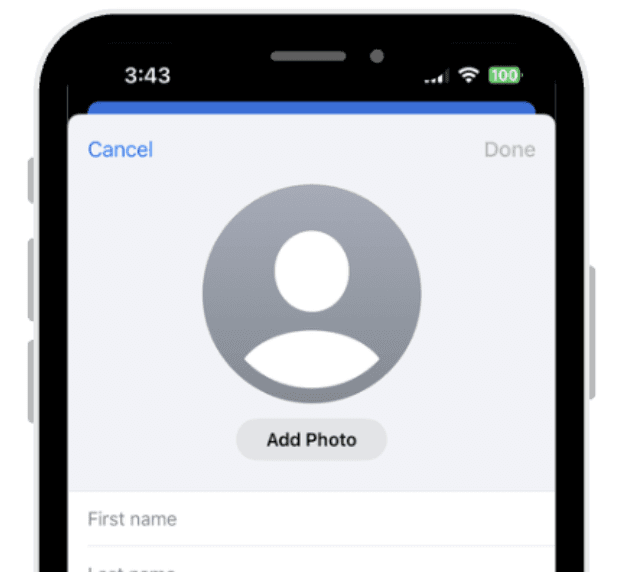
Or tap manually (pencil icon) at the bottom to write the contact information.
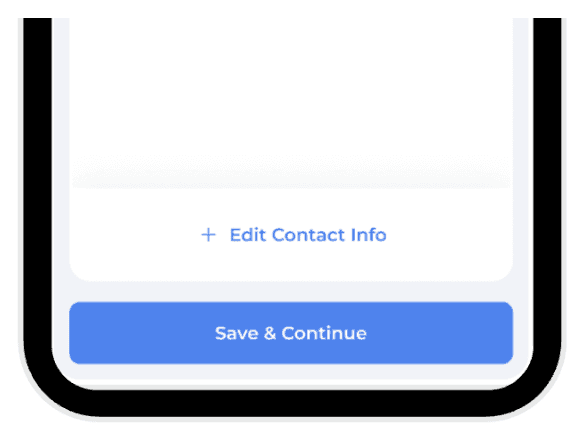
Press save and continue.
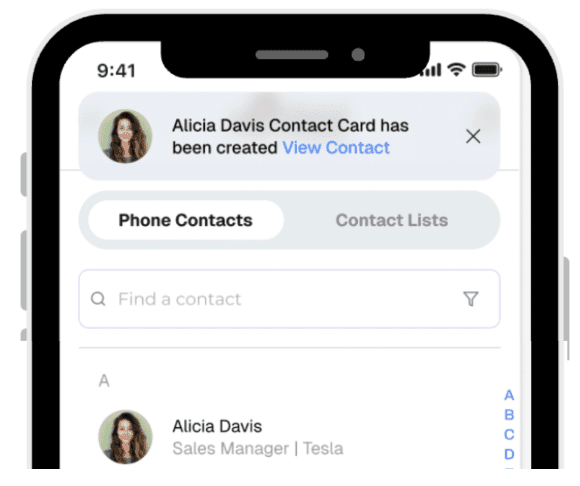
Your contact is now created.
 |  |
|
|
 |  |
|
|
 |  |
|
|
 |  |
|
|
 |  |
|
|
 |  |
|
|
1.2 Recording calls on your iPhone
Record the call, by using your iPhone’s built-in recording option.
After the call, open your recordings folder.
Select the recording and share, tap ContactsFlow™ app.
Select the right contact to add or update information. AI will automatically do the work.
2. If it’s a Voicemail you received:
Here’s the easy part: voicemails are already recorded. But the key is to move them into your contact system so they’re not scattered across your phone.
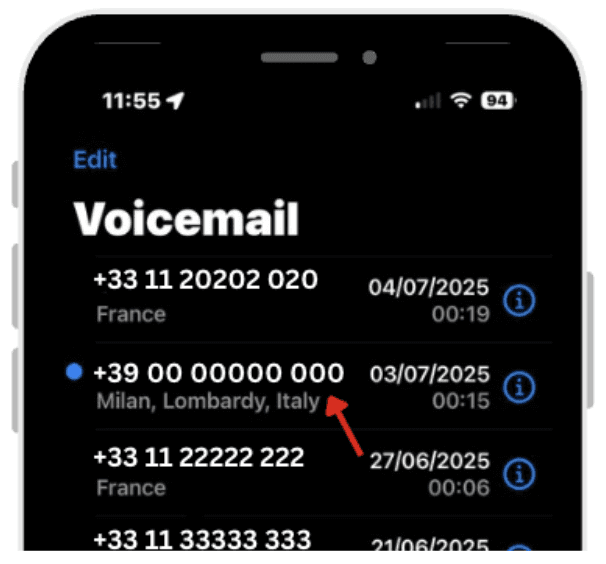
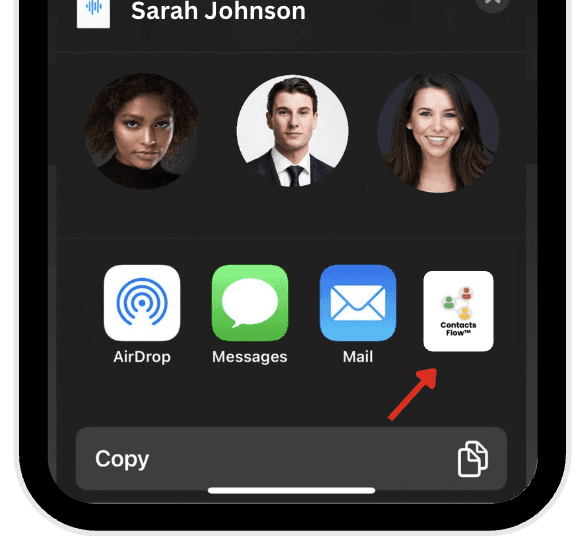
Open your voicemails on your iPhone.
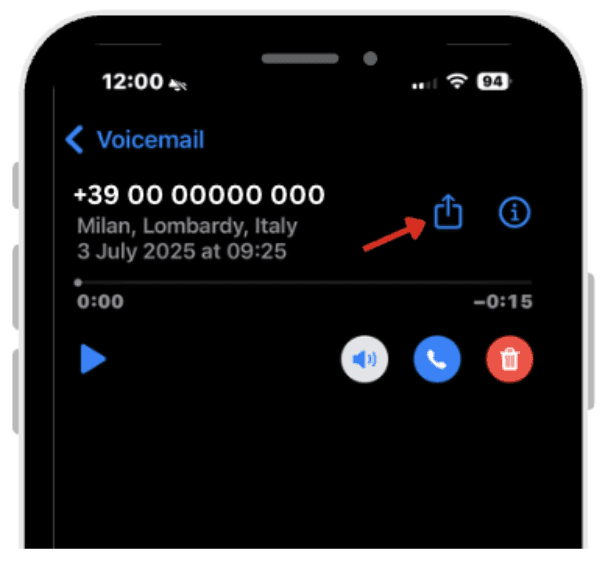
Click on the share icon.
Select Contacts Flow.
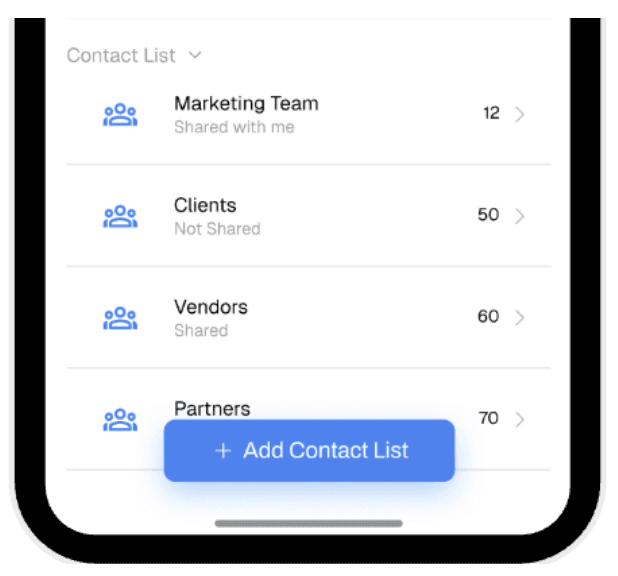
Select Contact list.
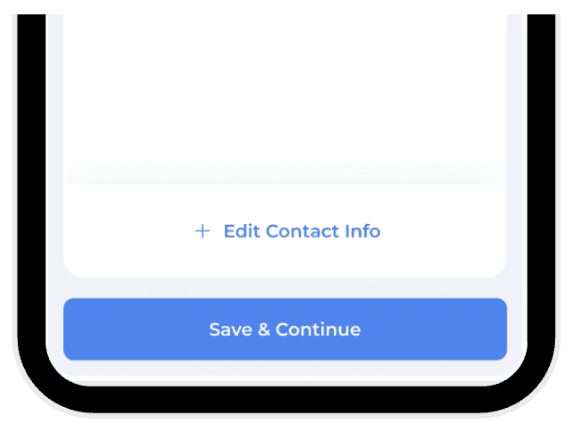
Press save and continue.
 |  |
|
|
 |  |
|
|
 | |
|
3. The End Result: Rich, Always-Updated Contact Cards
By following these methods, you ensure that:
Every contact card is rich and detailed.
Fields are always updated with the latest conversation, call, or voicemail.
Notes and comments are automatically added to summarize your communications.
You never waste time digging for lost details again.
Your contact database becomes a living history of your interactions, helping you build stronger and more organized relationships.
4. Bonus: Turn Emails into Contact Updates
Conversations don’t just happen in person or over the phone, they also land in your inbox. That’s where the AI Auto-Updater Gmail Add-on comes in handy.
With it, you can:
Convert an email into a contact card in one click.
AI Automatically extract names, emails, phone numbers, and other details.
Keep everything in sync with the same contact manager you use for calls and meetings.
To create a contact from an email:
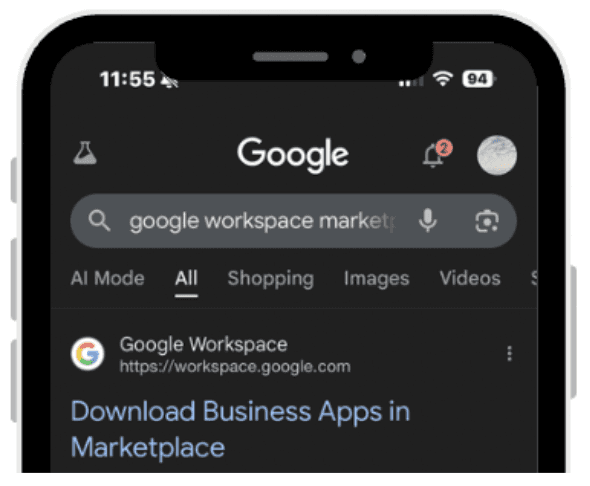
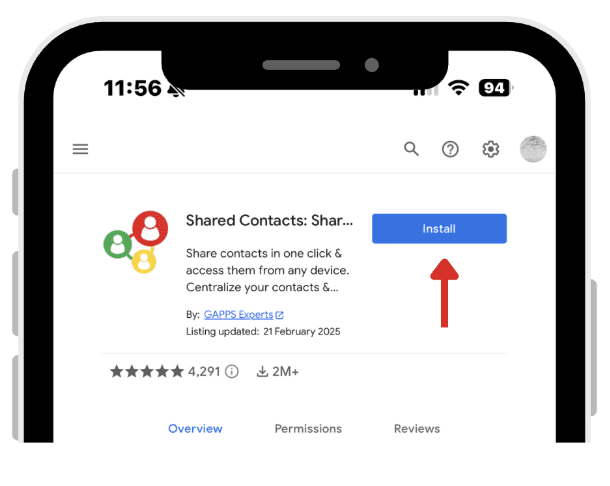
On your iPhone, open a browser and go to the Google Workspace Marketplace.
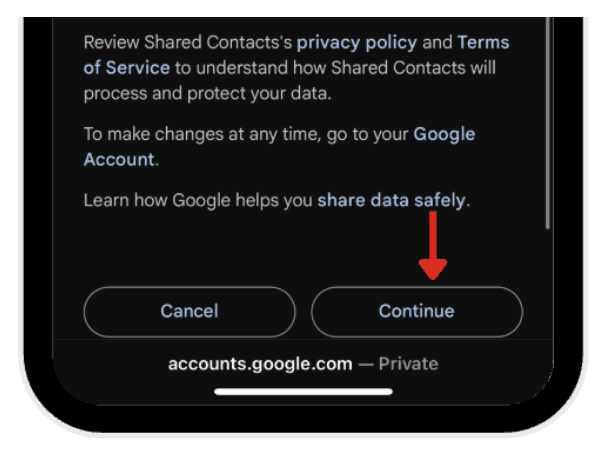
Once the installation is complete, you’ll be redirected to the Google sign-in page to grant AI Auto Updater for Shared Contacts permission to connect with your account. Click continue.
 |  |
| |
 | |
|
Once the application is installed and activated you:
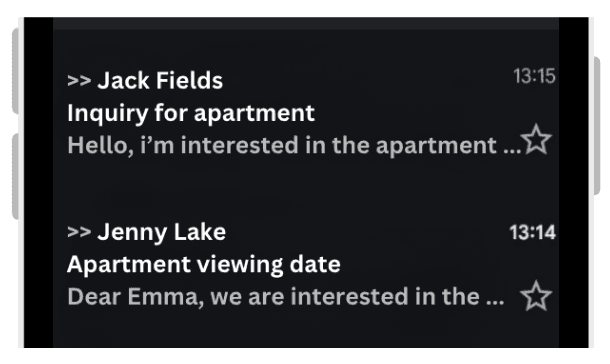
Open your Gmail account.
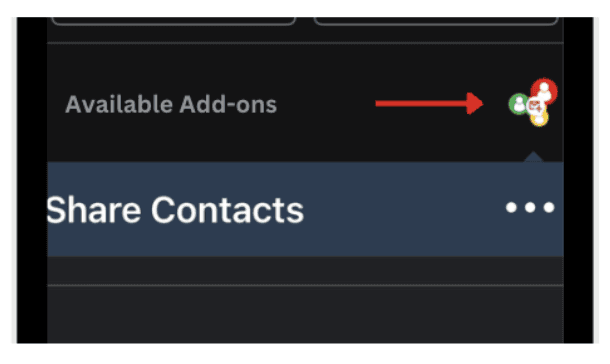
Open an email and scroll down to see available Add-ons. Tap the AI Auto Updater for Shared Contacts icon.
After tapping the icon, a contact card is created from the signature of the email. You’ll be able to see the sender’s contact details.
 |  |
|
|
 | |
|
This ensures your contacts are complete, up-to-date, and ready whenever you need them.
Staying fully present in a conversation is more valuable than trying to take notes or remember everything for later. By using simple methods like recording calls, saving voicemails, scanning business cards, or updating from emails, you can keep all your contacts organized without losing important details.
The result is a contact list that reflects your real interactions, complete with context and history. Instead of scattered notes or forgotten points, you’ll have a reliable record you can return to whenever you need it.
Leave a comment :
No comments yet. Be the first!