What to do if you lose your iPhone
Lost or stolen iPhone? This complete guide explains exactly what to do before and after your iPhone goes missing. Learn how to enable Find My iPhone, activate Lost Mode, secure your Apple ID, set up Stolen Device Protection (iOS 17.3+), and track your phone even when offline. You’ll also discover preventative security steps, lock screen protections, and smart habits to reduce theft risk and protect your data.
Enable Find My iPhone before it’s lost: Turn on Find My, Offline Finding, and Send Last Location to track your iPhone even when it’s powered off or out of battery.
Use Lost Mode immediately: Lock your iPhone remotely, display a custom message with a callback number, and prevent unauthorized access.
Secure your Apple ID fast: Change your Apple ID password, remove the stolen device from iCloud, and verify trusted phone numbers for two-factor authentication.
Enable Stolen Device Protection (iOS 17+): Adds an extra security delay and biometric verification for sensitive changes.
Strengthen lock screen security: Disable Control Center, Wallet, and accessories when locked. Use a strong passcode with Face ID or Touch ID.
Adopt daily anti-theft habits: Keep your phone in your front pocket, avoid open bag access, and never store credit cards or passwords in your phone case.

I live in Paris, and like many people here, I’ve gotten my iPhone stolen. Honestly, if you own an iPhone long enough in a big city, it almost feels inevitable. And it’s not just Paris. In London, for example, iPhones make up only about 45% of phones in use, yet they account for 80% of all devices stolen. Thieves know that iPhones are valuable, and they go after it.
That’s why it’s so important to think ahead, change a few habits, and know exactly what to do if the worst happens.
Precautionary Measures (Before Your iPhone Gets Stolen)
I get it, thinking about your iPhone getting stolen isn’t fun, but taking a few steps now can save you a lot of hassle in the future. It’s like putting on a seatbelt in your car, you hope you never need it, but if you get in a crash, you’ll be glad it’s there.
These precautions will help protect your data and accounts if the worst happens. Let’s go over some simple ways to make sure you’re covered, even if your phone goes missing.
1.1 Backup & access preparation
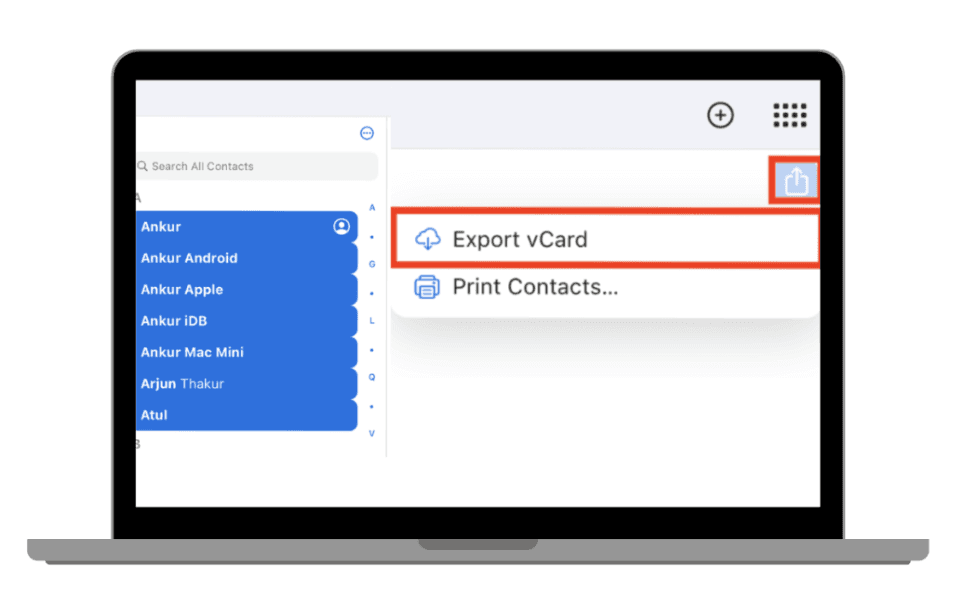
Export your contacts in case you lose access to iCloud
It's crucial to back up your contacts to avoid losing important information if you ever lose access to iCloud. You can do this by exporting your contacts, learn how to export your contacts here.
Generate recovery keys for your Apple ID
A recovery key is a lifesaver if you ever forget your Apple ID password or get locked out. It’s a simple step, but it makes all the difference when it comes to security. With a recovery key, you can quickly reset your Apple ID and skip the stress of trying to get back in. It’s like having a backup plan ready to go.
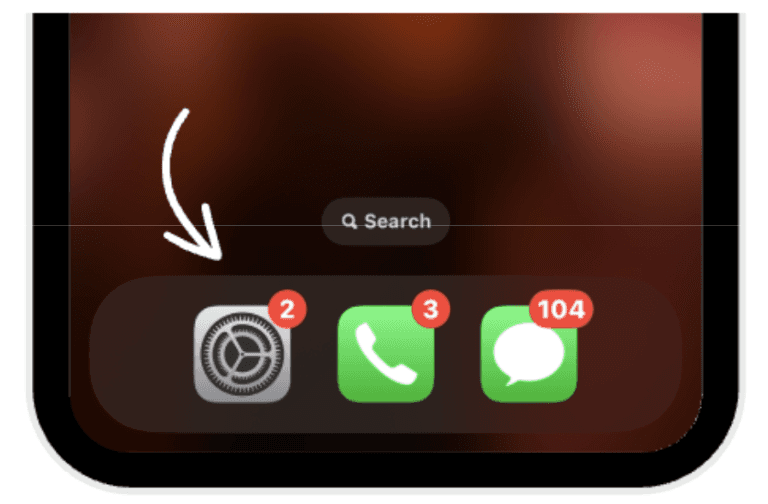
To generate recovery keys you:
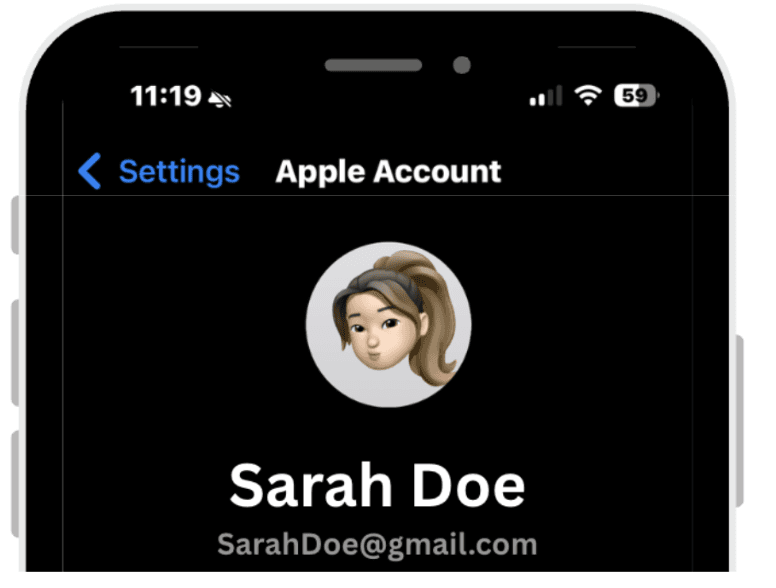
Open Settings on your iPhone.
Tap [Your Name] at the top.
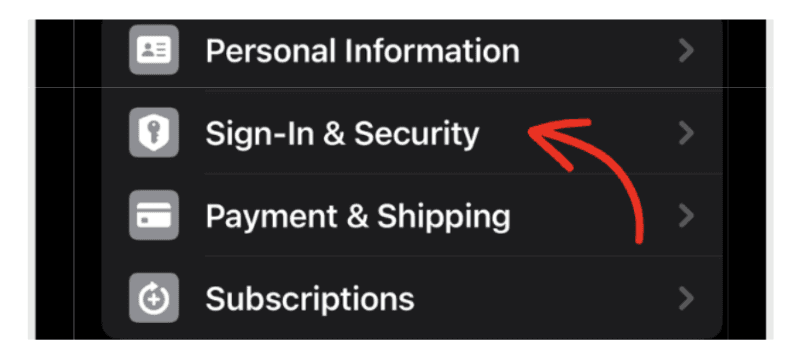
Go to Sign in & Security.
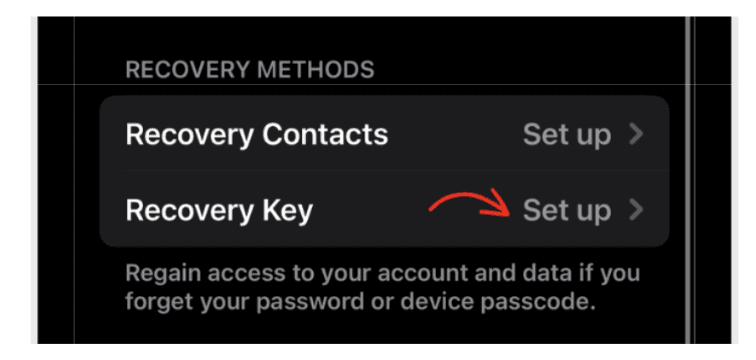
Tap Recovery Key.
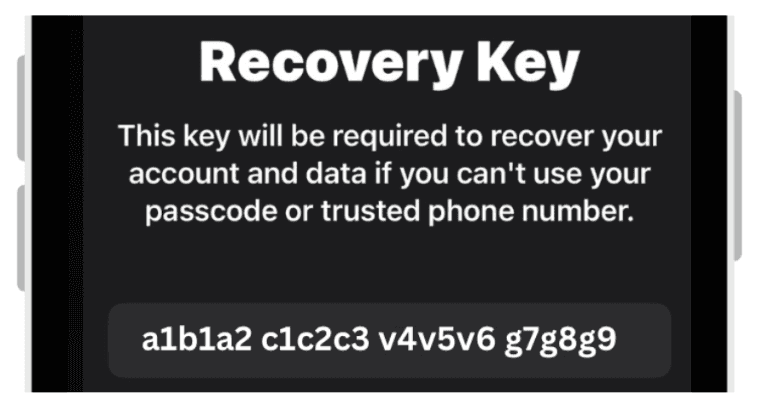
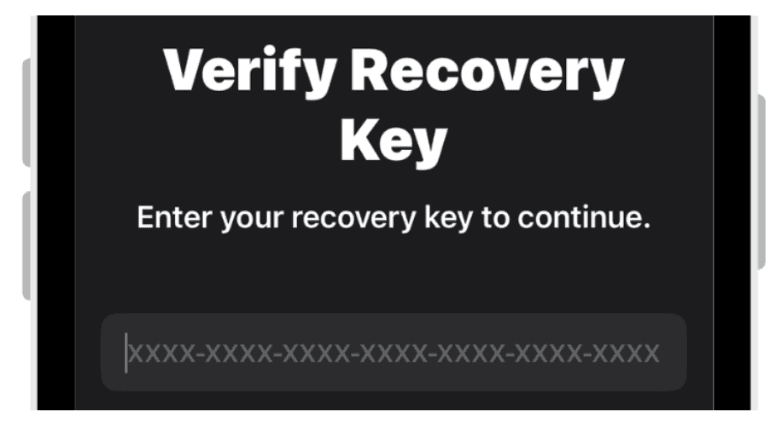
It will give you a combination of letters and numbers as the recovery key. Store it securely.
Confirm the key by entering it again, now your recovery keys are set up.
 |  |
|
|
 |  |
|
|
 |  |
|
|
Keep login/password and recovery keys in a safe place
Make sure to store your login details, passwords, and recovery keys somewhere safe, like in a physical journal or a locked drawer at home. If you’re into tech, a reliable password manager with strong encryption is a great option. Just don’t leave sensitive info in places that are too easy to access, like your phone’s notes app or sticky notes. You definitely want to keep that stuff protected!
Set trusted phone numbers and devices for Two Factor Authentication
If you lose your iPhone and need to access iCloud to find it or get your data, you'll need an authentication code. The problem is, that code is usually sent to your lost iPhone. Not helpful at all. If anything it just adds stress with the thought of your code being shown on your lost phone to thieves.
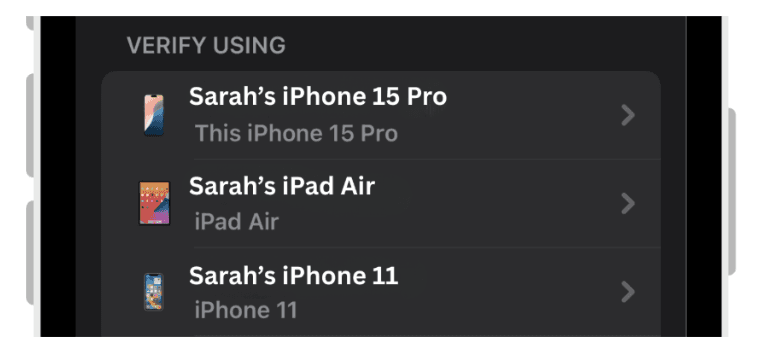
Here’s what you can do. If you have another Apple device, like an iPad, MacBook, or even your Apple Watch, the code can go there instead. But realistically you will probably not have any of those other devices with you outside of your home.
In this case I recommend setting a phone number from someone who is easily accessible to you and someone you trust. This could be your college roommate, your mom, or even your partner. That way, if you lose your iPhone, they can receive the authentication code for you and give it to you. It’s a quick fix that can save you a lot of trouble down the line.
To set up a trusted phone number or other devices for two factor authentication you have to:
Open Settings on your iPhone.
Tap [Your Name] at the top.
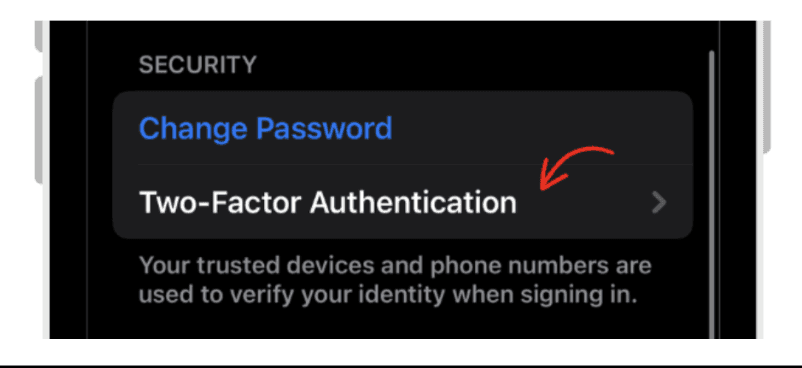
Go to Sign in & Security.
Tap Set Up Two-Factor Authentication and follow the instructions.
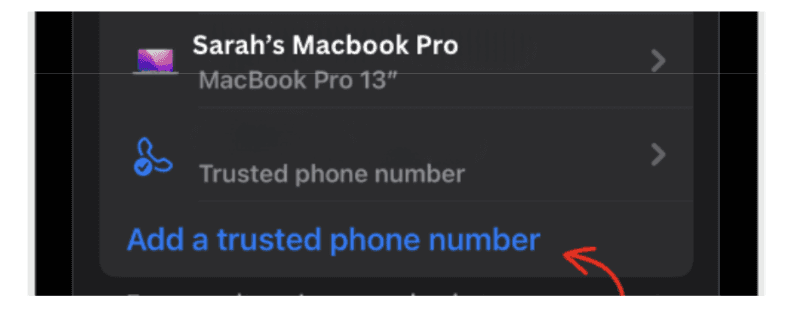
Tap Add Trusted Phone Number.
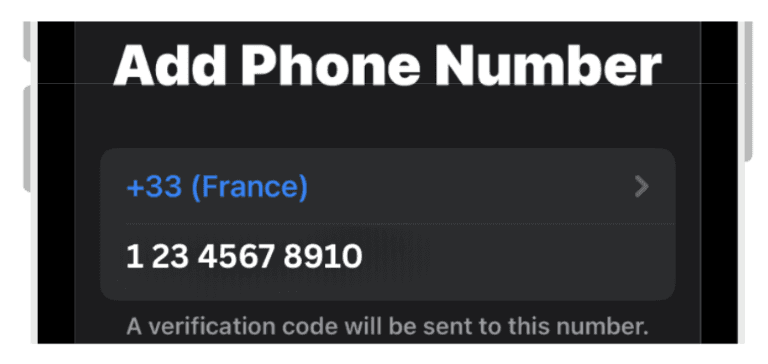
Enter your mom’s, friend’s or partner’s phone number for verification.
If you want to add one of your other devices, sign in with the same Apple ID on the devices, it will appear in a list.
| |
|
|
|  |
|
|
 |  |
|
|
 | |
|
Take out insurance for your iPhone
Getting insurance for your iPhone can be a practical way to protect it against accidents, theft, or damage. AppleCare+ is the most common option, but there are also third-party plans that provide similar coverage.
It’s worth comparing the details of each plan and reading the terms carefully so you understand what’s included. That way, you can choose the coverage that best matches your needs.
1.2 Everyday habits & awareness
Even though I said losing your phone or getting it stolen is inevitable, you could totally prevent it by a whole lot if you are more cautious.
Don’t sit next to suspicious people
Stay alert in public spaces. Avoid sitting too close to anyone who seems to be observing your phone or belongings. Trust your instincts!
Avoid leaving your phone on tables, front zips of backpacks
It’s tempting, but leaving your phone unattended is a red flag for pickpockets. Keep it in a more secure place, like your pocket or bag.
Best carrying option: front pocket close to your hands
The front pocket is the safest place for your phone. It’s easily accessible to you and harder for thieves to grab without you noticing.
For women’s smaller pockets: use a lanyard around hand or neck
If your pockets are too small to safely carry your phone, attach a lanyard around your hand or neck. It keeps your phone close and easy to grab.
Always keep bags closed if the phone is inside
If your phone is in your bag, make sure it’s zipped or securely closed. It’s an easy way to prevent opportunistic theft.
Don’t put your credit cards, IDs, or written password in the phone case
Avoid keeping sensitive information in the same place as your phone or in the back of your phone case. If you lose it, you’ll lose everything. Remember to keep cards and passwords separate.
Don’t use your iPhone next to an open window in your car
Never use your phone near an open car window. Thieves can grab it from the outside while you’re distracted.
Each of these habits is a simple but effective way to protect your phone and data while on the go. If you stay aware and stay safe, you save your money and data.
1.3 Smart Apple features to enable
These are some handy features Apple offers to help if your iPhone ever gets lost, stolen, or even forgotten. The features can work even if your phone’s battery dies or it’s not connected to the internet.
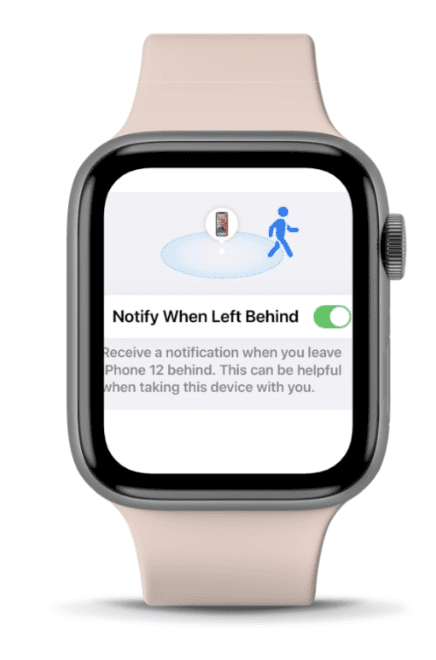
Apple Watch “Notify When Left Behind”
Enable this feature to get a notification when you accidentally leave your iPhone behind. It’s a useful reminder, especially if you are in crowded places like cafes or airports.
Turn your location services ON
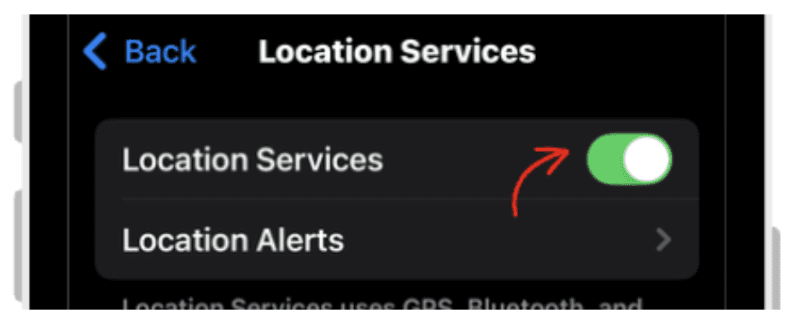
Turn on your Location Services to ensure your iPhone can be located if it’s lost. It’s crucial for tracking and finding your device quickly.
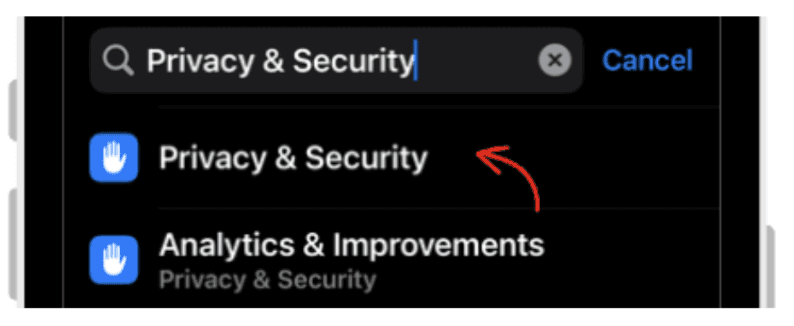
You just simply need to:
Go to settings and tap Privacy & Location.
Turn Location Services toggle ON.
 |  |
|
|
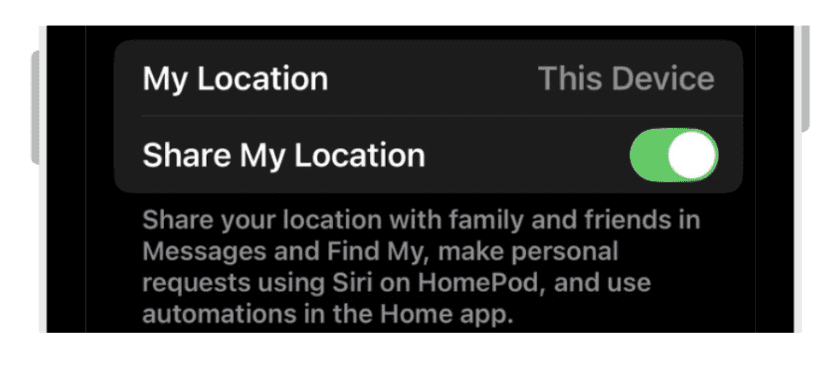
Share My Location: Toggle ON
Make sure Share My Location is turned on to share your whereabouts with your best friends or family. It’s helpful for both safety and finding your device if needed.
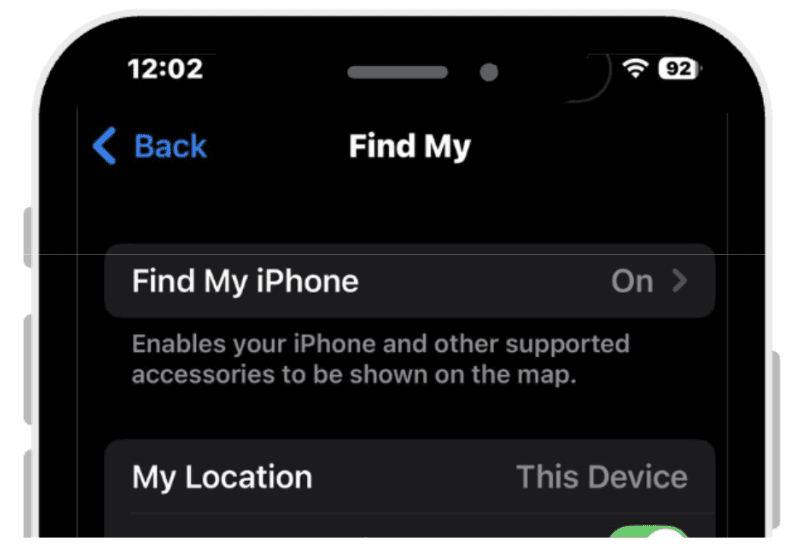
Find My iPhone: Ensure its turned ON
Enable all options in Find My iPhone to maximize tracking capabilities. This will allow you to lock, track, or remotely erase your device if it’s lost or stolen.
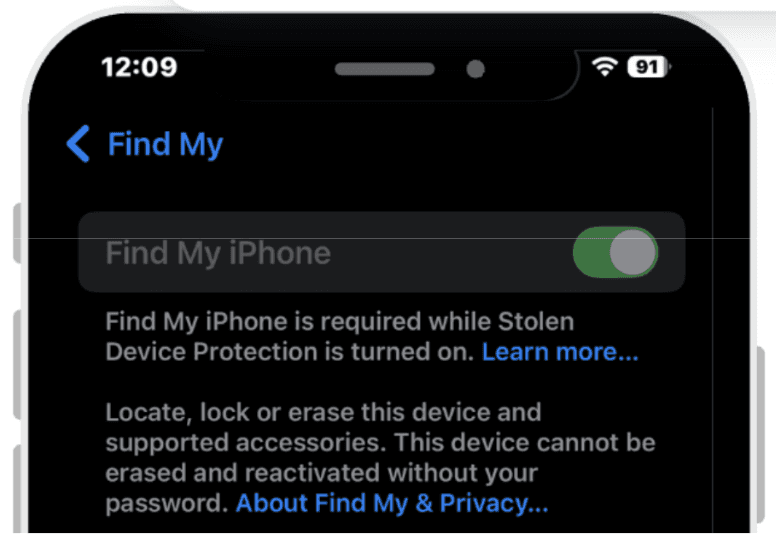
Enable iPhone Tracking When Offline and When Battery Is Low
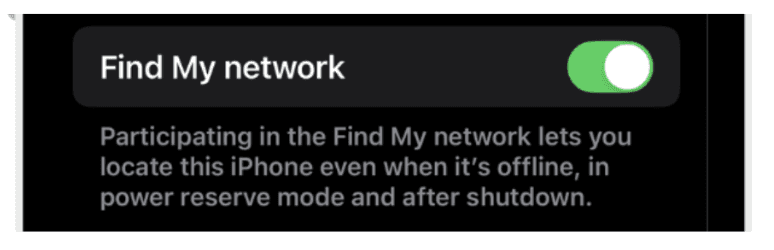
For newer iPhones, make sure to enable Find My even after your phone is powered off or has a low battery. This way, even if your phone is turned off, it can still be tracked, making it way easier to recover if it’s lost or stolen.
To enable iPhone tracking when your phone is offline and when battery is low:
Open Settings.
Tap [Your Name] at the top to access Apple ID settings.
Go to Find My.
Tap Find My iPhone and turn on the toggle if it’s not enabled.
Enable Offline Finding to track your phone even when it's powered off.
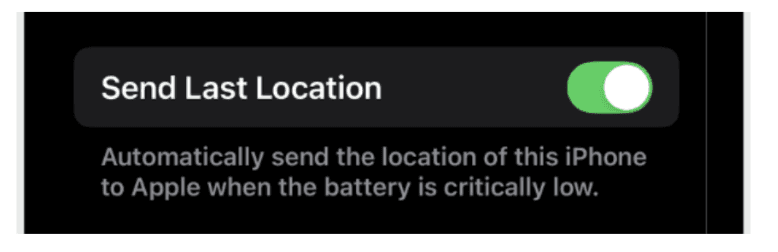
Turn on Send Last Location to send your device's last known location when the battery is low.
| |
|
|
|  |
|
|
 |  |
|
|
How to Prevent Your iPhone From Being Stolen
2.1 Understand thief tactics
Thieves are getting more creative and smarter by the day, so understanding their tricks can help you stay one step ahead and keep your phone safe.
Thieves may try to:
Activate Airplane Mode to block tracking
They might quickly switch your phone to Airplane Mode to stop tracking and location services, making it harder to find.
Turn the phone off
Turning the phone off disables tracking and any active security features, giving the thief more time before you can react.
Reboot via computer
Some thieves might connect your phone to a computer to restart it, bypassing security measures and gaining access to your device.
Pay with Wallet if passcode protection is weak
If your passcode is easy to guess, thieves can use Apple Pay or Wallet to make unauthorized payments. Always use a strong passcode.
FYI: 0000 is not a strong passcode, don't be that person.
2.2 Strengthen lock screen protections
Taking a few extra steps to lock down your screen can make it way harder for thieves to pass through your phone’s security. It’s like adding an extra lock to your door, it just makes things a lot tougher for anyone trying to get in.
You can strengthen your iPhone protection from your lock screen by:
Restricting Access to Protect Your iPhone's Lock Screen
Restricting access to features like Wallet, Notifications, and Control Center on your lock screen helps protect your iPhone from unauthorized use. That means that when your iPhone screen is locked, thieves will not be able to access these features.
To restrict access to Protect Your iPhone's Lock Screen:
Open Settings.
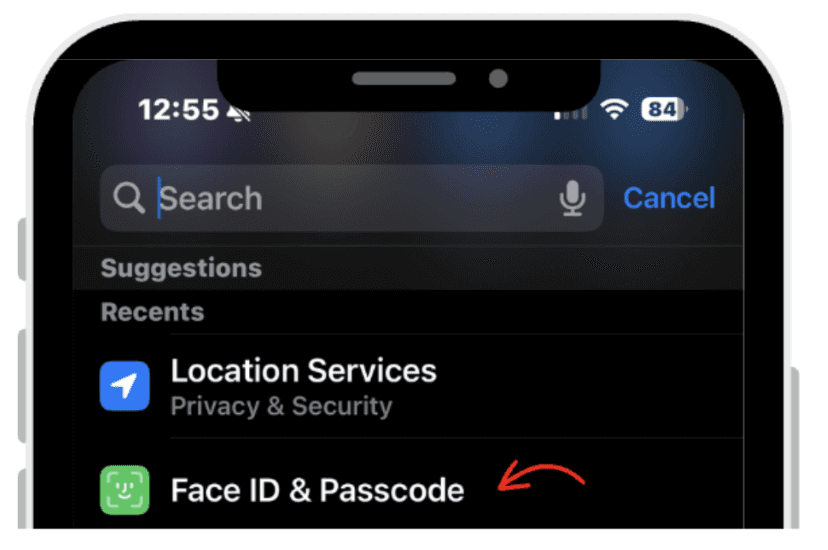
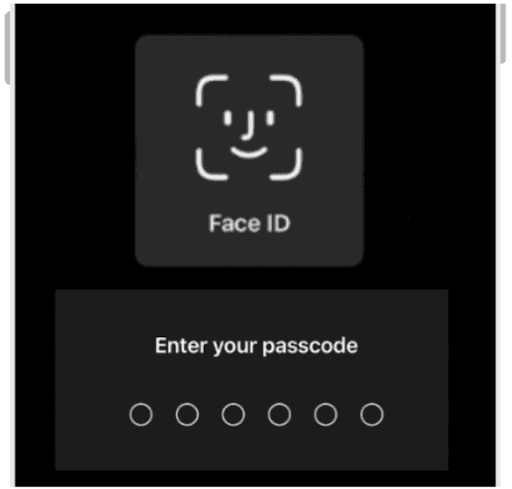
Tap Face ID & Passcode.
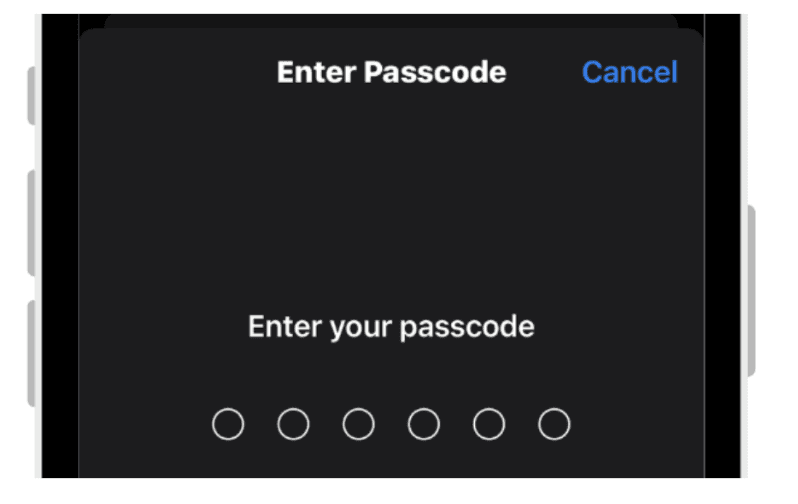
Enter your passcode.
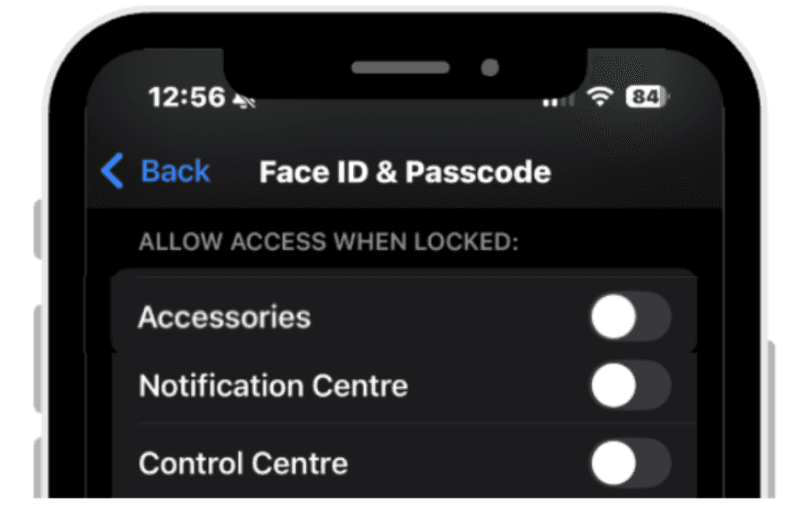
Under Allow Access When Locked, toggle off Accessories, Notifications, and Control Center to prevent access from the lock screen.
|  |
|
|
 |  |
|
|
Use a strong passcode + Face ID/Touch ID
Always use a strong passcode (I would suggest 6 digits or more) combined with Face ID or Touch ID for additional protection. This adds an extra layer of security that’s hard to bypass.
For iOS 17.3 and later: enable Stolen Device Protection
Stolen Device Protection is like an extra lock on your iPhone. Once it's turned on, it makes it way harder for anyone to unlock or use your phone if it’s reported as stolen.
Even if a thief manages to reset it, they won’t be able to get past this added layer of security. It's a simple way to make sure your data stays safe and your device is a lot tougher to crack.
To enable stolen device protection:
Open Settings.
Tap [Your Name] at the top of the screen.
Tap Face ID & Passcode.
Turn on Stolen Device Protection.
What to Do Immediately After Your iPhone Gets Stolen
Losing your iPhone can feel like a nightmare, but taking the right steps right away can really make a difference. In this section, I’ll walk you through the essential actions to track your device, lock down your accounts, and keep your personal data safe. The faster you act, the better your chances of getting your phone back and protecting your info.
3.1 First steps
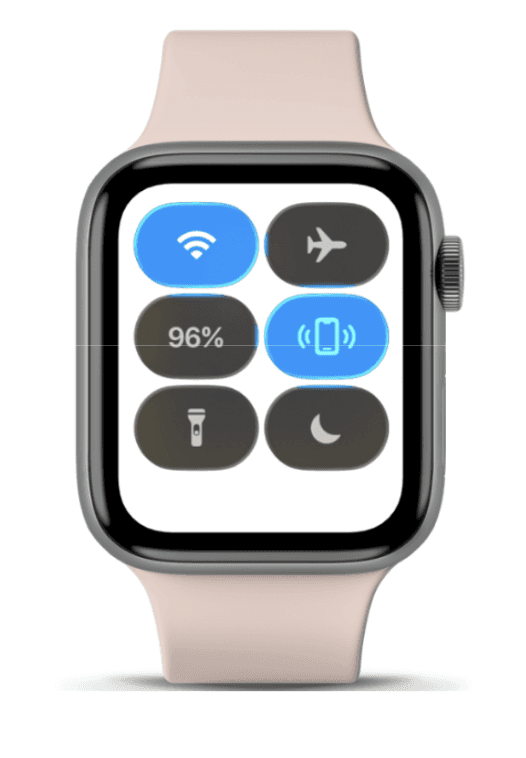
Try to locate it with Apple Watch ping feature
If your iPhone is nearby and you happen to be wearing your Apple Watch, use the Ping feature to make your phone play a sound, helping you track it down quickly.
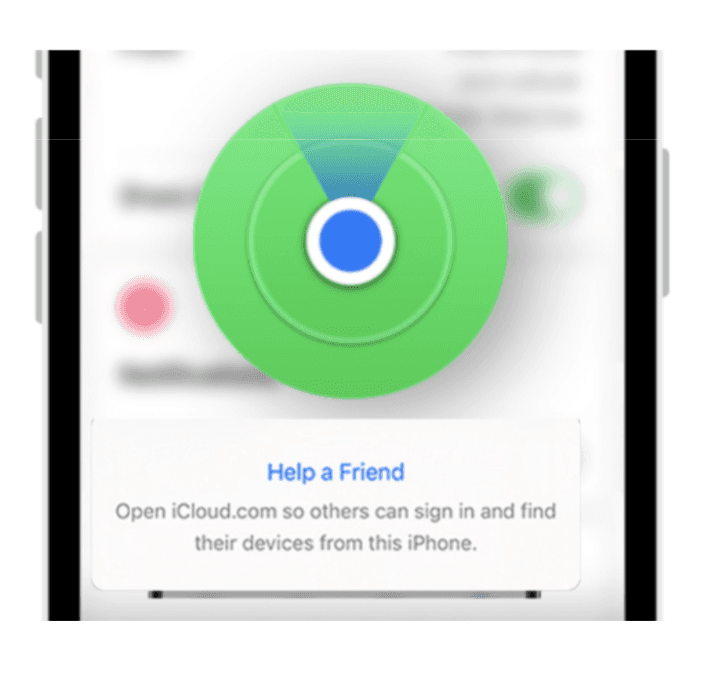
Use Find My iPhone (on another device or via Help a Friend)
Use Find My iPhone from another Apple device such as your mom’s phone or through the Help a Friend feature to locate your device, even if your lost iPhone is offline. This will show you its last known location and allow you to take further action.
3.2 If you cannot log in normally because of Two Factor Authentication
If you’re locked out because of Two-Factor Authentication, don’t panic! It happens. I’ll help you with the steps you can follow in this next section to help you out.
In Find My > Lost Devices section:
If you can’t log into Find My iPhone due to Two-Factor Authentication, go to the Lost Devices section to manage your device.
Steps to Manage Your Device in the Lost Devices Section:
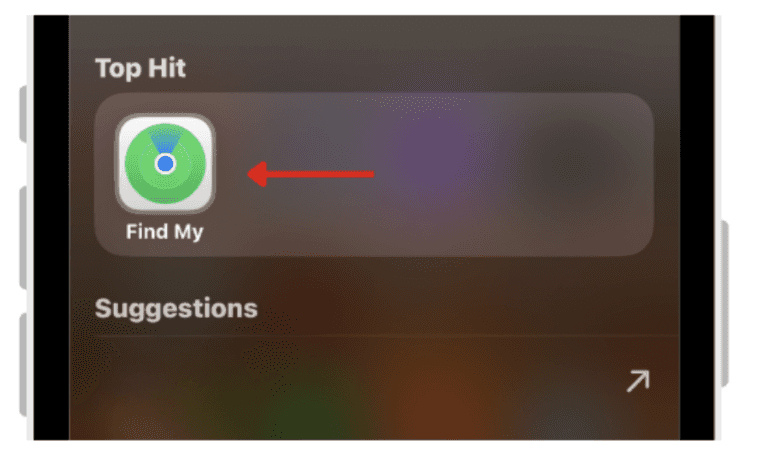
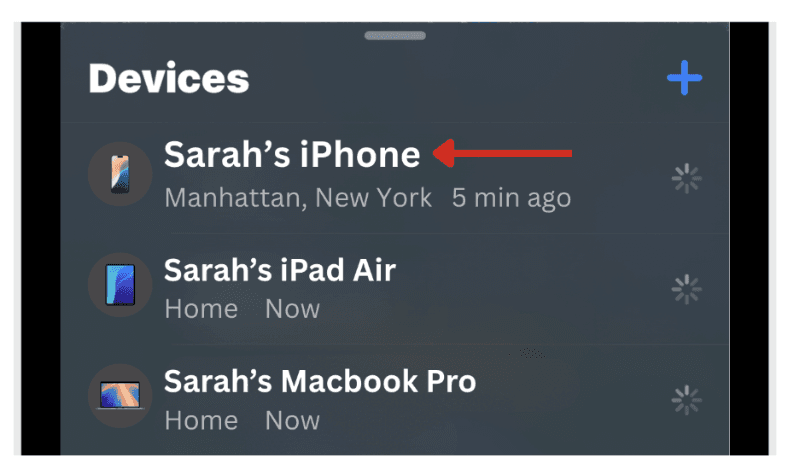
Open Find My on one of your other devices.
Or go to iCloud.com if you are on someone else’s device.
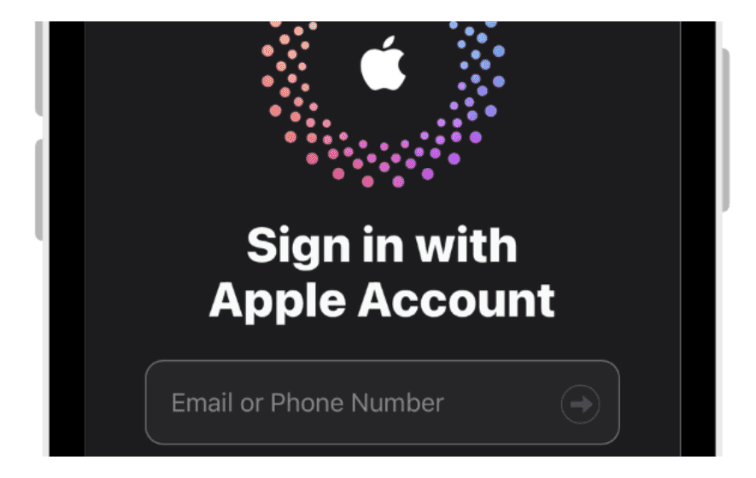
Log in with your Apple ID.
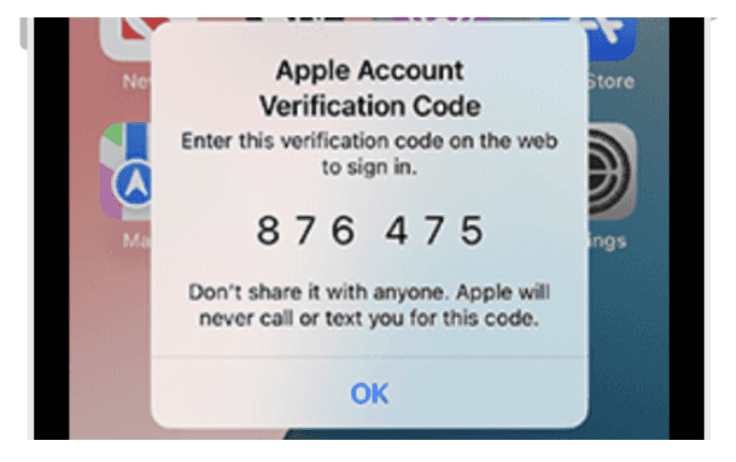
If you can’t log in due to Two-Factor Authentication, you will need to use another device with your Apple ID to get the verification code, or ask a friend or a family member to receive the authentication code for you.
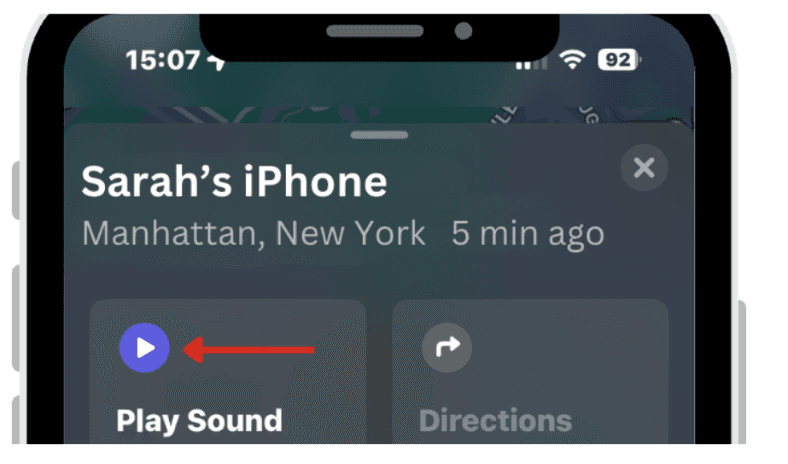
Select the device you want to manage.
From here, you can play a sound.
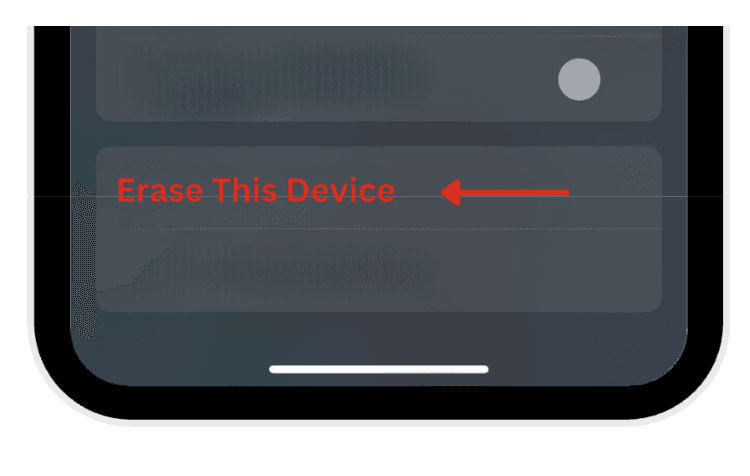
Erase this device.
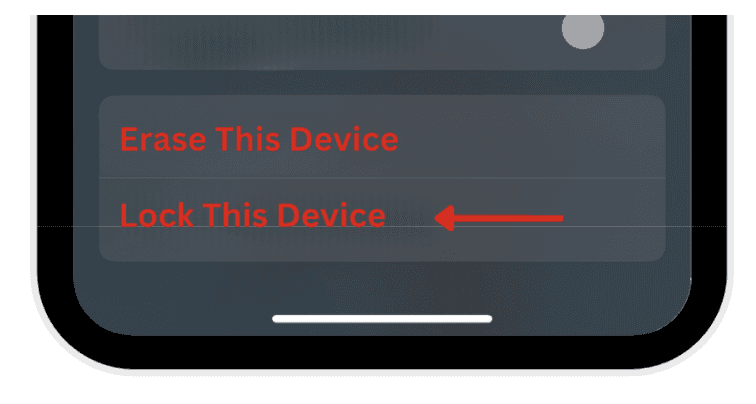
Or lock your phone.
 |  |
|
|
 |  |
|
|
 |  |
|
|
 |  |
|
|
2. Play a sound
Use the Play Sound option to make your phone emit a sound, helping you locate it if it’s nearby.
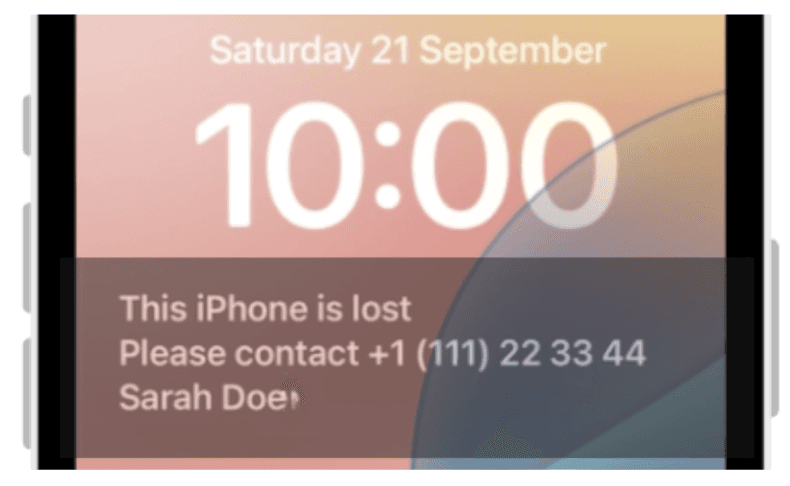
Write a custom message with callback number
Display a custom message with a phone number on your lock screen, so someone who finds your phone can reach you directly.
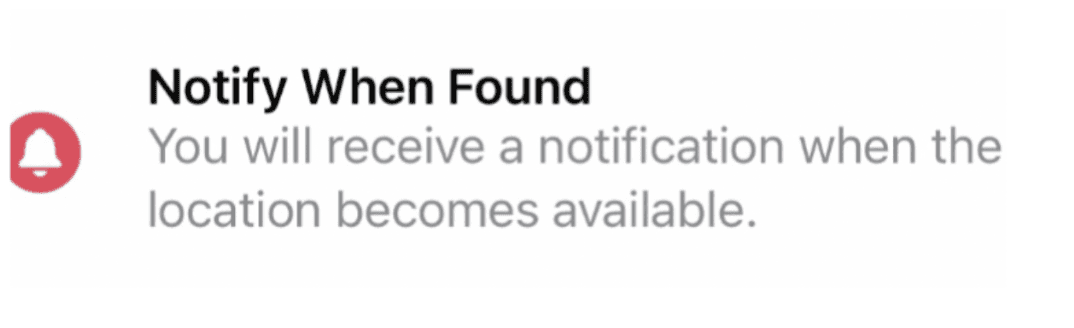
Enable “Notify When Found” to get alerts when the phone comes online
If your phone is offline, enable Notify When Found. You’ll receive an alert as soon as your phone connects to the internet, helping you track it down when it’s back online.
3.3 Secure your accounts & data
Securing your accounts and data is crucial. This prevents anyone from accessing your accounts and services without permission.
Change your iCloud/Apple ID password immediately
The first thing you should do is change your iCloud/Apple ID password to prevent unauthorized access to your accounts and services.
To do this you need to:
Go to Settings on another apple device you have.
Tap [Your Name] at the top.
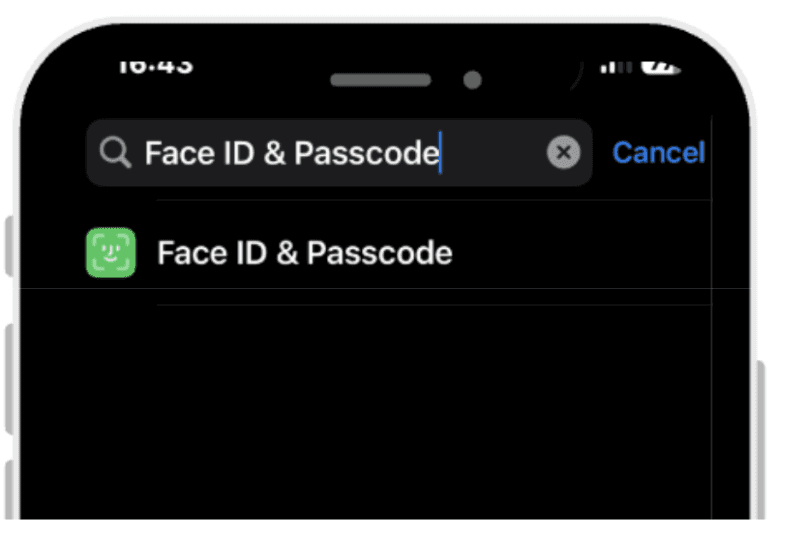
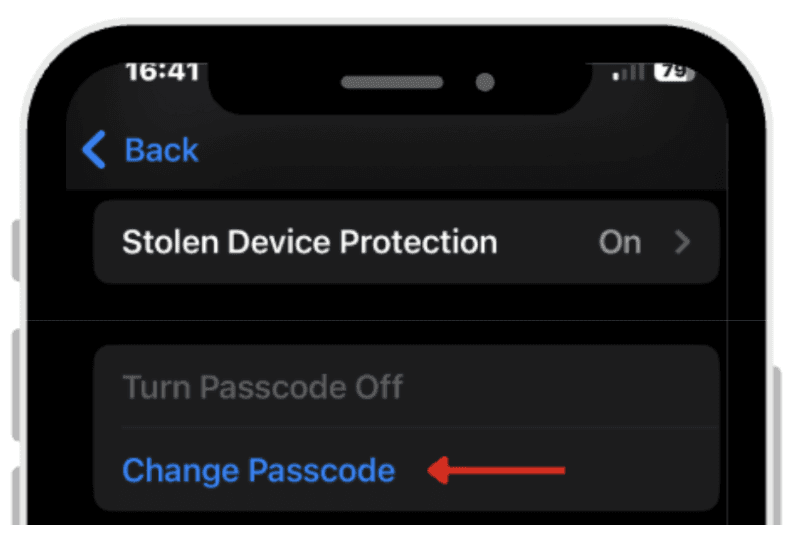
Tap Face ID & Passcode.
Scroll and click Change Passcode. Follow the prompts to create a new password, securing your account from unauthorized access.
| |
|
|
 |  |
|
|
Log out the stolen device from iCloud
Next, I suggest you go to iCloud.com or the Find My app on another device and log out the stolen device from your iCloud account, disconnecting it from your account.
To log out:
Go to Find My.
Or open iCloud.com on another device.
Log in with your Apple ID.
Select the stolen device from Find My iPhone.
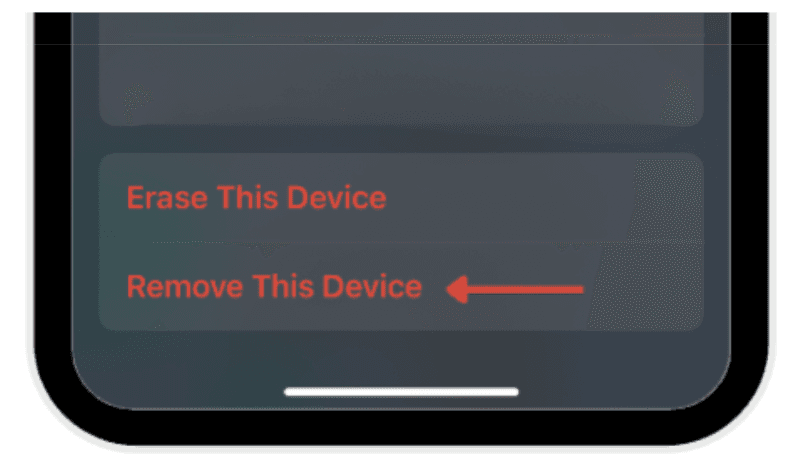
Tap Remove this device to log out the stolen device and disconnect it from your iCloud account.
| |
|
|
| |
|
|
 | |
|
Lock the phone remotely through iCloud (Lost Mode with message + phone number)
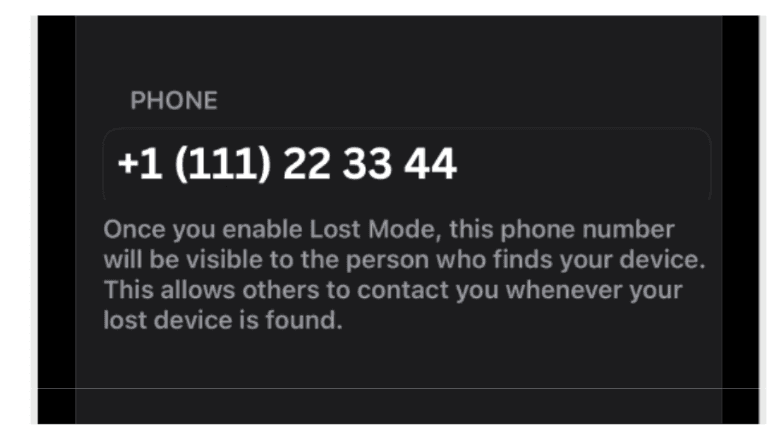
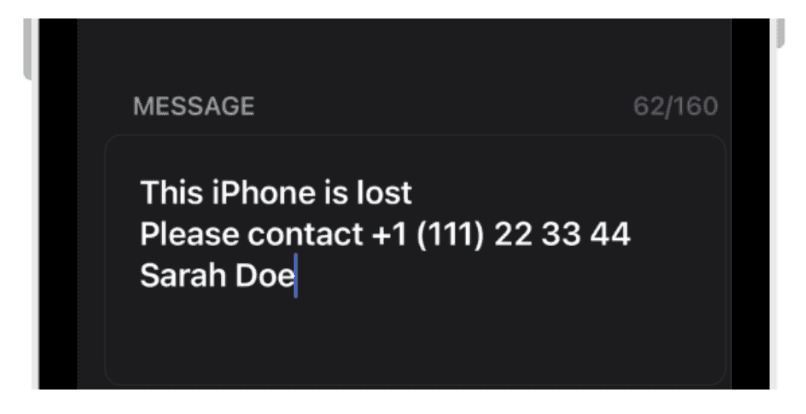
One feature I found especially helpful when I lost my iPhone was the Lost Mode feature through Find My iPhone, it remotely locks your iPhone. You can also display a custom message with a phone number on the lock screen, offering a way for anyone who finds it to contact you.
To activate the Lost mode feature you:
Go to Find My.
Or open iCloud.com on another device.
Log in with your Apple ID.
Select the lost device in Find My iPhone.
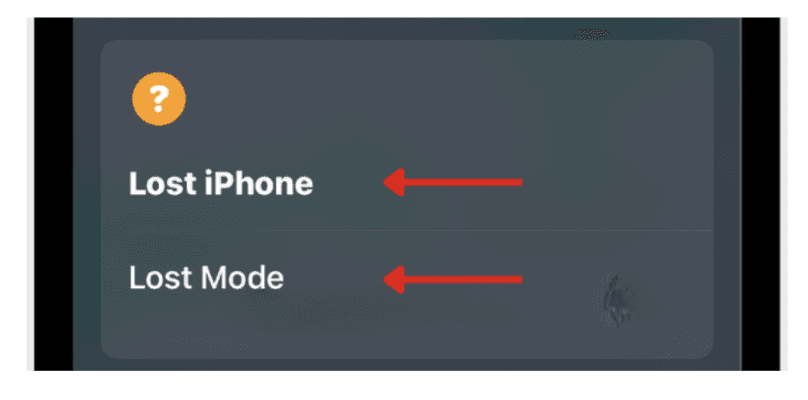
Tap Lost Mode or Mark As Lost in the app.
Enter a phone number.
And a custom message.
Tap Done to activate Lost Mode, locking your phone and displaying the message on the lock screen.
| |
|
|
| |
|
|
 |  |
|
|
 | |
|
|
3.4 Practical offline steps
When I got my iPhone stolen, the first thing I did was call my number. Sometimes, if you’re lucky, an honest finder will pick up. Unfortunately this was not the case for me.
I’d also check nearby shops or cafes, contact Lost & Found at the airport if needed, and, if possible, try to return to the plane or area where you last had it.
I listed some things you should do right after you realize you lost your iPhone.
Call your phone number immediately
Sometimes honest finders will pick up ( if you’re lucky). Calling your number is a simple first step in case someone has found your phone.
Ask nearby shops if they found it
Check with local shops, cafes, or businesses nearby where you lost your iPhone, as people who find lost phones often turn them in to the nearest establishment.
Contact the Lost & Found of the airport if lost while traveling
If you lost your phone at the airport, reach out to Lost & Found immediately. Airports have dedicated teams to handle lost items.
If still in the airport security area, request to return to the plane
If you're still within airport security, ask to return to your plane’s area. You may be able to retrieve your phone if it's been left behind on the plane or in the security area.
Conclusion
Losing your iPhone can feel like a nightmare, but with the right steps, you can quickly regain control and protect your data. From tracking your device using Find My iPhone to securing your accounts, every move you make in those critical first moments matters.
The key is to stay calm, act fast, and follow the steps outlined here to increase your chances of recovery and keep your personal information safe.
Remember, the sooner you act, the safer your data will be!
Leave a comment :
No comments yet. Be the first!