How to sync Google Contacts labels on my iPhone?
Managing contacts across devices can be challenging when using Google Contacts with an iPhone. While contacts may be organized into labels like Clients or Teams on desktop, the iPhone Contacts app does not support these labels and shows all contacts in one list. This makes navigation less efficient. Solutions like ContactsFlow™ allow users to access and manage Google labels on iPhone with real-time sync and sharing.
iPhone does not support Google Contacts labels as lists:
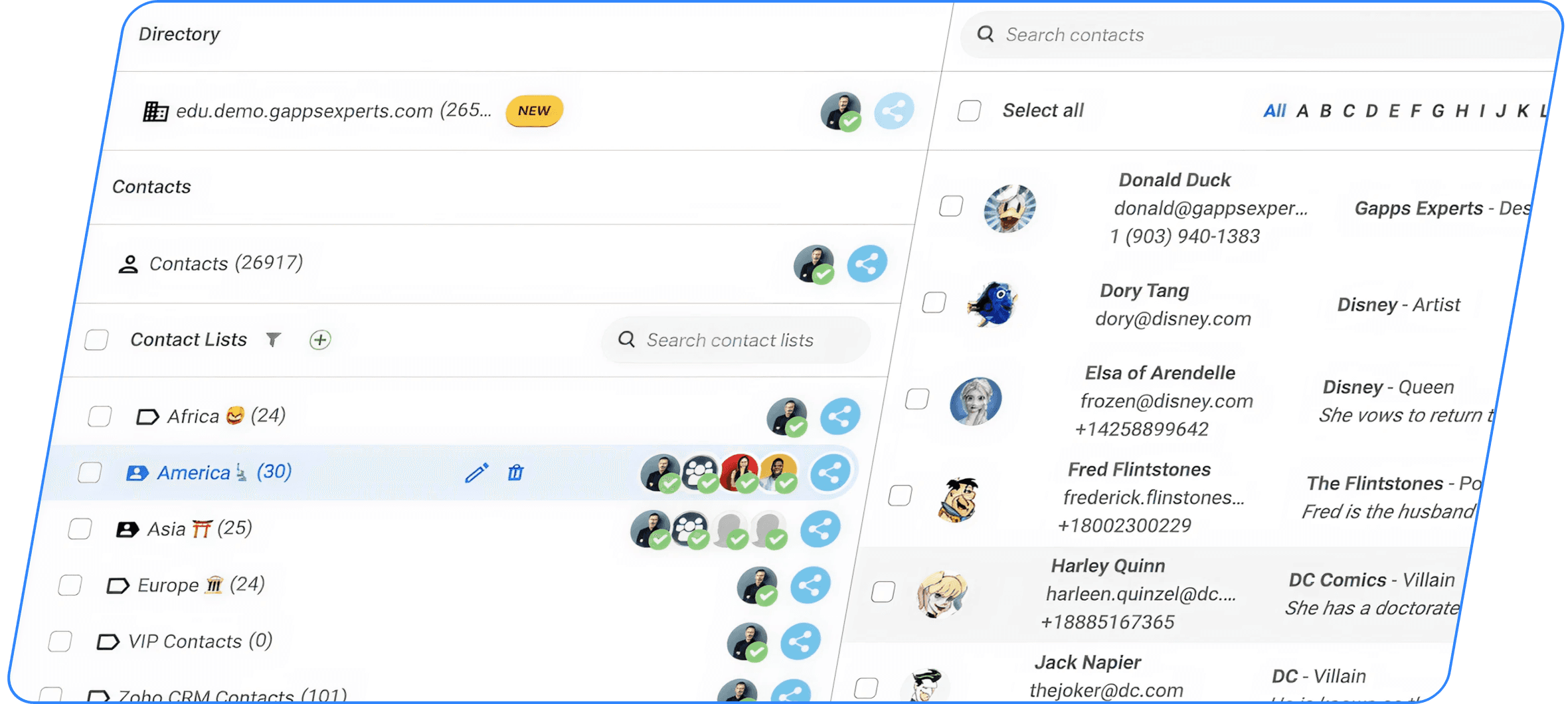
All your organized labels are merged into one general contact list, making navigation harder.ContactsFlow™ restores label-based organization on iPhone:
It displays your Google labels as structured lists, just like on desktop.Call, email, or message contacts directly from labels:
You can instantly contact people within a specific group without searching through all contacts.Add contacts via typing, voice dictation, or scanning:
Multiple input methods make it faster and easier to create new contacts.AI extracts contact details from photos, cards, or audio:
The system automatically converts raw information into complete contact entries.Changes sync in real time across devices:
Any update made is reflected immediately on both Google and your iPhone.Share labels with teams using view or edit permissions:
You can collaborate by giving others access to the same contact lists.Prevent duplicate and inconsistent contact data:
A shared and centralized system keeps contact information clean and consistent.
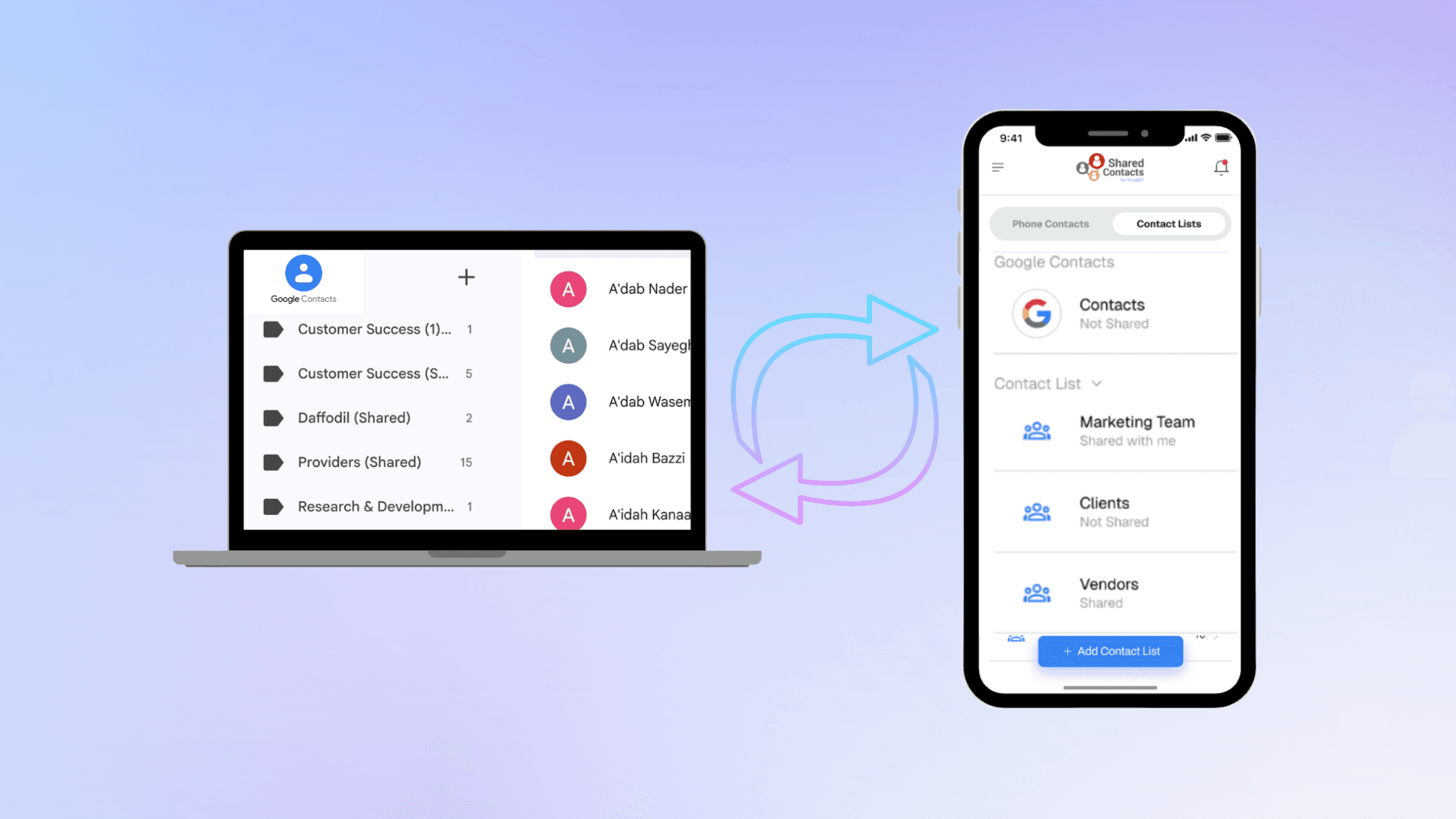
Everything looks perfect on your computer as you’ve carefully organized all your Google Contacts into neat labels like “Clients,” “Suppliers,” “VIPs,” and “Family.”
But the moment you open your iPhone Contacts, all of that organization disappears. Instead of separate lists, you see every single contact bundled together under one generic “Gmail” list. Suddenly, finding that one supplier’s phone number feels like searching for a needle in a haystack.
This happens because iPhone Contacts doesn’t support Google’s label system. Even if your Google Contacts are perfectly organized, your iPhone will not recognize those labels as lists.
The good news is that there’s a solution called Get Shared Contacts™. With this app, you can not only view your Google labels as lists on iPhone, but also manage them, share them with your team, and keep everything synchronized in real time.
Let’s walk through how it works.
1.Access your Google Contacts labels from your iPhone
Instead of searching through the entire Gmail list, you can bring your Google labels into GSC.
Here’s how to do it,
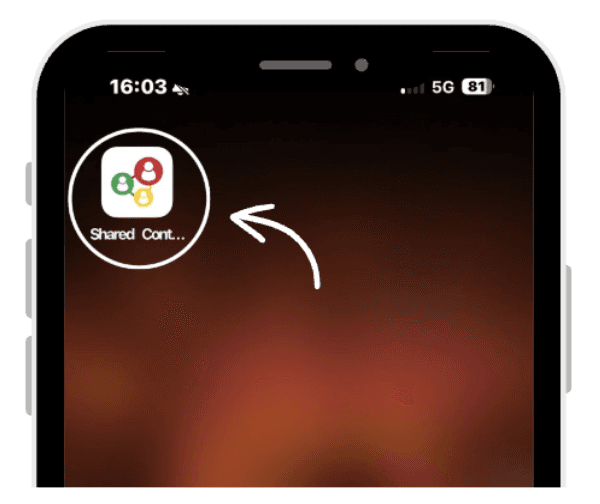
Sign in to ContactsFlow™ with your Google account.
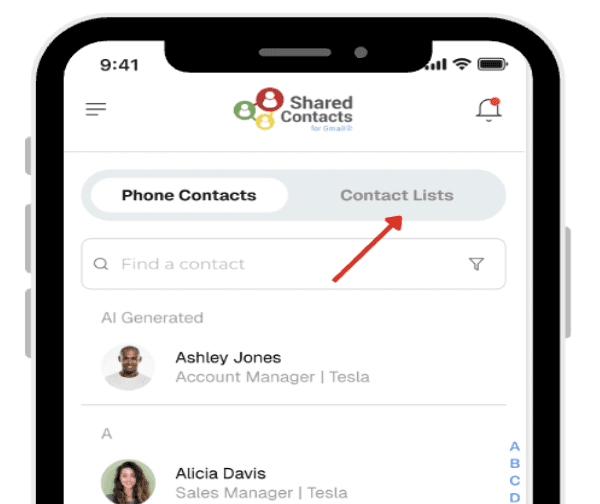
Tap “Contacts List.”
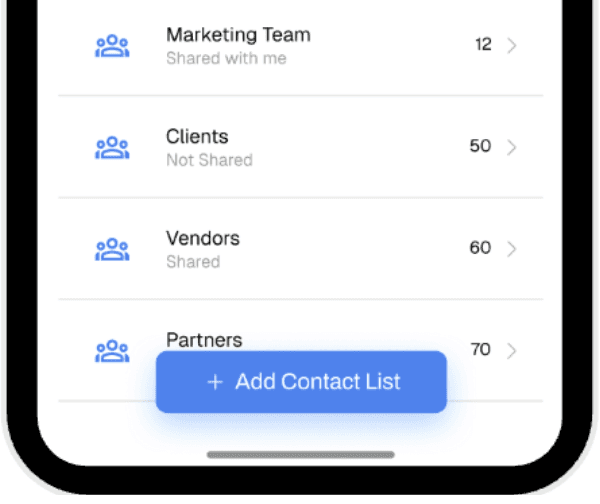
All your Google labels like Clients, Partners, or Team Members will now appear as organized lists.
For example: If you’re about to travel for work, you can tap your “Clients – Paris” label and instantly see only the people you’ll be meeting, instead of scrolling through your entire contact list.
 |  |
|
|
 | |
|
2. Call, Email, message or WhatsApp contacts from labels
With labels on your iPhone, you can connect with people instantly.
Tap a contact in the label to make a call.
Send an email directly.
Start a text message or even a WhatsApp chat.
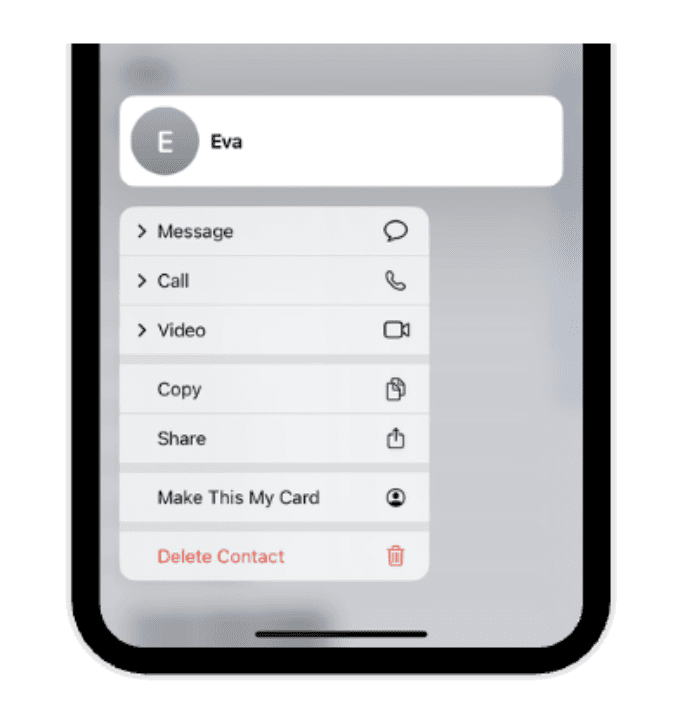
For example: Need to send a reminder to all your suppliers? Open your “Suppliers” label and message them without digging through unrelated contacts.
3. Manage contacts in the labels
ContactsFlow™ makes it easy to keep your labels up to date.
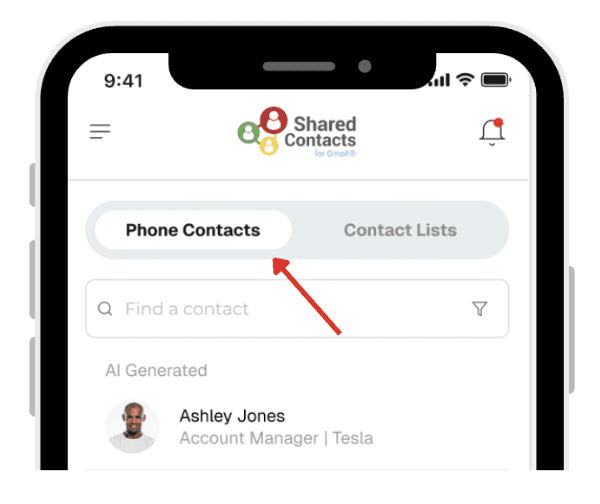
3.1. Add contacts from your iPhone to Google contacts labels
Here is how to do this,
Select a label.
Add the new contact, and it will add directly to Google Contacts under that label.
 |  |
|
|
3.2. Create or update your Google Contacts inside the labels
3.2.1. By Dictating
To add a new contact by the dictating feature,
Open ContactsFlow™ app on your iPhone and sign in with your google account.
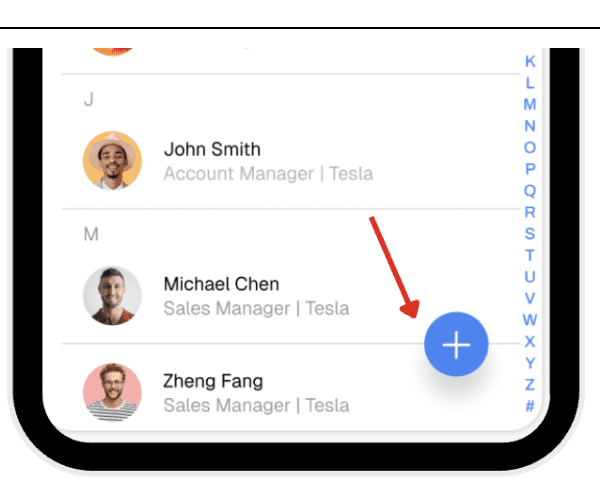
Tap on phone contacts.
Tap the + label on the bottom right corner.
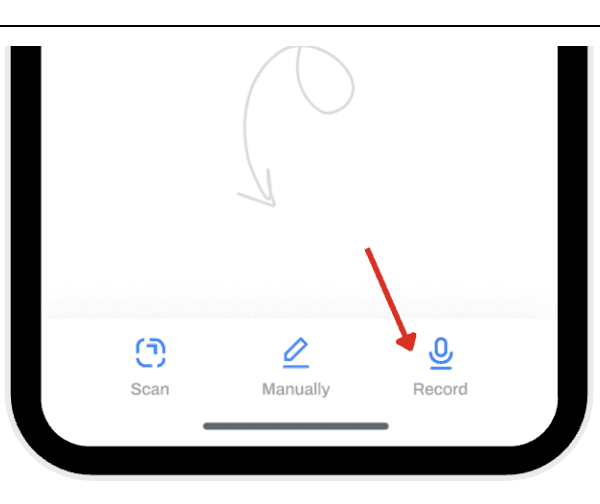
Tap Dictate New Contact and press allow to give the app permission to access your microphone.
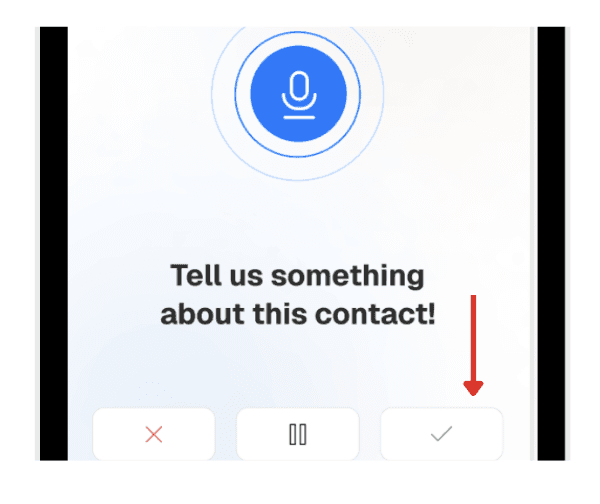
Dictate name, phone, email, and notes; the system converts your speech to text and click the tick icon to confirm.
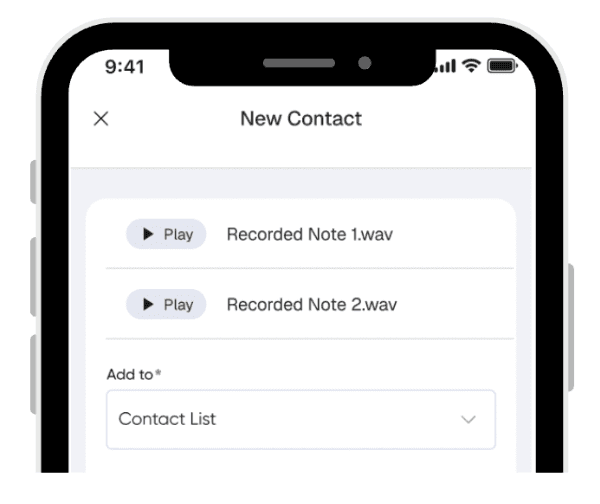
Your voice recording will appear. In the add to section select your preferred contact list.
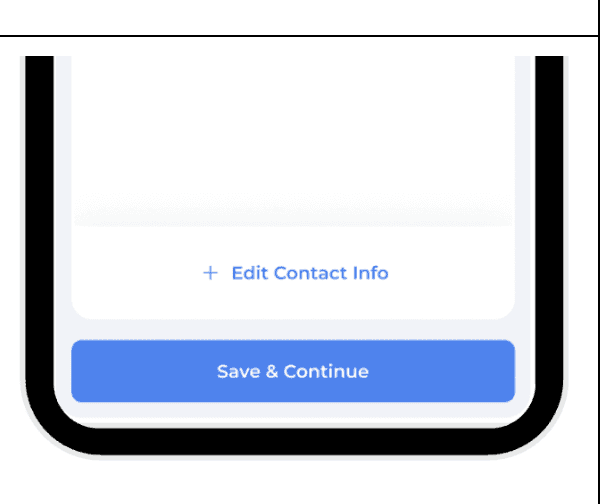
Press save and continue.
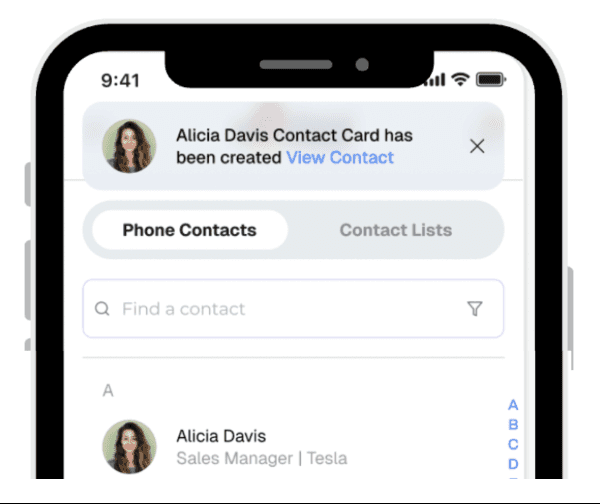
Your contact is now created.
| |
|
|
|  |
|
|
 |  |
|
|
 |  |
|
|
3.2.2. By scanning / attaching a photo
To add a new contact by the scanning/attaching feature,
Tap on phone contacts.
Tap the + label on the bottom right corner.
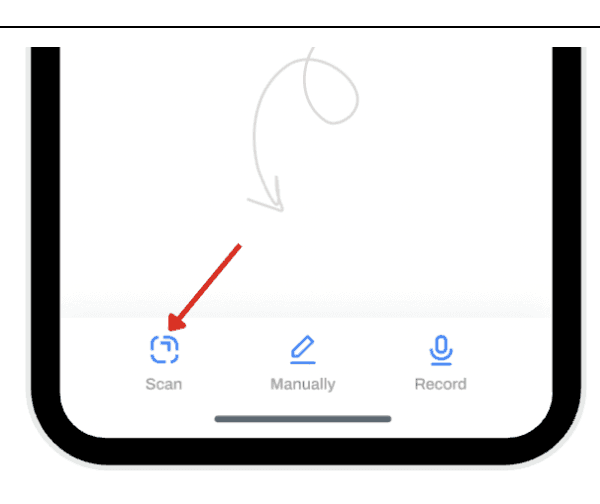
Tap Scan and press allow to give the app permission to access your Camera.
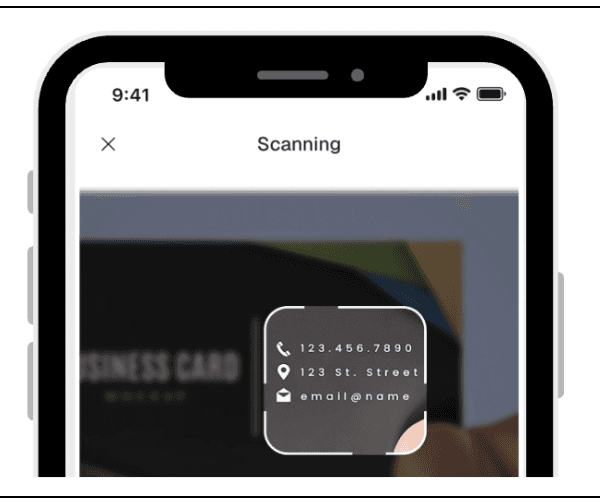
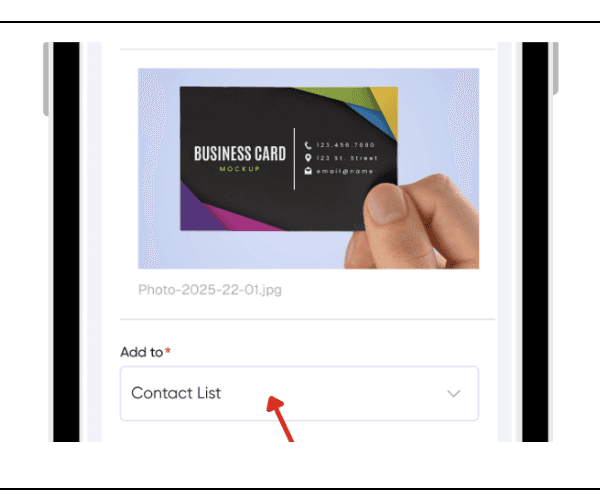
Upload or take a picture of the business card or image into the app. AI scans the card and auto-fills fields of the contact.
To the ‘add to’ section select your preferred contact list.
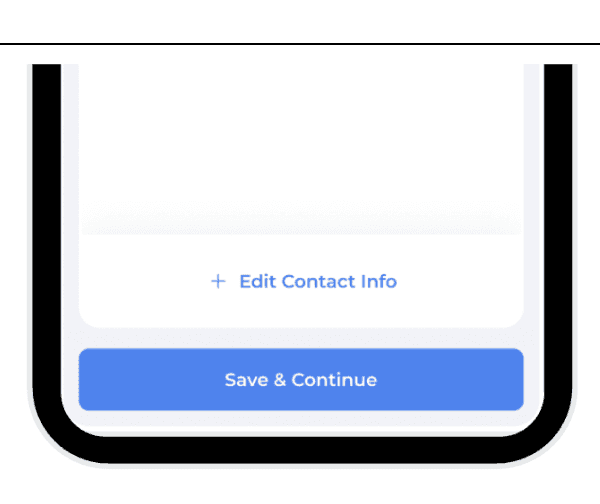
Press save and continue.
Your contact is now created.
| |
|
|
 |  |
|
|
 |  |
|
|
| |
|
3.2.3. By typing the contact information
You can also add a contact by typing the information,
Tap on phone contacts.
Tap the + label on the bottom right corner.
Tap manually (pencil icon) at the bottom.
Fill in the contact information.
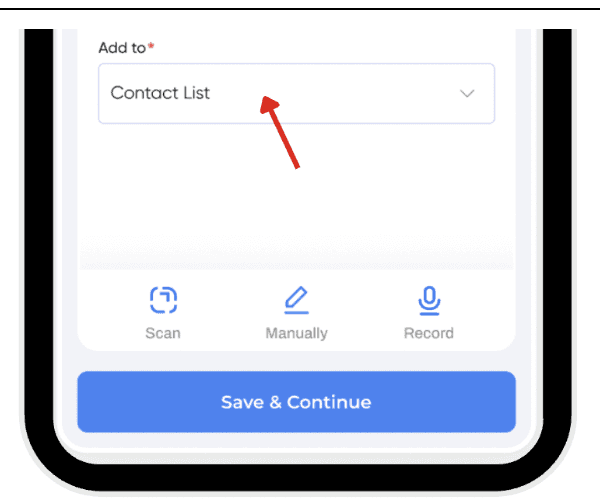
To the ‘add to’ section select your preferred contact list.
Press save and continue.
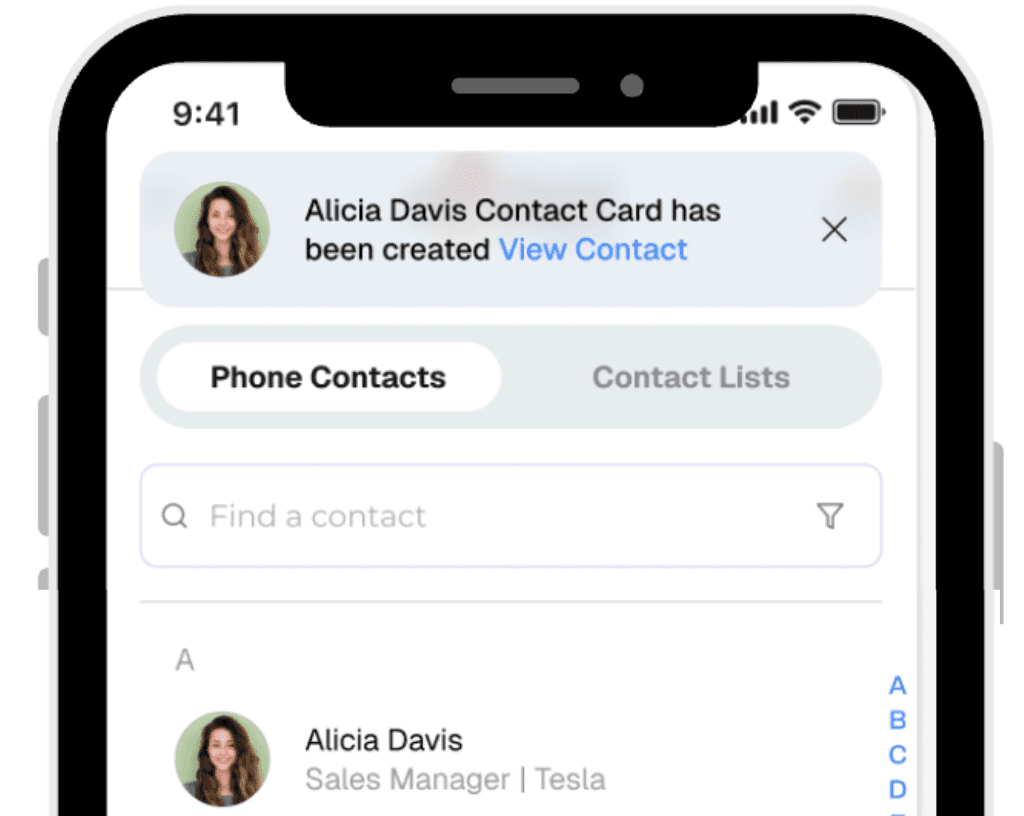
Your contact is now created.
| |
|
|
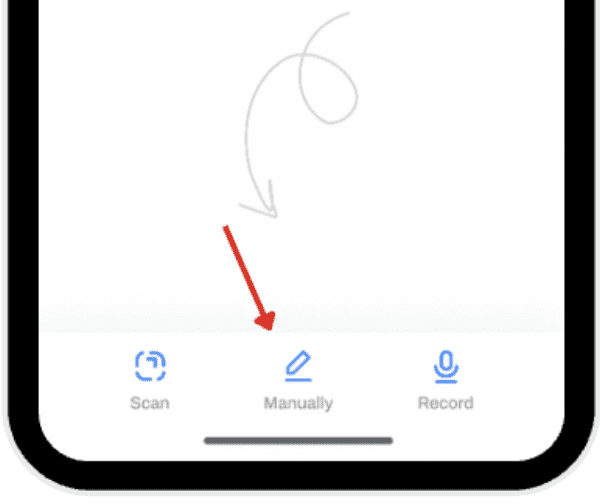 | 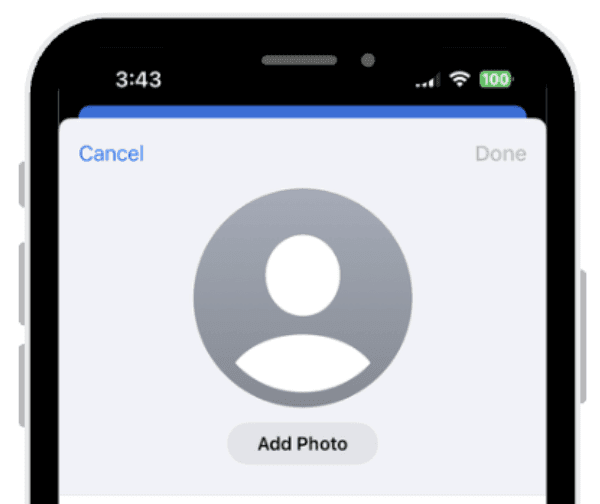 |
3. Tap manually (pencil icon) at the bottom. | 4. Fill in the contact information. |
 | |
|
|
 | |
|
4. Add voicemail, call, or pictures containing contact information to a specific label
You can also:
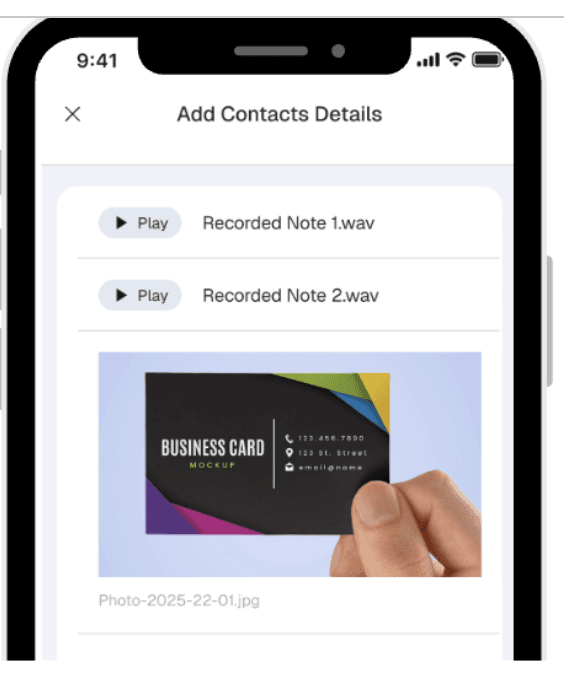
Upload a voicemail, call record, or picture containing contact details.
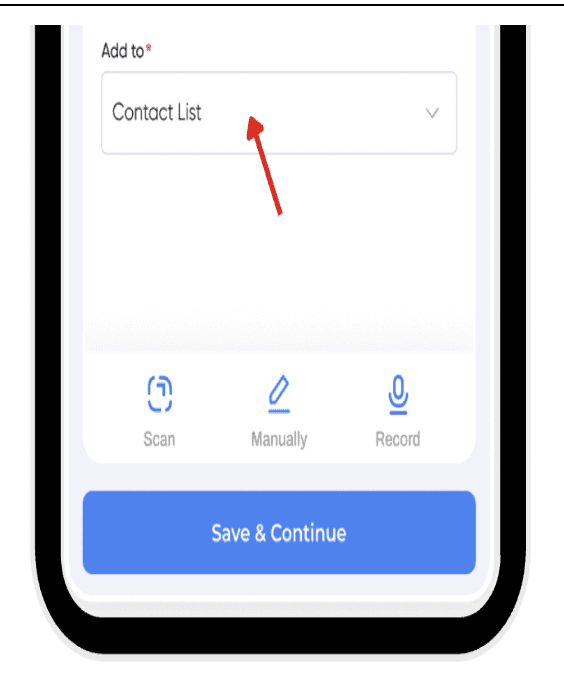
Choose the label you want it to belong to.
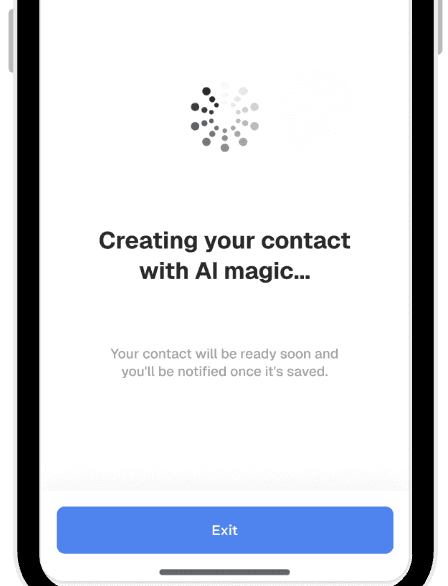
Let ContactsFlow™ AI extract and save it as a complete contact.
For example: After a trade show, just snap photos of business cards and save them directly into your “Leads” label. No manual typing needed.
 |  |
|
|
 | |
|
5. Synchronize labels with your colleagues
In many situations, contacts are not managed by one person alone. Teams often need to access the same information whether it’s a list of clients, project partners, or internal staff. ContactsFlow™ allows you to share contact labels so everyone works with the same set of contact information.
Here’s how to do,
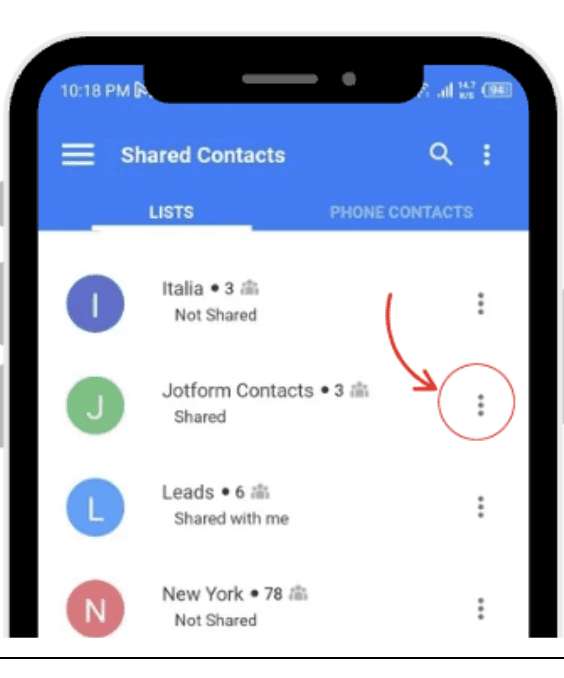
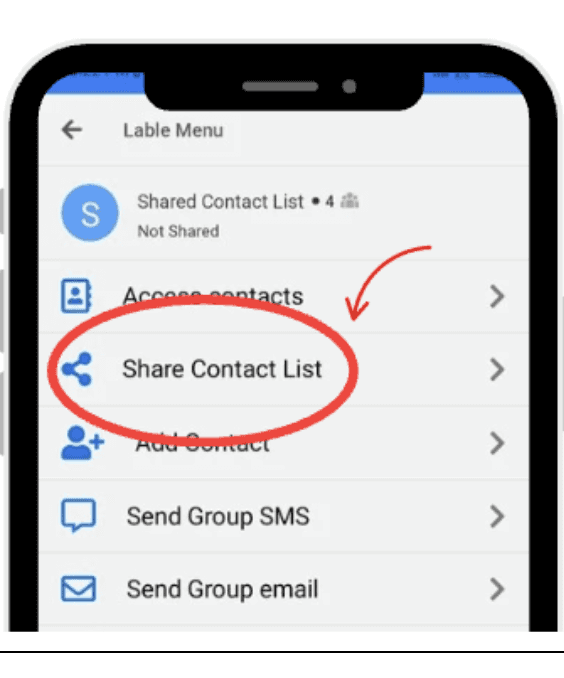
Tap Share next to the label.
Add the colleagues you want to include.
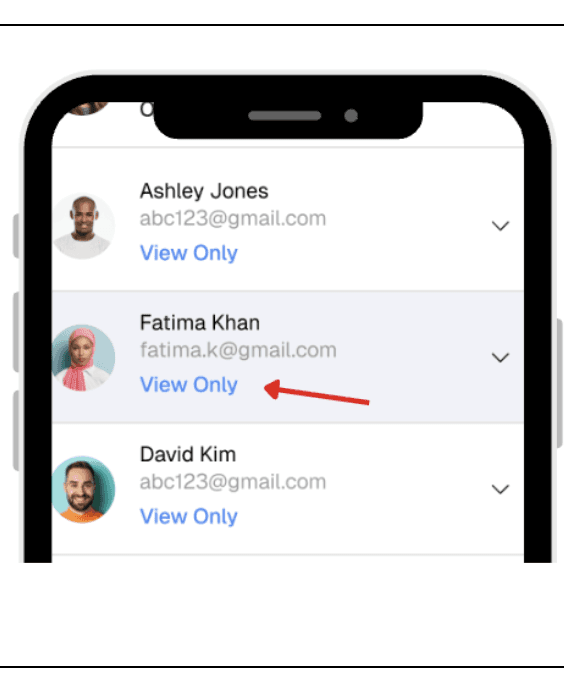
Choose the level of access:
View only – colleagues can see the contacts but not change them.
Edit – colleagues can add, update, or remove contacts.
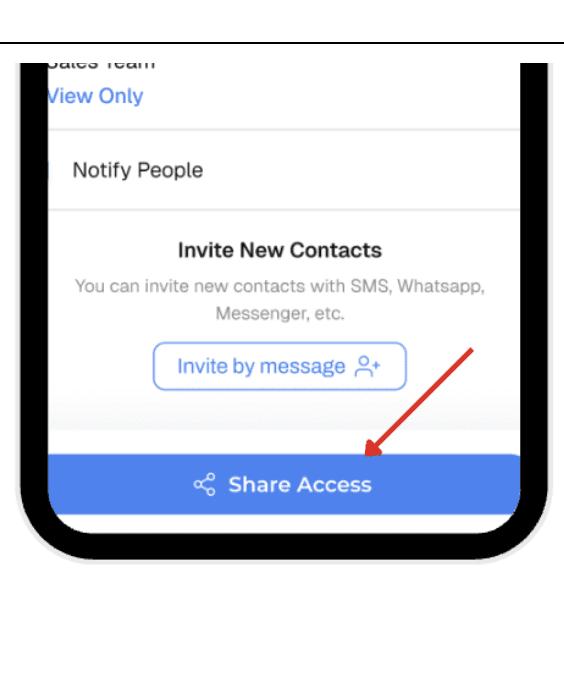
Share the access.
Once shared, any changes made by someone with edit rights will appear for the entire group. This helps avoid duplicate entries and keeps information consistent across everyone’s devices.
 |  |
|
|
 |  |
|
|
By default, iPhone Contacts does not recognize Google’s label system, which can make it harder to stay organized. Using a tool like ContactsFlow™makes it possible to view, manage, and share your labels directly from your iPhone, without losing the structure you created in Google Contacts.
This approach helps you keep your contacts organized, makes communication more efficient, and ensures that teams can work from the same up-to-date information.
Leave a comment :
No comments yet. Be the first!