How to escape a date or meeting: thanks to your iPhone
Want to escape a bad date or a long meeting using your iPhone? This step-by-step guide explains how to create a fake call using the Apple Shortcuts app and the iPhone Back Tap feature (iOS 14 or later). By assigning a custom shortcut to a double or triple tap, you can trigger a realistic incoming call notification and ringtone in seconds. No third-party apps required — just built-in iPhone settings.
Open the Shortcuts app on your iPhone.
Tap the “+” button in the top-right corner to create a new shortcut.
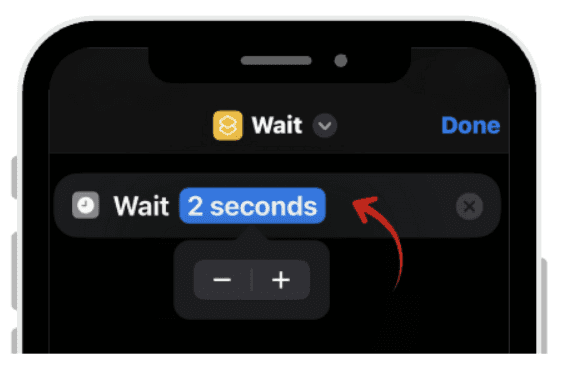
On Search Action, type “Wait”, then tap Wait and set it to 2 seconds. This gives you a short delay between tapping your phone and receiving the “call.”
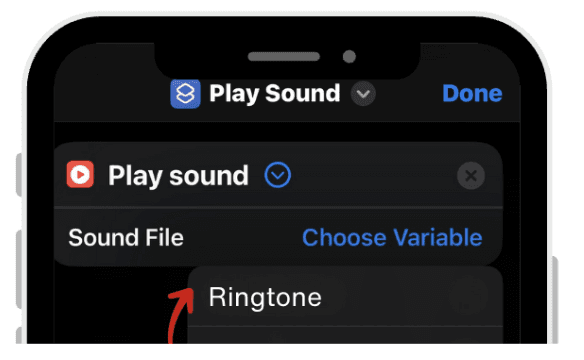
On search action, type “Play Sound” and choose a sound.
Choose a ringtone sound (you can pick from available sounds or use a recording of your ringtone).
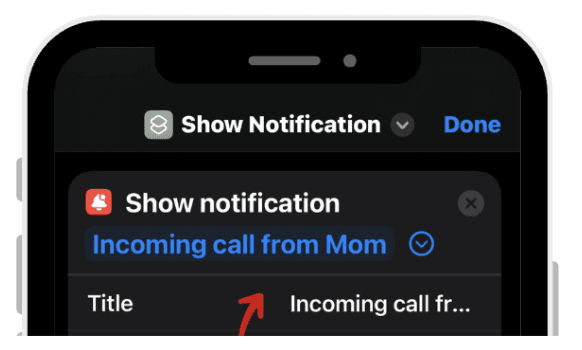
One search action, type “Show Notification.”
In Title, type: “Incoming Call from Mom”
In Subtitle or Body, type something like: “Swipe up to answer.”
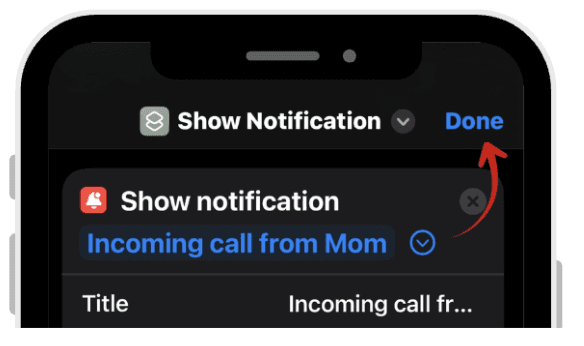
Once done, tap Done at the top right.
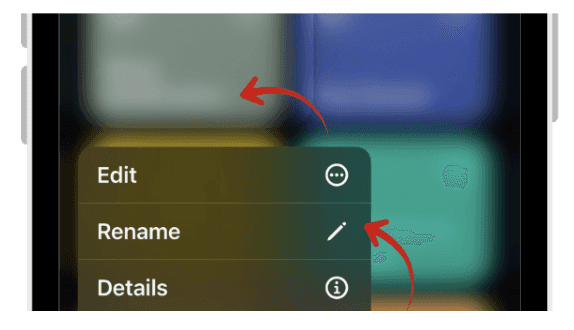
Tap the shortcut’s name and rename it to “Fake Call” or “Rescue Tap.”

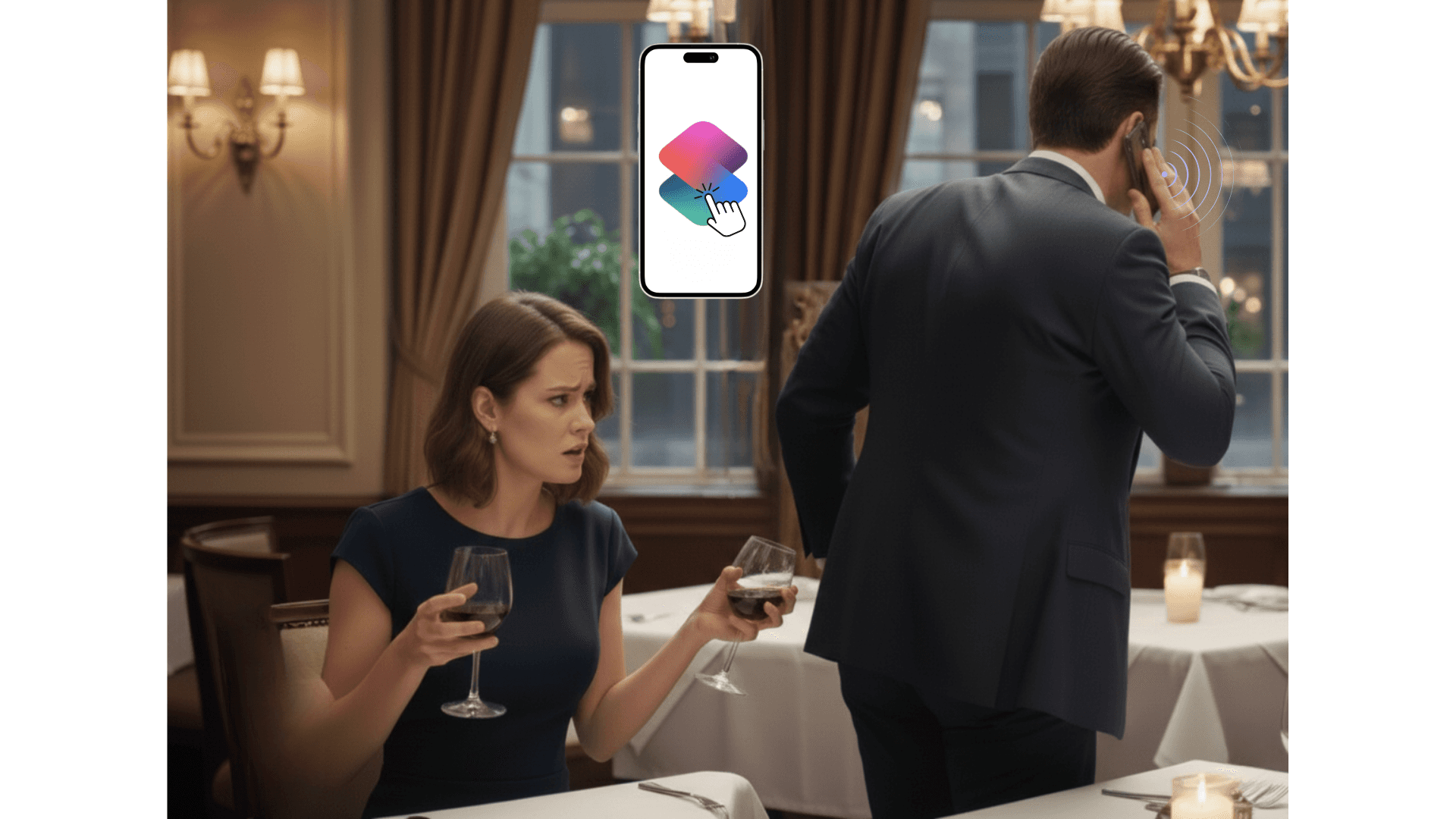
We’ve all experienced those moments, being trapped in yet another meeting that could’ve easily been an email, or sitting through a painfully slow date that feels longer than the entire season of a boring Netflix show. If only there were a quick and discreet way to make an exit.
Well, if you have an iPhone, there actually is. Thanks to Apple’s Shortcuts app and the Back Tap feature, you can create your very own “escape button.” A simple double or triple tap on the back of your iPhone can trigger a fake call, no Oscar-worthy acting required.
What You’ll Need
Before getting started, make sure your device meets the requirements:
iPhone 8 or newer: The Back Tap feature is only available on these models.
iOS 14 or later: Ensure your software is up to date to access this feature.
Once those boxes are checked, you’re ready to set up your quick and clever getaway shortcut.
Step 1: Create a Shortcut That “Calls” You
We’re going to build a simple fake call automation using the Shortcuts app.
This shortcut will play a ringtone, and show a fake “incoming call” notification.
Follow these steps carefully.
Step-by-step setup:
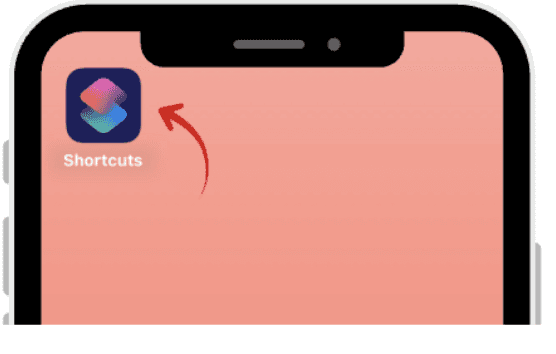
Open the Shortcuts app on your iPhone.
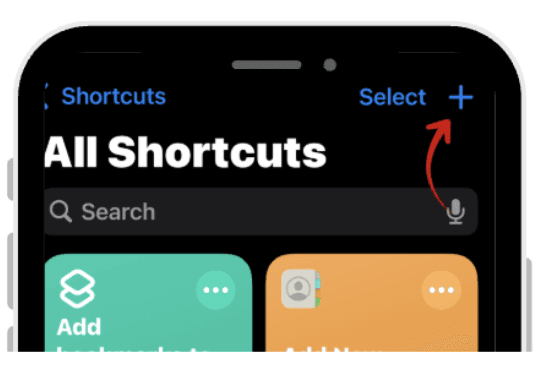
Tap the “+” button in the top-right corner to create a new shortcut.
On Search Action, type “Wait”, then tap Wait and set it to 2 seconds. This gives you a short delay between tapping your phone and receiving the “call.”
On search action, type “Play Sound” and choose a sound.
Choose a ringtone sound (you can pick from available sounds or use a recording of your ringtone).
One search action, type “Show Notification.”
In Title, type: “Incoming Call from Mom”
In Subtitle or Body, type something like: “Swipe up to answer.”
Once done, tap Done at the top right.
Tap the shortcut’s name and rename it to “Fake Call” or “Rescue Tap.”
 |  |
|
|
 |  |
|
|
 |  |
|
|
 | |
|
Now your shortcut has been created!
Step 2: Assign the Shortcut to Back Tap
Now you’ll make this shortcut activate whenever you double-tap or triple-tap the back of your iPhone.
Here’s how to do it:
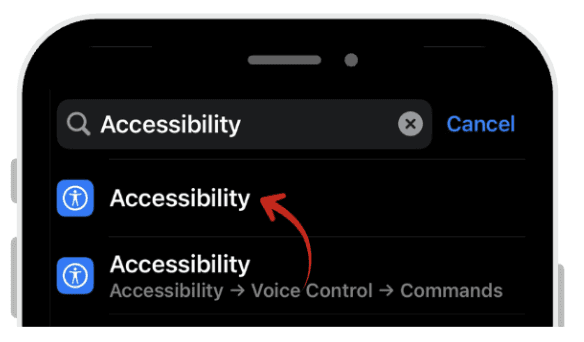
Go to Settings and click Accessibility.
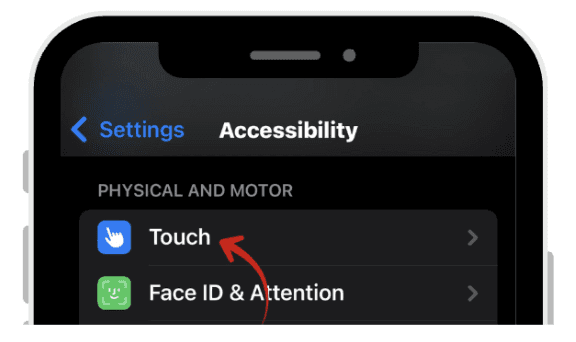
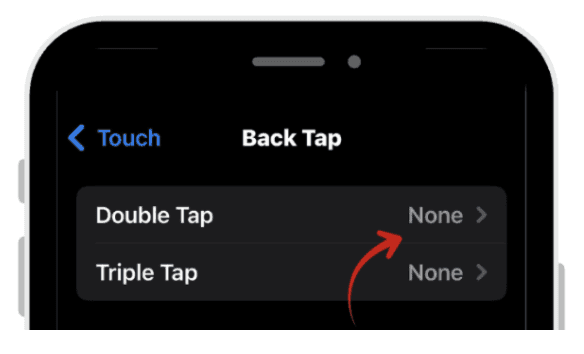
Tap Touch.
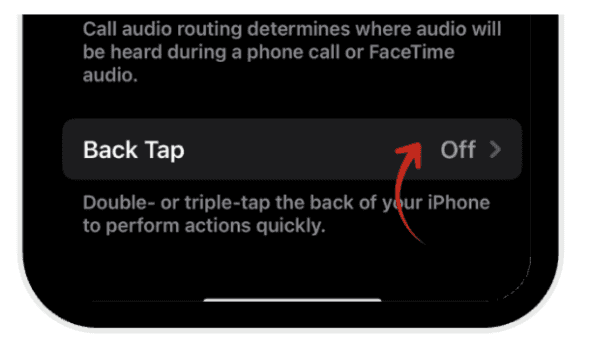
Scroll all the way down and tap Back Tap.
Choose Double Tap or Triple Tap.
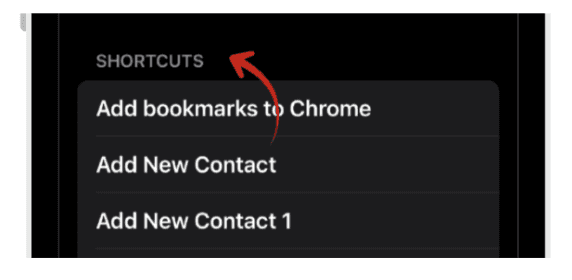
You’ll see a long list of actions, scroll down to Shortcuts.
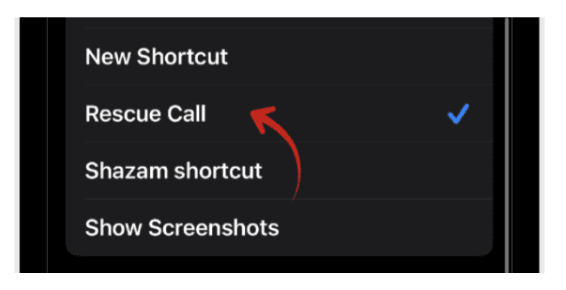
Tap your shortcut you just created.
 |  |
|
|
 |  |
|
|
 |  |
|
|
That’s it! Now your shortcut is linked to your back tap gesture.
Action Plan: How to Use It in Real Life
Now that your shortcut is set up, here’s where the magic happens.
Picture this:
You’re stuck in a meeting that’s been looping in circles for what feels like forever, or sitting through a date that’s clearly not going anywhere. You need an exit and fast.
Here’s how to make your smooth escape:
Keep your phone casually in hand or resting on your lap. No need to draw attention, just look natural.
Double-tap (or triple-tap) the back of your iPhone.
It’s subtle enough that no one around you will notice.Wait a couple of seconds.
Your phone buzzes, the screen lights up, and an incoming call appears.Glance down and give your best “Oh no!” expression.
Then say something perfectly believable, like: “Sorry, I really have to take this, it’s important.”Stand up calmly, step outside, and enjoy your newfound freedom.
It’s discreet, convincing, and incredibly satisfying. It’s your personal, high-tech escape plan for awkward moments built in your iPhone.
Your Secret Rescue Button
And there you have it, your very own iPhone escape plan.
With just a simple double-tap on the back of your device, you can trigger a perfectly timed fake call that gives you the perfect excuse to step away from any dull meeting, awkward chat, or first date that’s gone off the rails.
The best part? It’s entirely achievable using your iPhone’s built-in features, no extra apps, no coding, and no complicated setup required.
So the next time a “quick meeting” drags into eternity or a conversation starts testing your patience, just remember: Tap. Ring. Escape.
Your discreet digital getaway is literally at your fingertips.
Leave a comment :
No comments yet. Be the first!