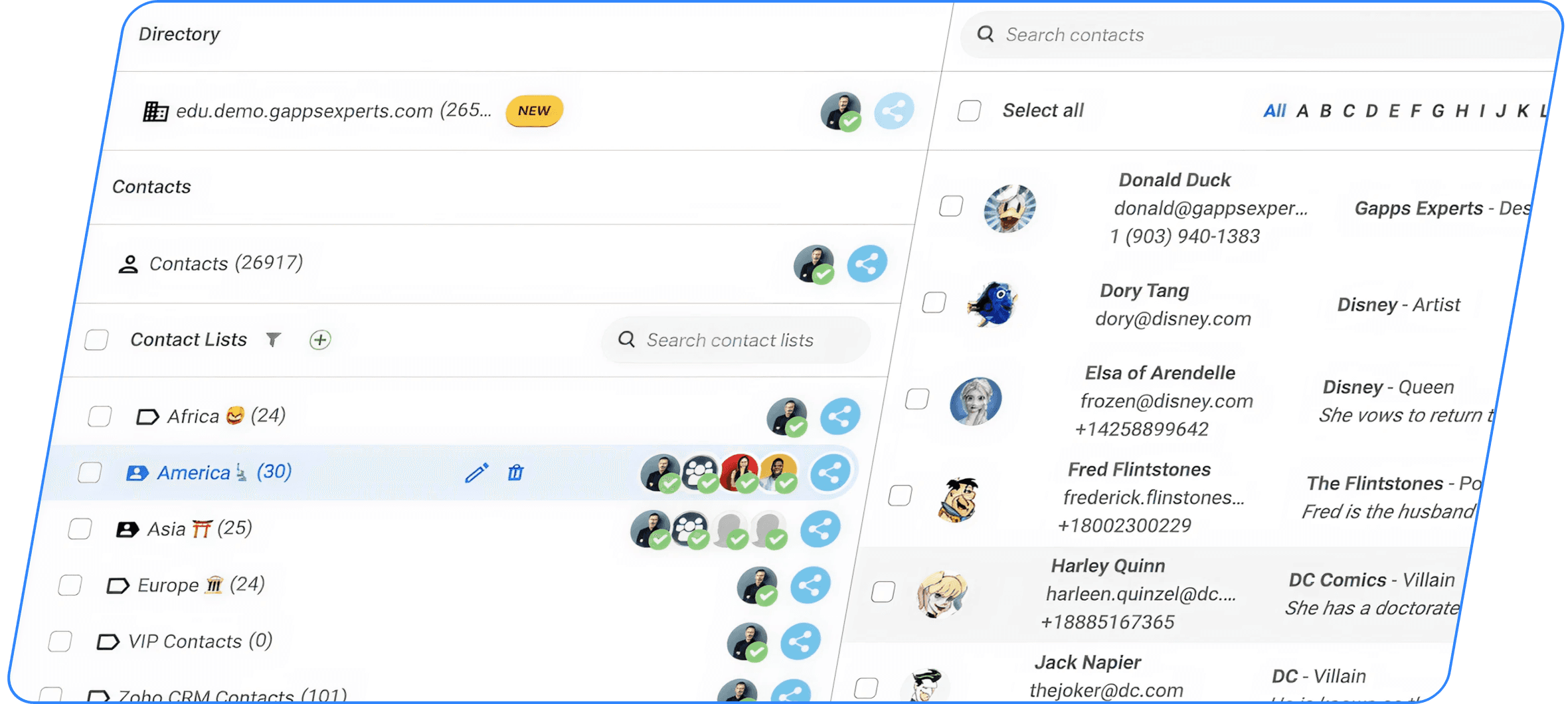
How to have Siri create and update contacts
This article explains how to use Siri alongside ContactsFlow™ to create, update, and manage contacts using voice. While Siri can handle basic tasks, it lacks the ability to process complex, structured data. By leveraging dictation and voice memos, users can capture detailed contact information hands-free. ContactsFlow™ then transcribes and organizes this data into contact fields, enabling seamless updates, note tracking, CRM integration, and team sharing for efficient contact management.
On your iPhone or ask Siri to open ContactsFlow™ and sign in with your google account.
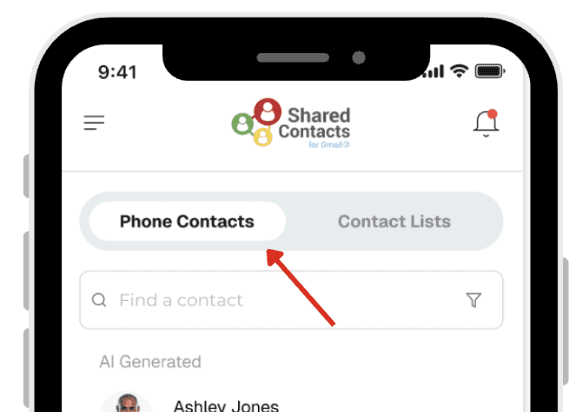
Tap on phone contacts.
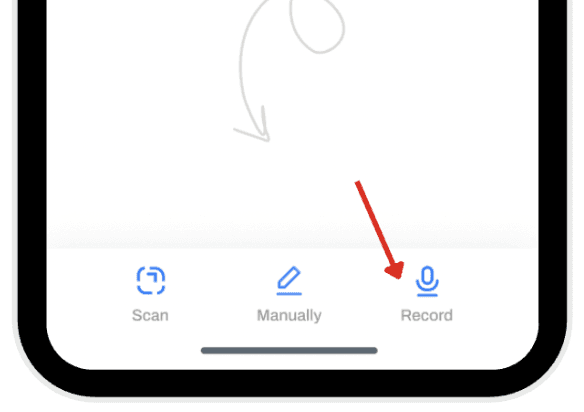
Tap the + label on the bottom right corner.
Tap Dictate New Contact and press allow to give the app permission to access your microphone.
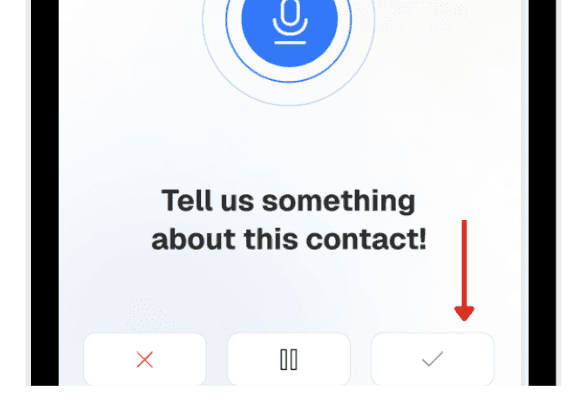
Dictate name, phone, email, and notes; the system converts your speech to text and click the tick icon to confirm.
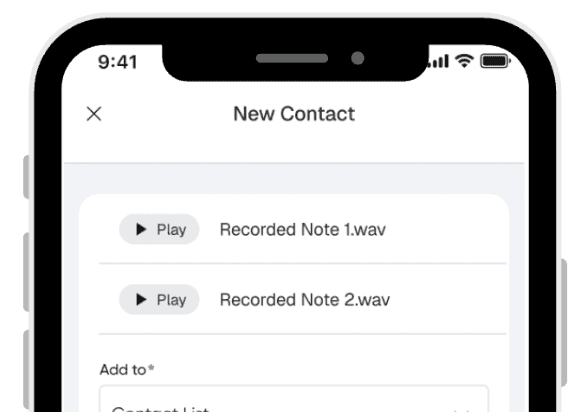
Your voice recording will appear. In the add to section select your preferred contact list.
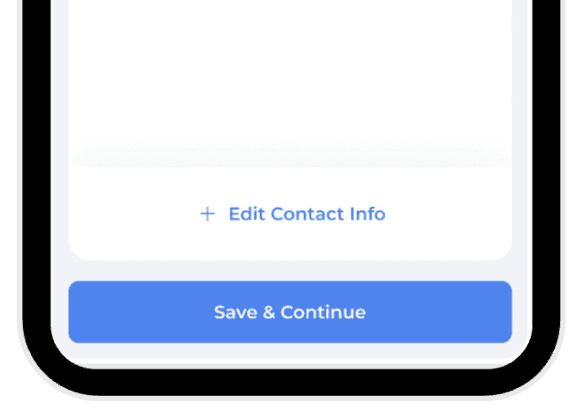
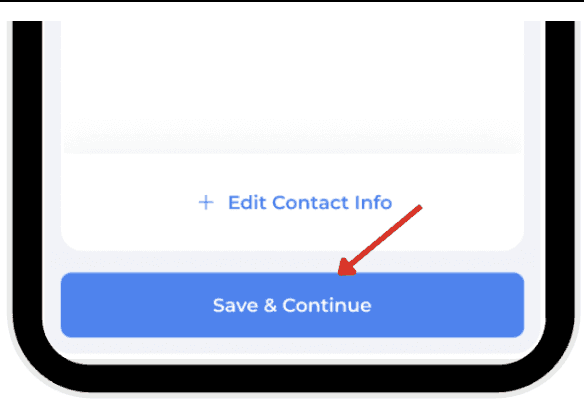
Press save and continue.
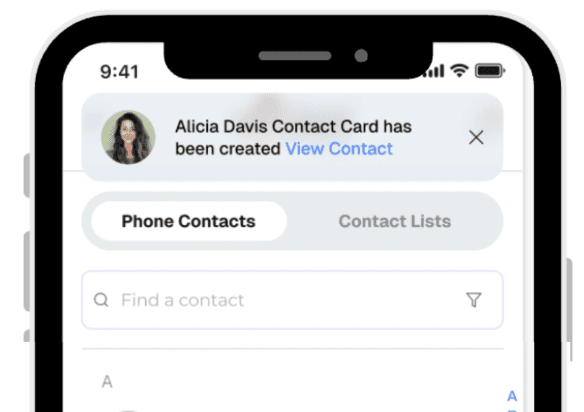
Your contact is now created.


Is Siri an AI agent?
To some extent, yes. We can ask Siri to answer calls, send simple messages, or dial a number. But in 2025, Siri still can’t execute complex, multi-step actions like “transcribe this conversation and create a fully filled in contact.” The best way is to use Siri to record what you say (through dictation), then pass that recording to ContactsFlow which turns the recording into organized contact information.
We tested Shortcuts for direct contact creation and it didn’t work reliably. Siri can launch apps or call a specific person, but it won’t pass structured data or submit forms. For contacts, where you often need hands-free entry and want to store in depth details rather than just a name and number, this limitation matters.
When it comes to creating contacts, automation becomes essential. Often you don’t have your hands free, or the time, to type in everything you just learned about someone new. And usually, it’s more than just a name and number, you might want to capture details from the conversation itself, the kind of context that makes the contact meaningful later.
Method 1: Dictate to ContactsFlow™
With ContactsFlow, you can simply dictate the contact details in a live recording, and the app will transcribe what you said and automatically fill in the appropriate contact fields for you.
Open the ContactsFlow™ app on your iPhone or ask Siri to open ContactsFlow™ and sign in with your google account.
Tap on phone contacts.
Tap the + label on the bottom right corner.
Tap Dictate New Contact and press allow to give the app permission to access your microphone.
Dictate name, phone, email, and notes; the system converts your speech to text and click the tick icon to confirm.
Your voice recording will appear. In the add to section select your preferred contact list.
Press save and continue.
Your contact is now created.
 |  |
|
|
 |  |
|
|
 |  |
|
|
 |  |
|
|
Method 2: Ask Siri to record voice memos
You can use Siri to start a voice memo, record the conversation or contact details, then share that memo to ContactsFlow™. The app will transcribe the audio, auto-fill the contact fields, and save it directly to your chosen contact list.
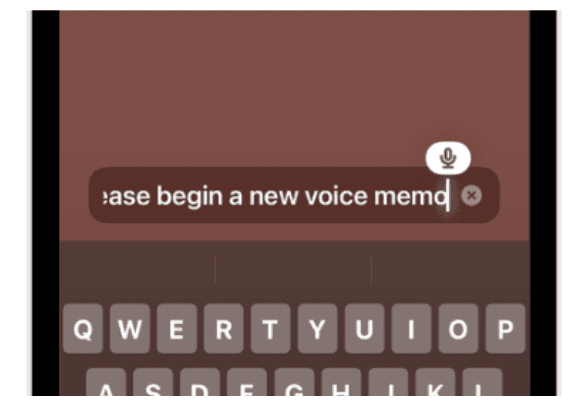
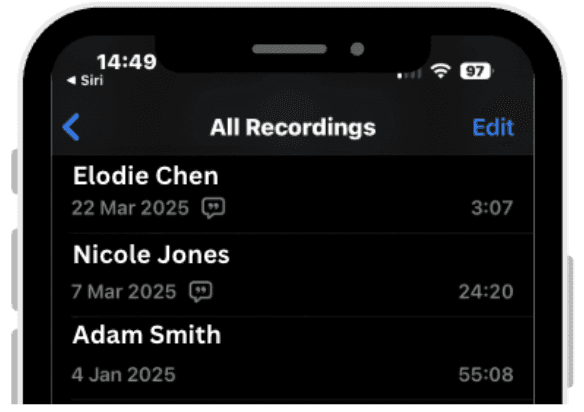
Ask Siri “Please begin a new memo”.
Siri will bring you to the voice memo app.
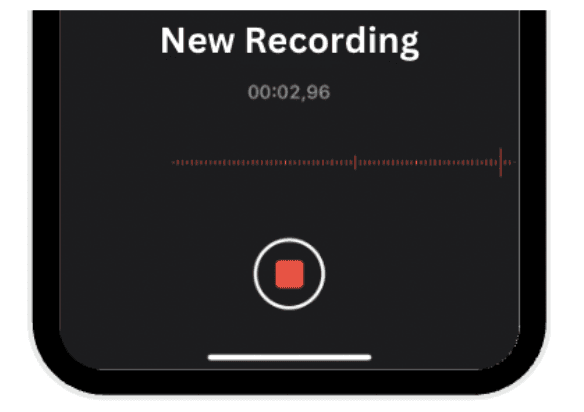
Record your live conversation or give a verbal a summary of the contact details.
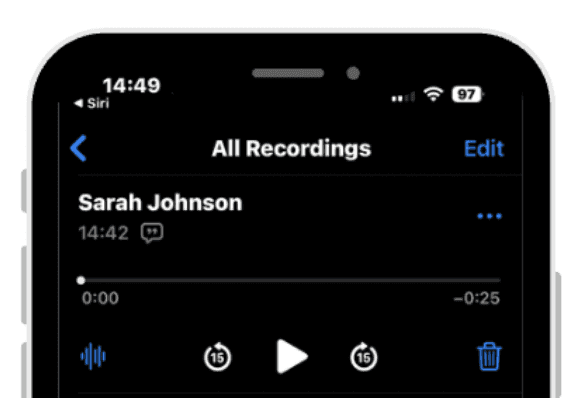
Rename the voice memo with the name of the contact.
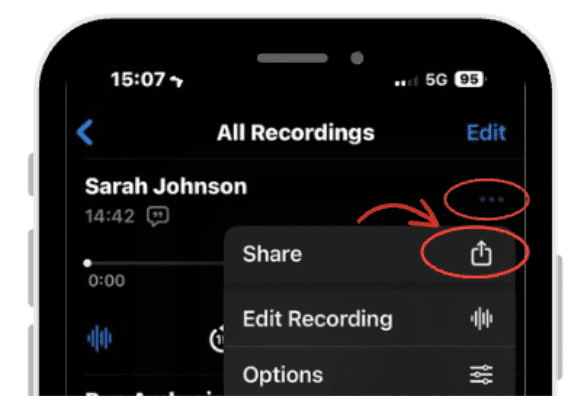
Press the three dots on the top right of the voice memo and click Share.
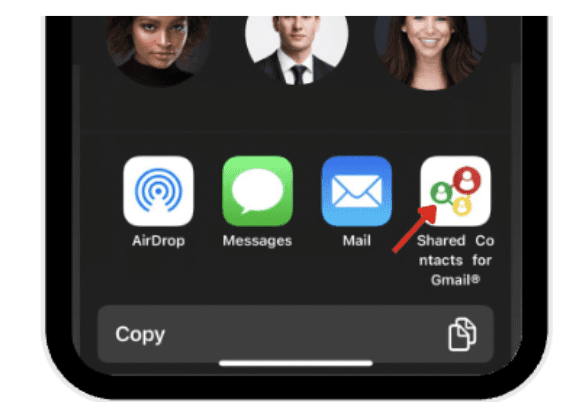
Choose ContactsFlow™ as the application you want to share it to.
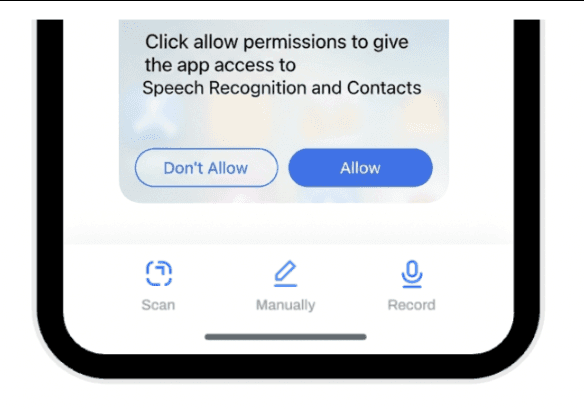
Click allow permissions to give the app access to Speech Recognition and Contacts.
ContactsFlow™ will transcribe the audio and auto-fills the contact fields.
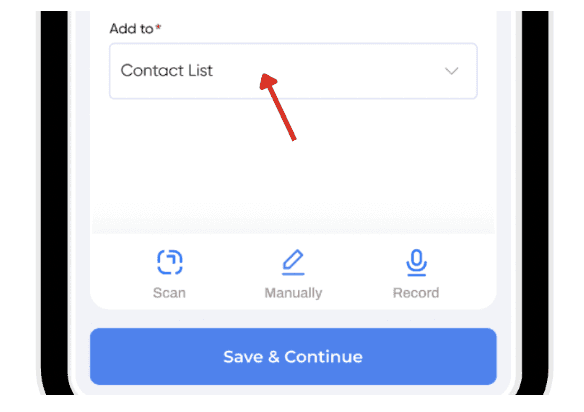
In the Add to section, choose your preferred contact list.
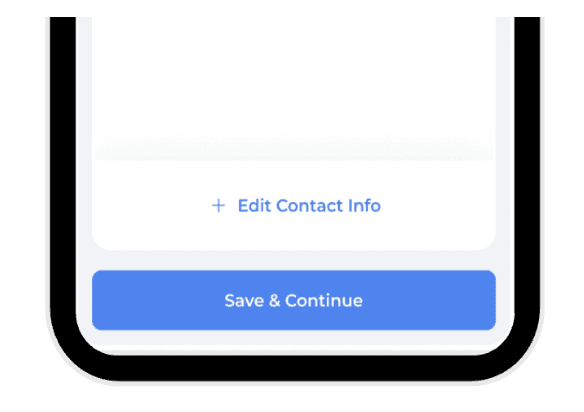
Tap Save and continue.
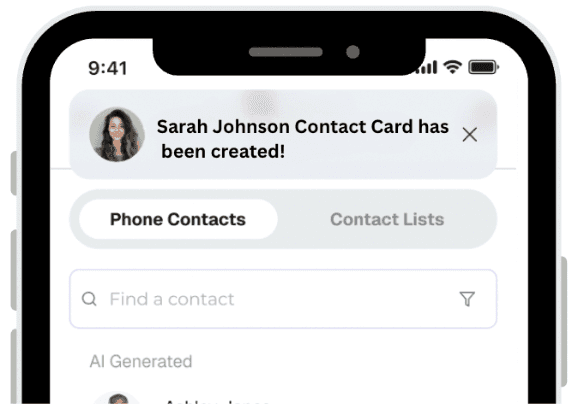
Your contact is now added!
 |  |
|
|
 |  |
|
|
 |  |
|
|
 |  |
|
|
 |  |
|
|
 | |
|
How to Update contacts by voice
Say you want to edit or update a contact you created with another voice memo, you can ask Siri to record another voice memo, and once shared to ContactsFlow™ the app does it for you easily
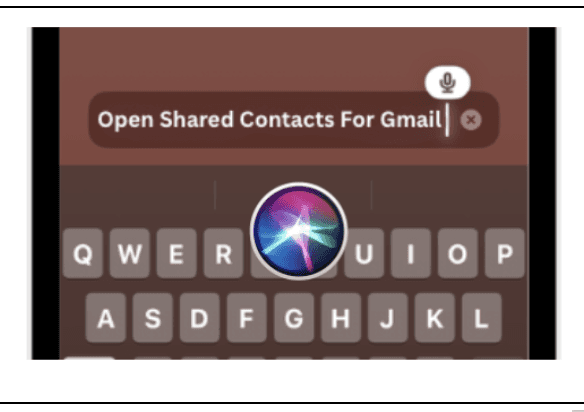
Ask Siri to open the ContactsFlow™ app.
Siri will bring you the app, and you should log in with your Gmail account.
Click on the contact you want to update.
Click ‘Edit details’.
Here you can record another live dictation.
The recording will be uploaded on top of the previous one, and CF will transcribe and update your contact information.
Press save and continue.
Now your contact is updated!

Ask Siri to open the ContactsFlow™ app.
Siri will bring you the app, and you should log in with your Gmail account.

Click on the contact you want to update.
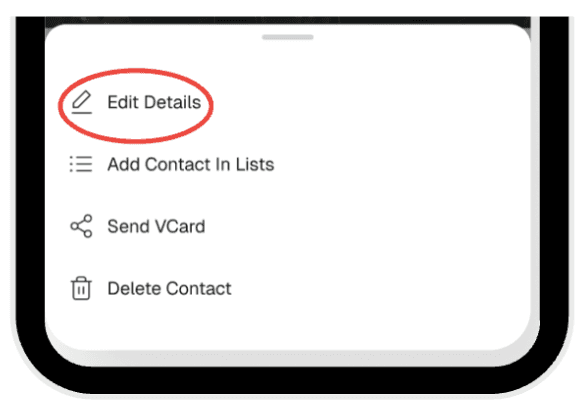
Click ‘Edit details’.

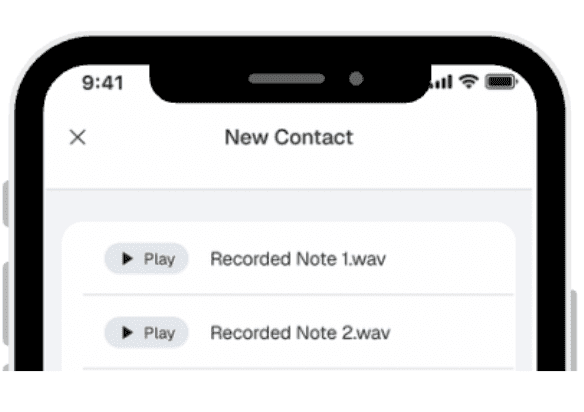
Here you can record another live dictation.
The recording will be uploaded on top of the previous one, and ContactsFlow™ will transcribe and update your contact information.
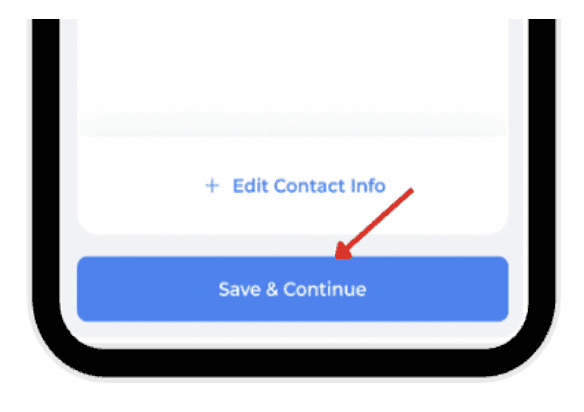
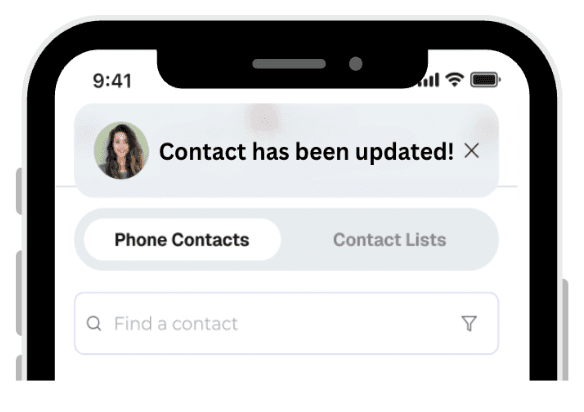
Press save and continue.
Now your contact is updated!
Track your contact activity with dictated notes
Using dictated notes saves time and ensures you capture details instantly while they’re fresh. It also keeps your contact records organized without needing to type everything manually
Open and sign in the ContactsFlow™ app with your Google account.
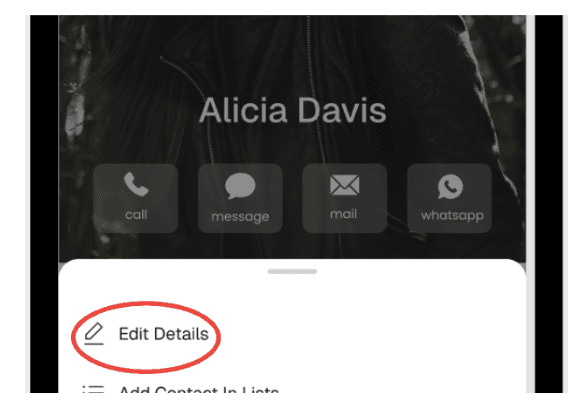
Press your preferred contact and click edit details.
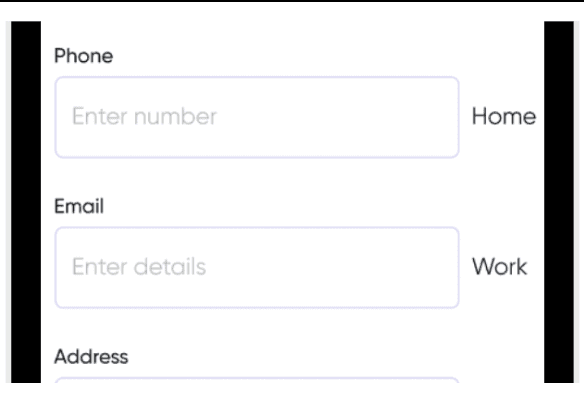
Go to the Notes section with all the different fields.
Start voice dictation by tapping the microphone button.
Dictate your note and press save.
|  |
|
|
 |  |
|
|
 | |
|
Push dictated Contacts to your CRM
Easily create and map custom fields in ContactFlow™ to sync key details like company, title, or LinkedIn profile directly with your CRM.
5.1. Set Up Custom Fields matching your CRM (in ContactsFlow™)
In ContactFlow™ , create the custom fields you want to appear on your phone so they can sync seamlessly with your CRM.
5.1.1. Use Text fields for things like company name, job title, or LinkedIn profile.
Open ContactFlow™ in your laptop.
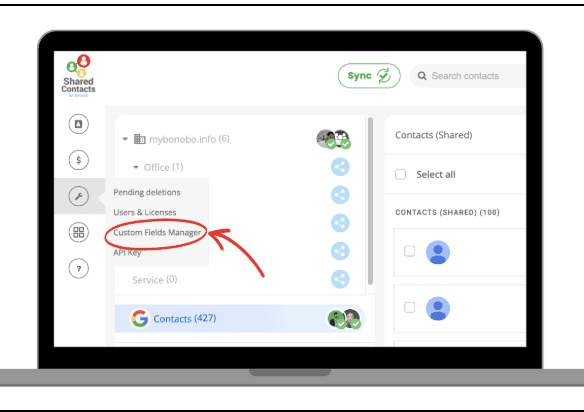
On the left side, click on the tool icon & select custom fields manager.
In the bottom, select Add a new custom field button.
Type in your custom field and save.
Then you can choose it as a ‘Text Field’ where you can type in the information.
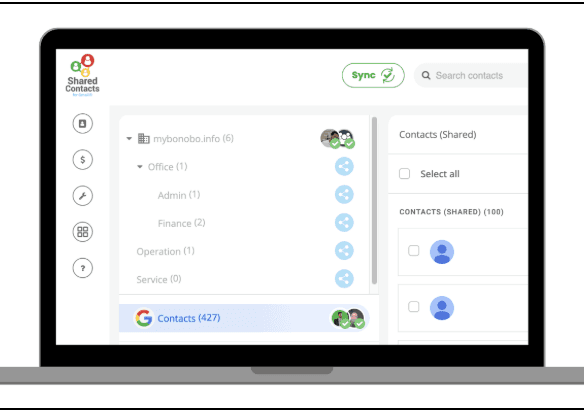
Open ContactFlow™ in your laptop.
On the left side, click on the tool icon & select custom fields manager.
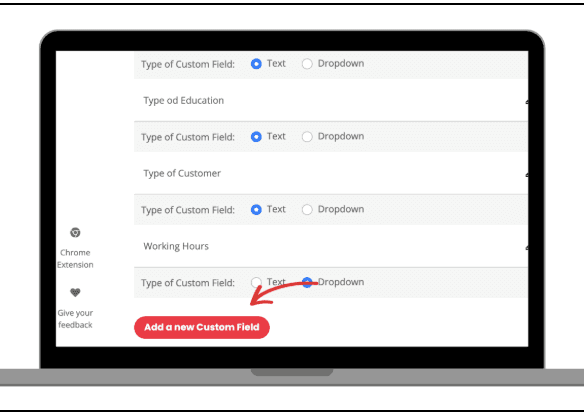
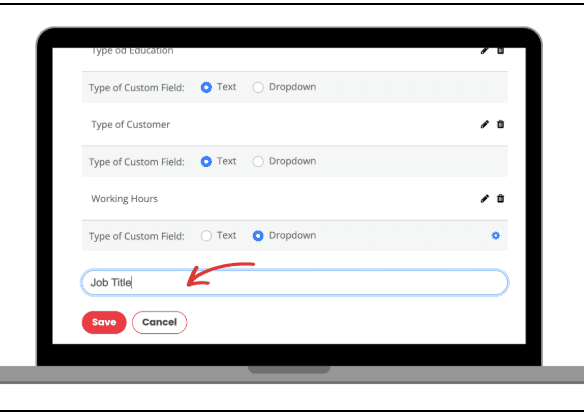
In the bottom, select Add a new custom field button.
Type in your custom field and save.
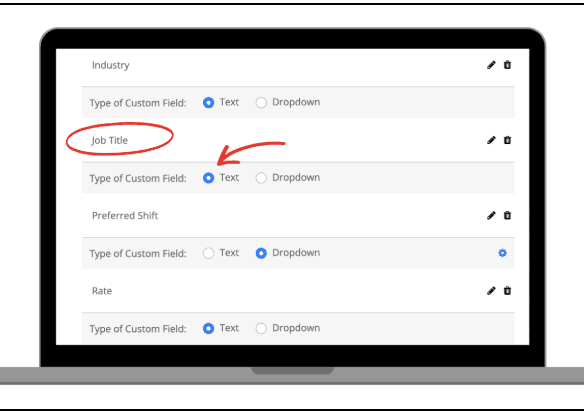
Then you can choose it as a ‘Text Field’ where you can type in the information.
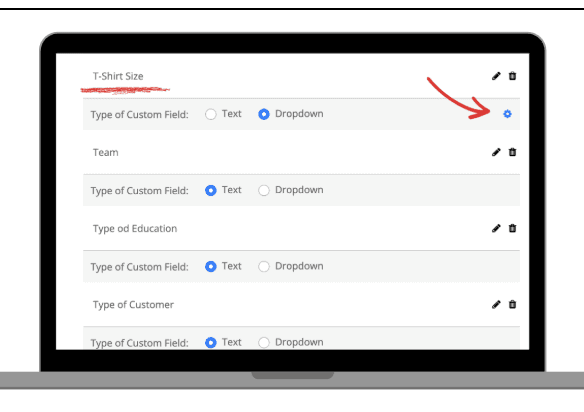
5.1.2. Use Dropdown fields for options like size, currency or industry.
For fields like ‘Size’ select Dropdown Fields.
Click on the icon on the right side of the field.
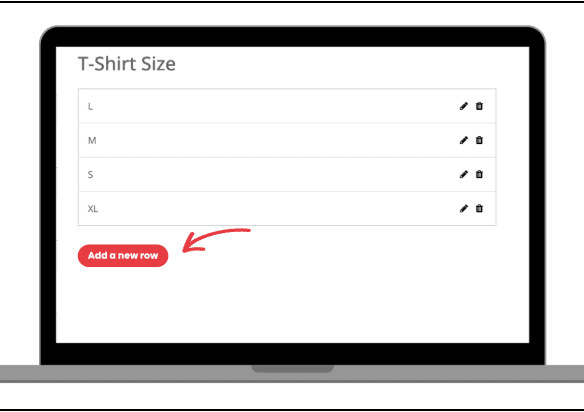
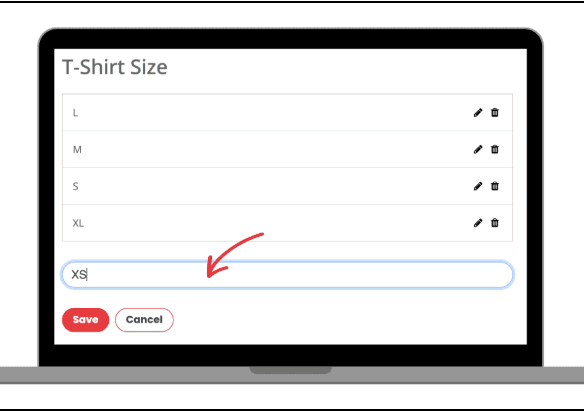
You can add the dropdown options by selecting ‘add a new row’.
Then type in your option and click save.
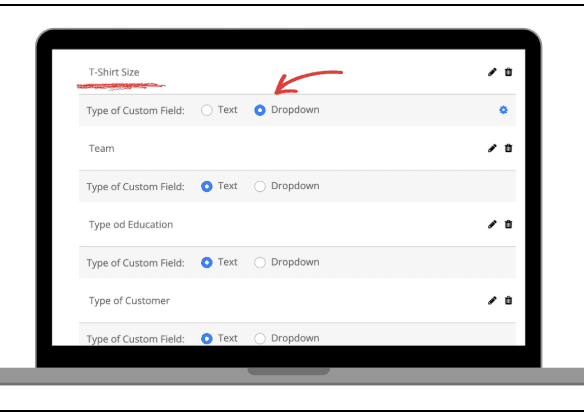 |  |
|
|
 |  |
|
|
By aligning these fields, the data you add on your iPhone will map correctly into your CRM.
5.2. Integrate your CRM with Google contacts
Log in to your Zoho CRM account and find Marketplace on the left and choose Google.
Click on Authenticate Google Contacts and follow all prompts on the screen to give access permissions.
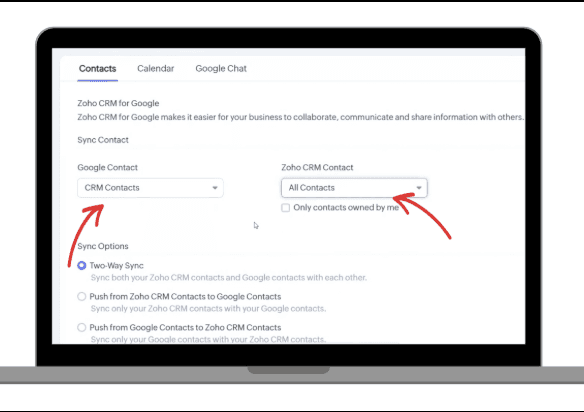
On the Contacts Synchronization page, Select ‘CRM Contacts’ under Google contacts and ‘All Contacts’ under Zoho CRM Contact.
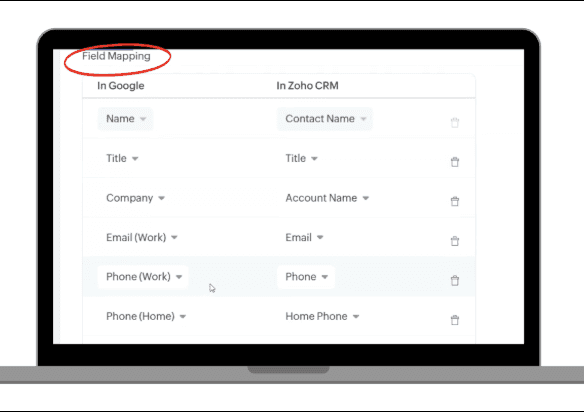
Then scroll down to ‘Field Mapping’.
Click the ‘Map More Fields’ to add and map additional fields.
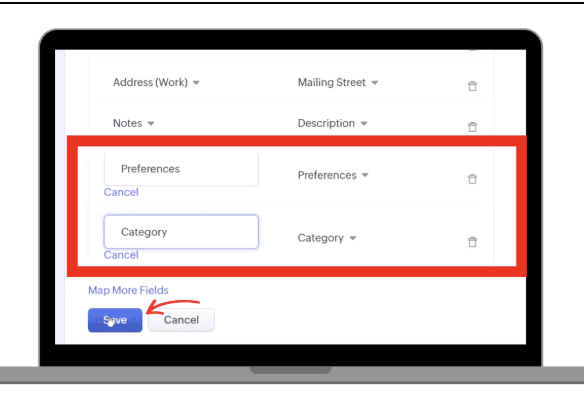
Add your custom fields and click save.

Log in to your Zoho CRM account and find Marketplace on the left and choose Google.
Click on Authenticate Google Contacts and follow all prompts on the screen to give access permissions.
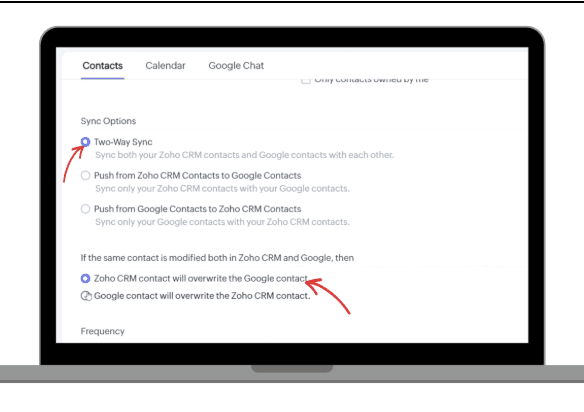
On the Contacts Synchronization page, Select ‘CRM Contacts’ under Google contacts and ‘All Contacts’ under Zoho CRM Contact.
Then scroll down to ‘Field Mapping’.
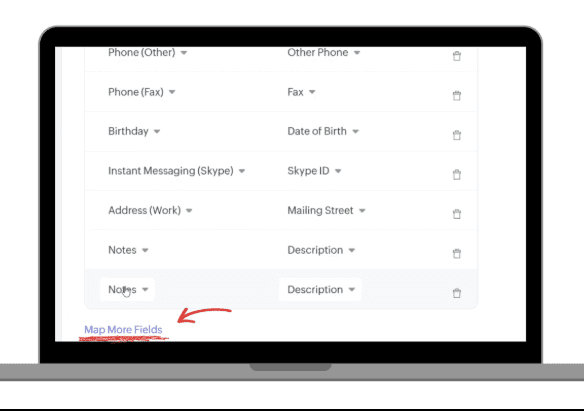
Click the ‘Map More Fields’ to add and map additional fields.
Add your custom fields and click save.
Ask Siri to share Contacts with your team
Using Siri with ContactFlow™ makes sharing and updating contacts effortless and hands-free. It helps your team stay aligned with accurate, up-to-date information without slowing down your workflow.
In case you need to create or edit an existing contact before sharing them you could:
First, to create a new contact, navigate to Dictate a New Contact.
Or you can open an existing contact to edit.
Press save and continue.
Now your contact has been updated or created!
Now to share your contacts:
Now, ask Siri to open ContactFlow™.
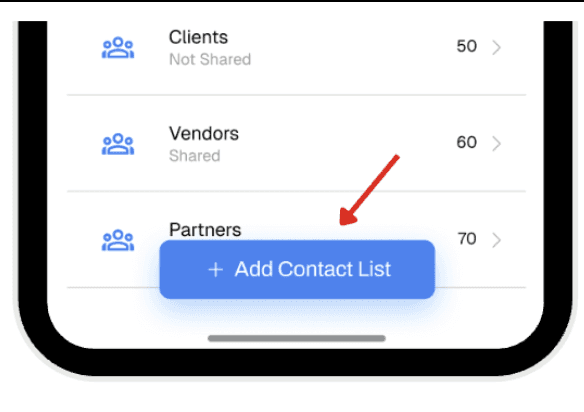
Tap add contact list on ContactFlow™, name it and press save.
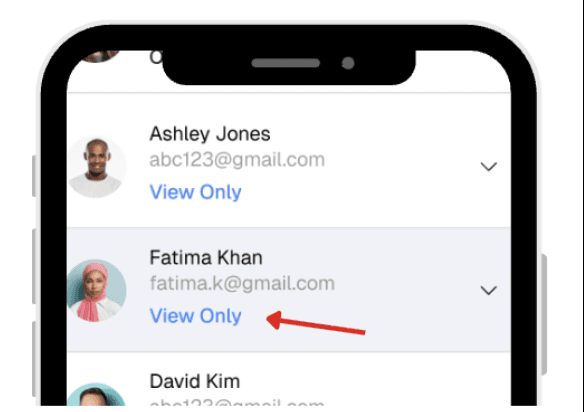
Here you can set the permissions of the members (to edit, or view only).
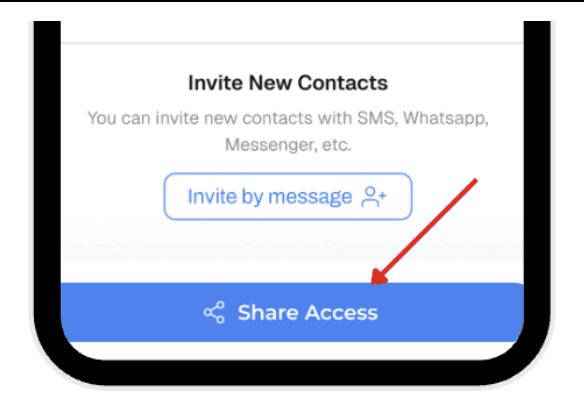
Tap share the label, and now your contacts list are shared.
| |
|
|
| |
|
|
|  |
|
|
 |  |
|
|
Siri is helpful for simple actions, but it isn’t built for creating or updating detailed contacts on its own. By pairing it with tools that capture dictation and organize information, you can still use your voice to record details, update existing records, and keep everything consistent.
Features like custom fields, CRM mapping, and shared lists make it easier to maintain accurate records and ensure contacts stay organized and accessible when you need them.
Leave a comment :
No comments yet. Be the first!