Best Practices to Synchronize Iphone and Google Contacts
As professionals use iPhones alongside Google Workspace, syncing contacts becomes essential yet often problematic due to duplicates, missing updates, and limited native features. This article outlines best practices to seamlessly synchronize Google Contacts with iOS, including setup steps, default account configuration, and contact migration. It also addresses iPhone limitations like lack of labels and directory access, and highlights solutions such as third-party tools and AI automation to ensure accurate, organized, and real-time contact management across devices and teams.
Step-by-step guide to sync your Google contacts to your iPhone.
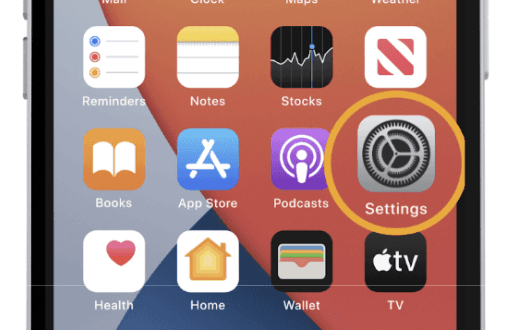
Open Settings on your iPhone.
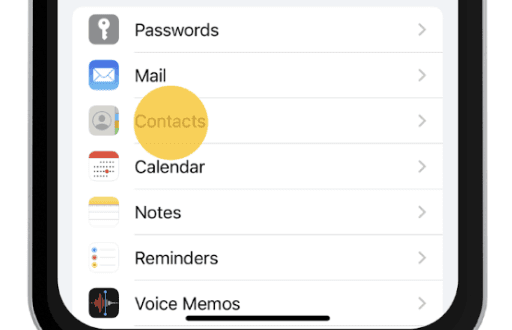
Scroll down and tap Contacts.
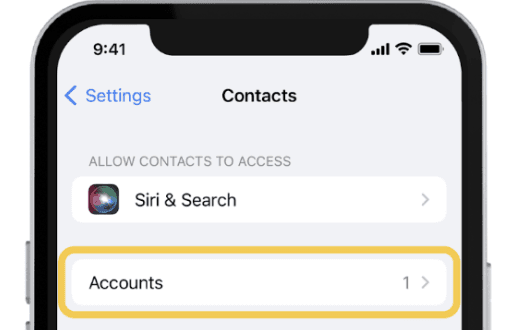
Select Accounts.
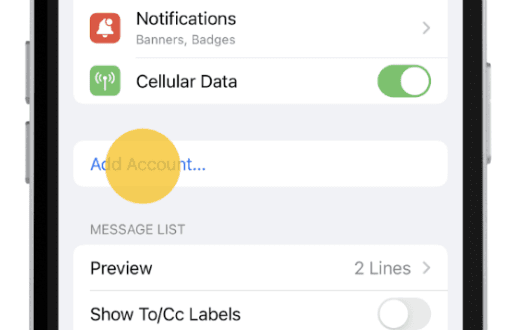
Tap Add Account.
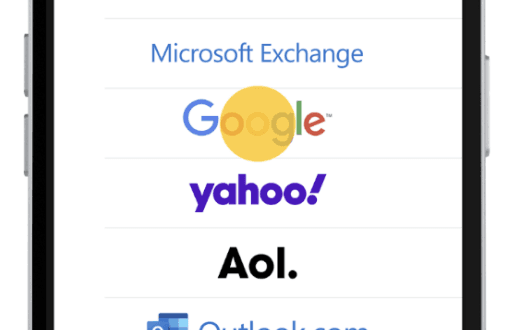
Choose Google.
Enter your Google account credentials.
Toggle on Contacts.
Finally click on Save.

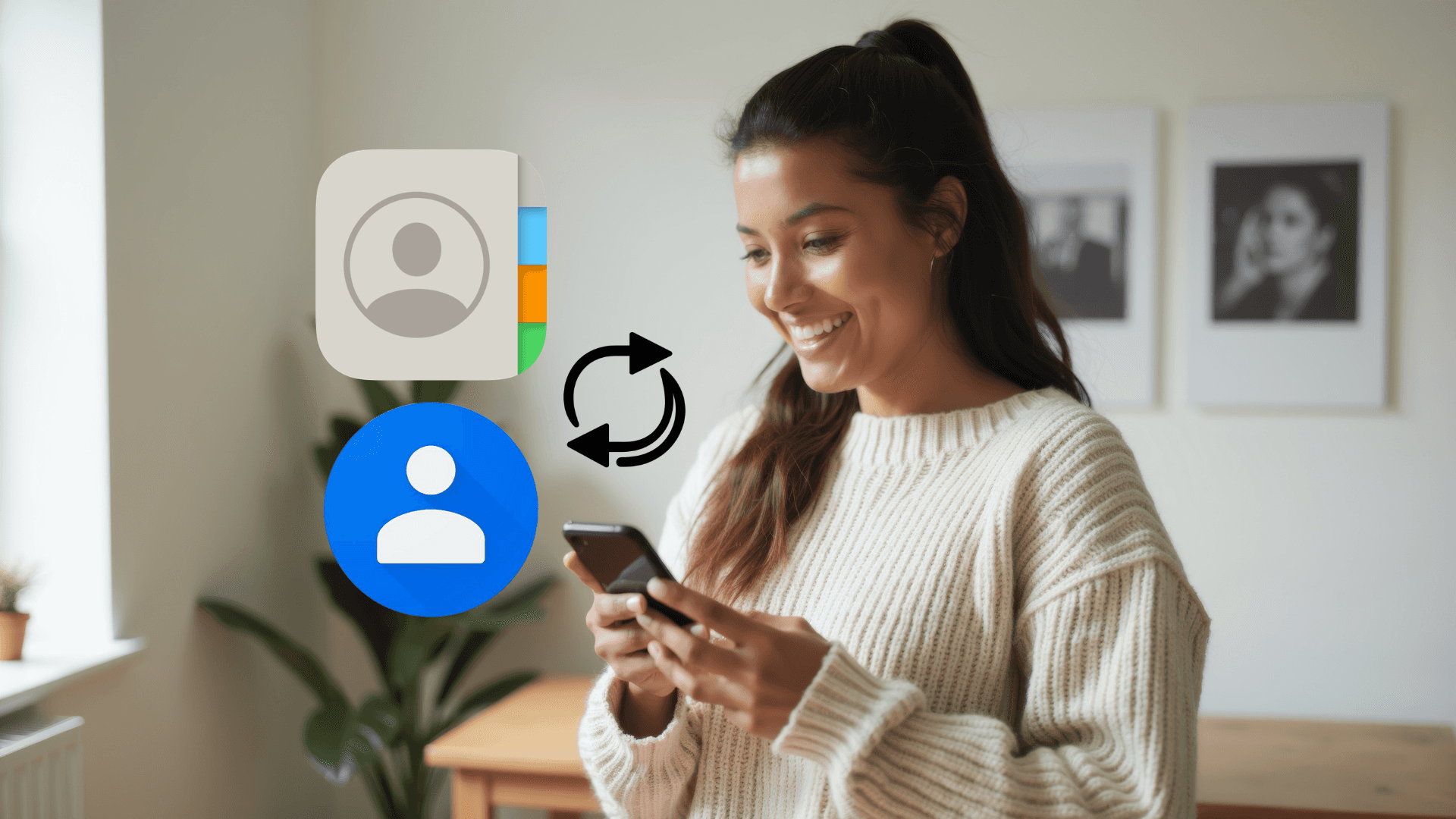
More and more businesses rely on Google Workspace for email, and collaboration, while many professionals prefer iPhones for their seamless user experience and reliability. But when it comes to contact management, syncing between Google Contacts and iPhone isn’t always smooth. Missed updates, duplicate entries, and sync delays can create headaches especially if you need consistent contacts across Gmail, Calendar, Drive, and your iPhone.
The good news? With the right setup, you can keep your contacts perfectly synced between Google and iOS.
1.Why should you sync Google contacts with an iPhone?
Google Contacts is the most universal contact system seamlessly integrating with Google Workspace, Outlook, CRMs (like Salesforce), and VoIP tools (like Zoom). Meanwhile, iCloud contacts have limited compatibility outside Apple’s ecosystem.
For professionals who switch between iPhone, Windows, Android, or Mac, keeping contacts in Google Contacts ensures a single, cross-platform source of truth. No more outdated numbers, missing emails, or manual updates across devices.
For example: Imagine a sales rep using an iPhone but managing leads in Google Workspace. If their contacts are only stored in iCloud:
They'll waste time manually transferring contacts to Google Contacts
Team members on Android or Windows won't see updates in real time
Missed syncs could lead to missed opportunities or incorrect details
By syncing Google Contacts with their iPhone, they get:
Instant updates across all devices and apps.
No manual transfers between platforms.
Reliable access for their entire team.
2.How to pull Google Contacts to your iPhone?
To make your Google Contacts appear on your iPhone, you'll need to set up Google Contacts synchronization.
2.1.Step-by-step guide to sync your Google contacts to your iPhone
Here’s how,
Open Settings on your iPhone.
Scroll down and tap Contacts.
Select Accounts.
Tap Add Account.
Choose Google.
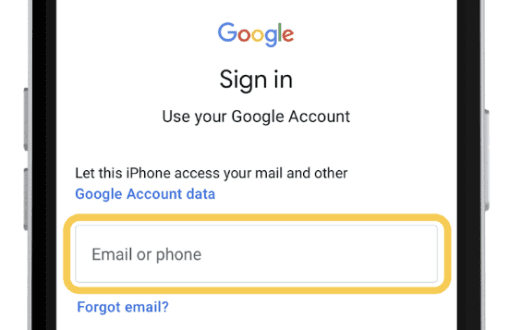
Enter your Google account credentials.
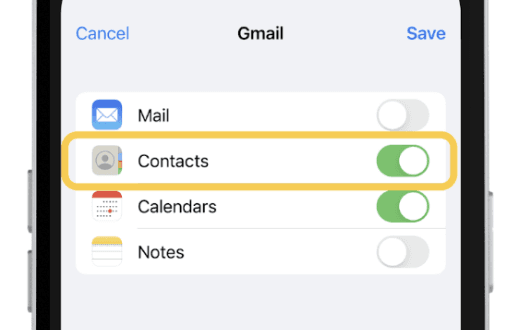
Toggle on Contacts.
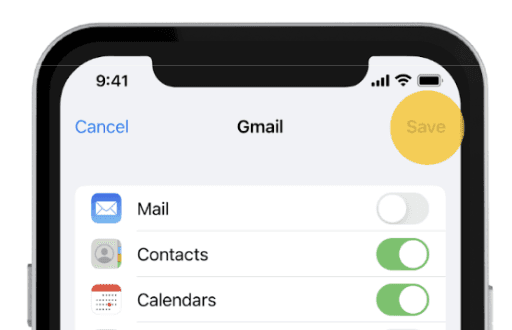
Finally click on Save.
 |  |
|
|
 |  |
|
|
 |  |
|
|
 |  |
|
|
Result: All Google Contacts now appear in your iPhone’s Contacts app and any new contacts created in your Gmail account are synched automatically to Iphone.
2.2.Synching your Google Contacts labels (contacts lists)
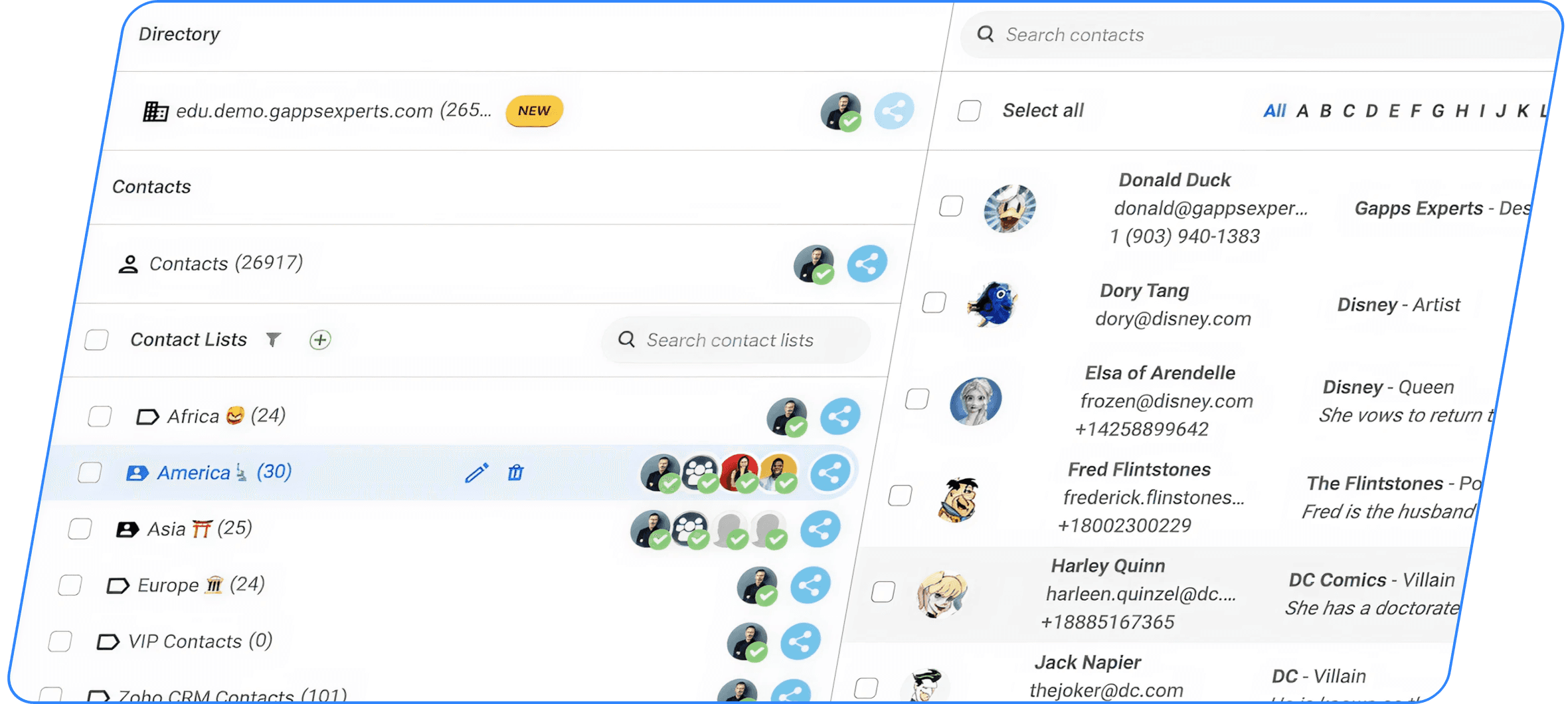
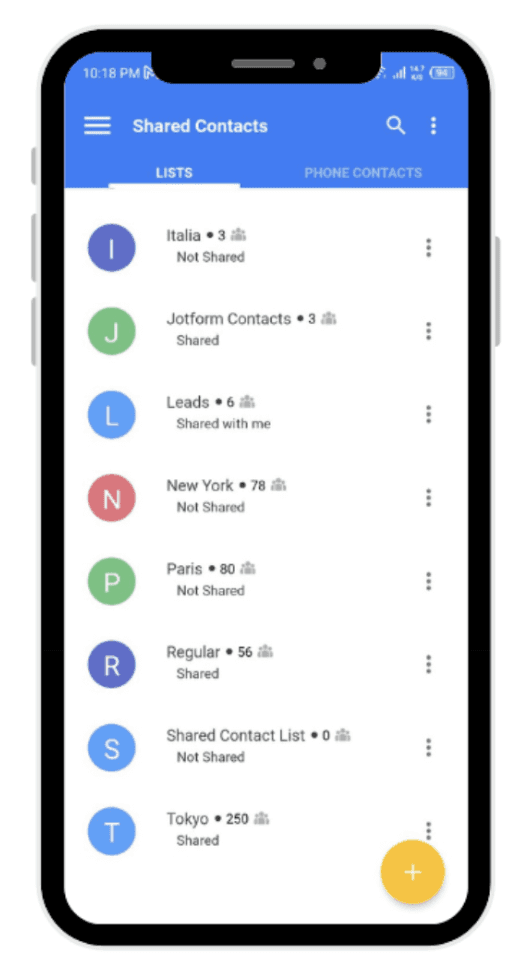
When you sync Google Contacts with your iPhone, all contacts are merged into a single list in the iOS Contacts app. This means any Google contact labels you’ve set up are lost, there’s no way to view or filter your contacts by those labels directly in the native iPhone Contacts app. While the iPhone doesn’t sync your labels, ContactsFlow™ can pull them in.
2.3.Syncing your Google Workspace Directory
Natively, here is how your iPhone contacts app works,
Directory contacts won’t be available into your iPhone contact list.
Caller ID won’t be displayed.
You can’t browse the directory or any specific OU from the iPhone Contacts app.
They can be searched but with very limited information.
It takes longer to load since the search happens on the server.
Searching for them is not possible when you’re offline.
However with ContactsFlow™ application you can work around these limitations, if your domain administrator has enabled your company’s directory (or specific organizational units) for you.
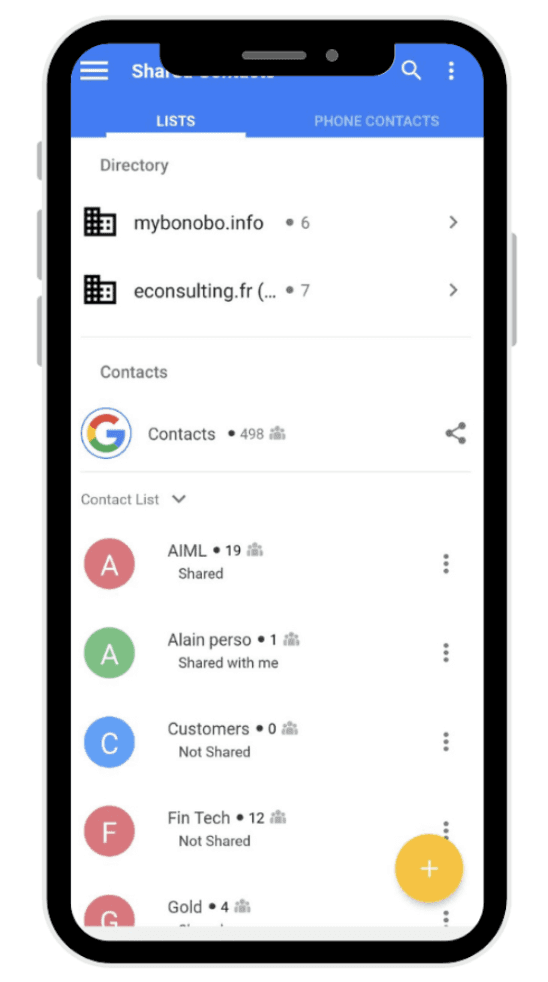
For Example:
Sarah is a marketing manager at a company with 500 employees using Google Workspace. Her IT department regularly updates all employee extensions in the Google Directory.
When a new HR representative calls Sarah, no caller ID appears on her phone. If she wants to call HR, she has to open Gmail in a browser and search for the number manually. Even after making the call, the contact doesn’t stay in her recent calls list.
When she’s traveling without internet access, she can’t view the company’s organizational chart, loses access to department contact lists (such as Sales or Support), and can only see her personal contacts on her phone. With the help of the Shared Contacts for Gmail™ application, she can overcome these situations.
2.4.Keeping your Google and iPhone contacts separated in your device
If you want to keep the two environments separated, you must NOT enable Google Contacts Sync in your iPhone settings as shown above. Instead, install the ContactsFlow™ app to manage your Workspace contacts, while continuing to use the iPhone Contacts app for your personal contacts as usual.
3.How to synchronise your iPhone contacts into your Gmail contacts?
To make your iPhone contacts accessible across Google Workspace, implement these two simple steps:
3.1. Step 1: Setup Google as Default Account in Contacts App:
Open Settings.
Scroll to Contacts.
Tap Default Account.
Select your Google account (not iCloud).
All new iPhone contacts will instantly appear in your Google ecosystem, accessible through Gmail, Drive, and Calendar.
3.2. Step 2 : Import your legacy iPhone contacts to Google Contacts:
You can choose to import your legacy contacts from a computer or directly from your phone.
3.2.1.Method 1: Transfer contacts via Computer (iCloud)
Export from iCloud:
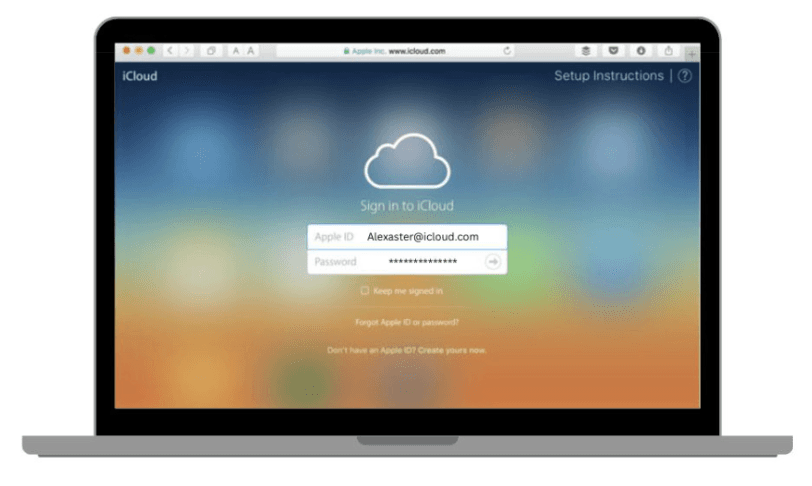
Go to iCloud.com and sign in with your Apple ID.
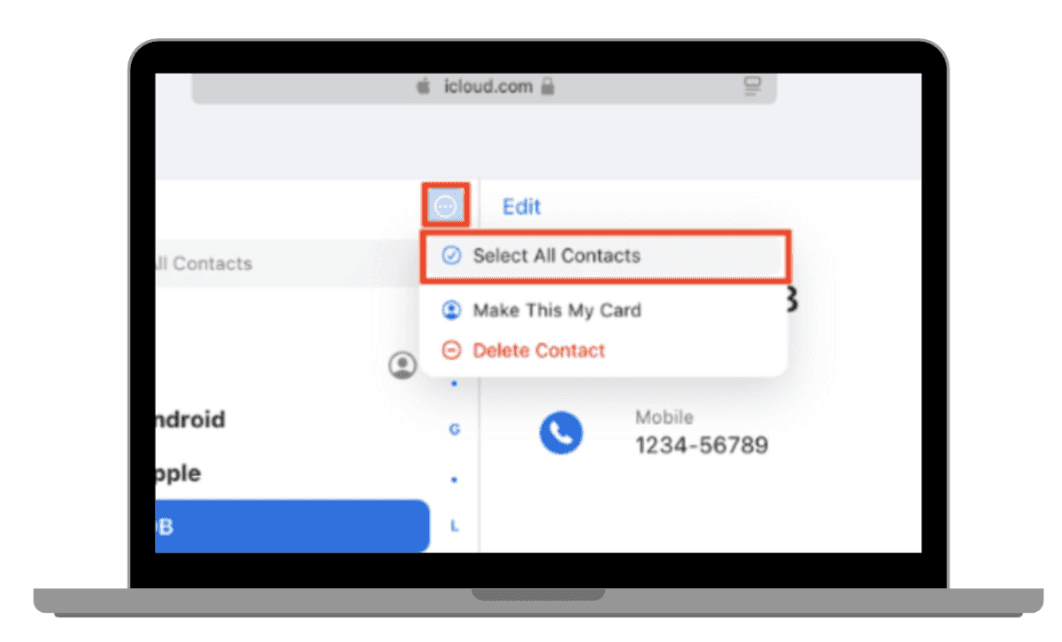
Select Contacts to view all your saved iPhone contacts. Click Select All (or manually highlight the contacts you want to export).
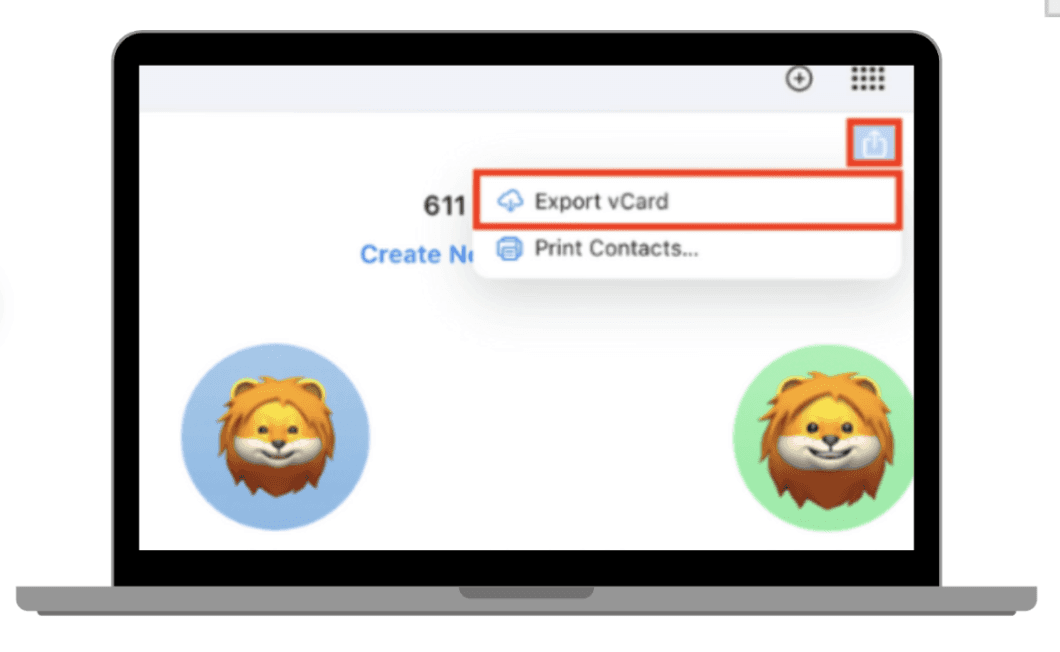
Click the gear icon in the corner and export a vCard (.vcf).
 |  |
|
|
 | |
|
Import to Google Contacts:
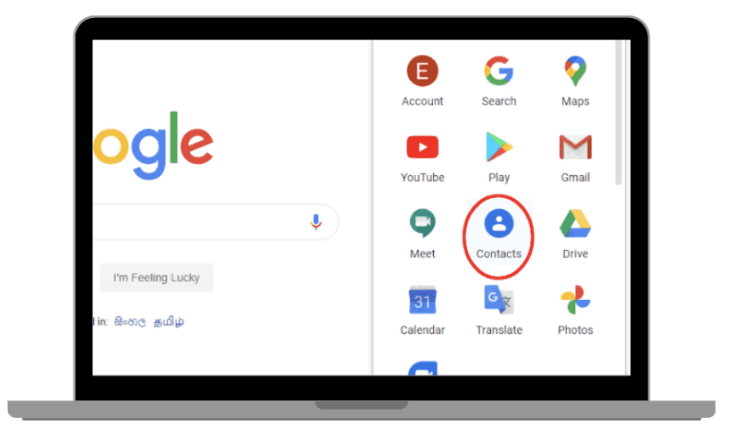
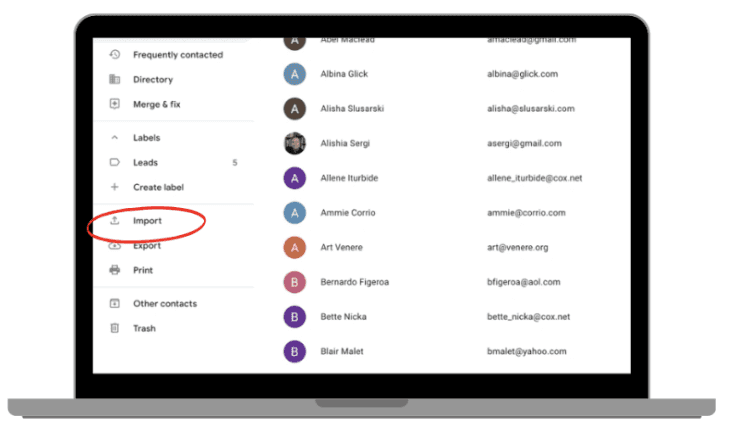
Open Google Contacts.
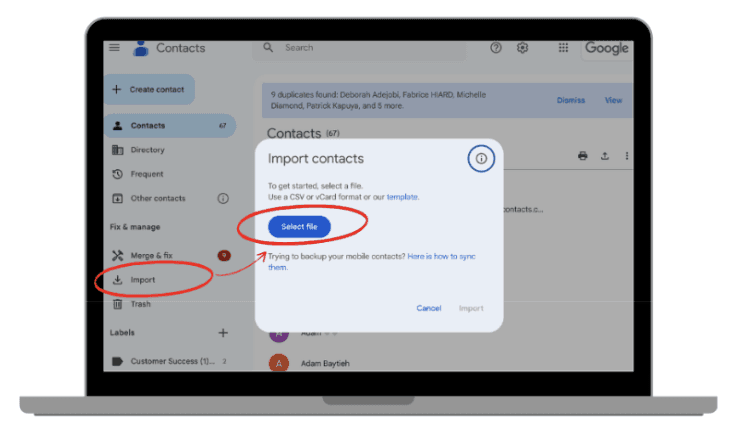
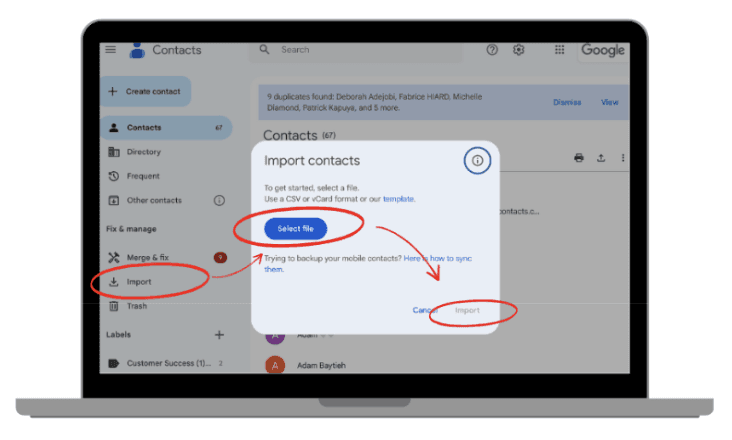
Click "Import".
Click Select File and choose the .vcf file you exported from iCloud.
Once completed, check your Google Contacts to ensure all entries were imported correctly.
 |  |
|
|
 |  |
|
|
3.2.2.Method 2: Direct Transfer via Phone (Instant & Organized)
If you prefer a faster and more organized way to transfer iPhone contacts to Google, with the ability to categorize them into specific labels, follow this method:
Open ContactsFlow™ app and sign into your google account.
Go to the “Phone Contacts”.
Select the contacts you want to transfer from your phone.
Click “Add to contact List”
Select the destination Google Contact list of your choice.
4.How to sync your Contacts with your team?
To share your contacts with people in your team, create shared contacts lists as follow :
Go to the app store and search Shared Contacts for ContactsFlow™.
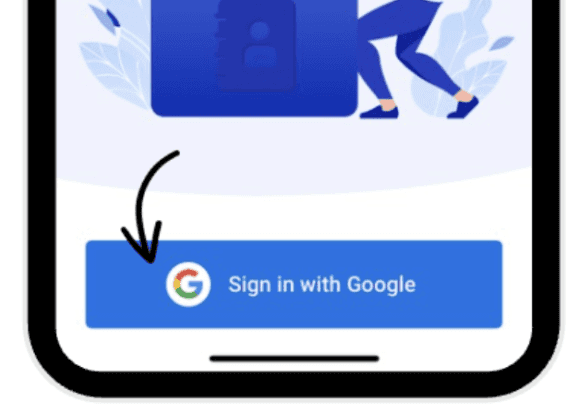
Download the application and sign in with your google account.
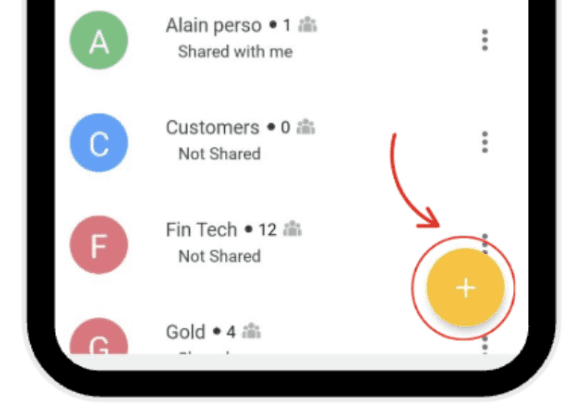
Create the contact list you want to share.
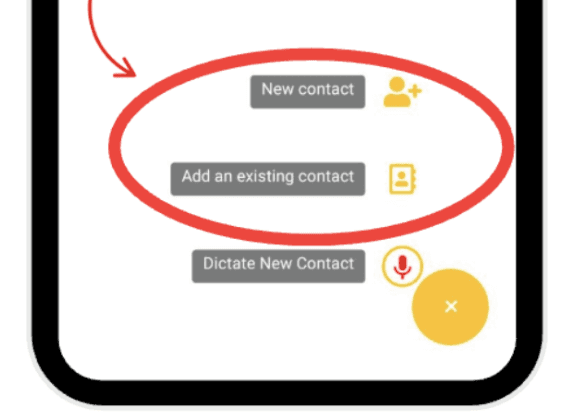
Add the phone contacts of your choice to that list.
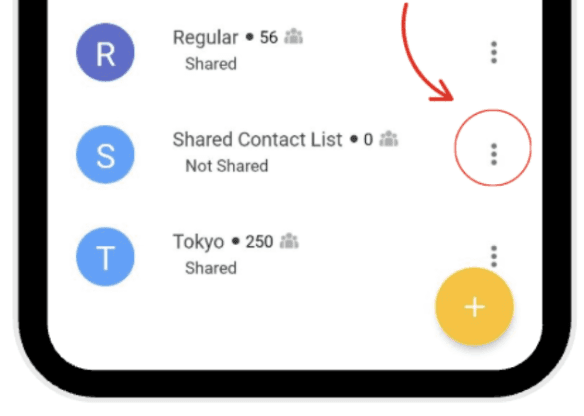
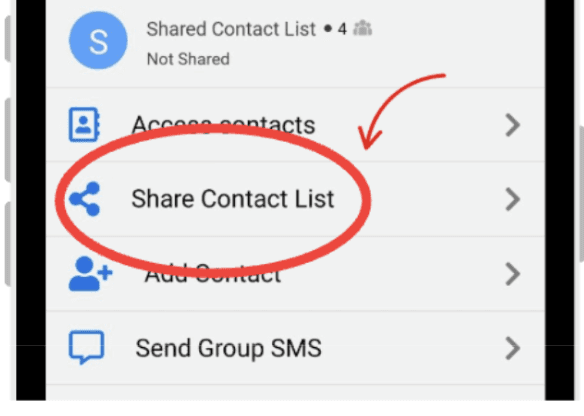
Tap on the 3 dots next to the list you created.
Share the list with your colleagues.
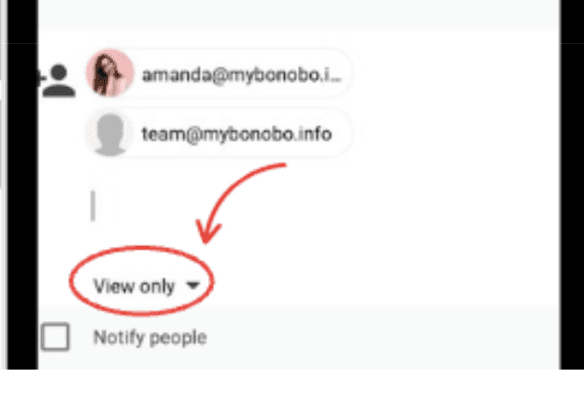
If you want them to add contacts to the list, give them the “Can Edit” permission
If you want them to only view the contacts, keep the default permission “View Only”
Set the permissions you want them to have on the shared list.
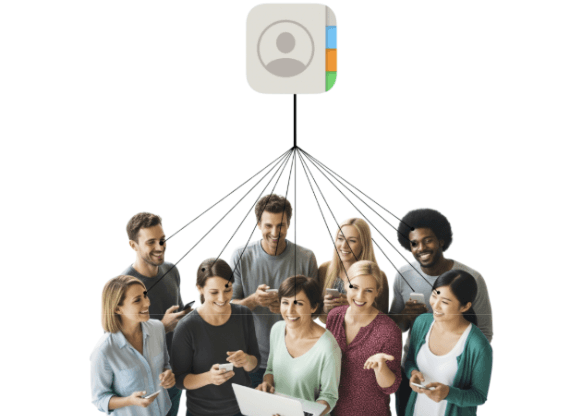
That’s it! Now, whenever someone with “Can Edit” permission updates or adds a contact, the changes are instantly synced across everyone’s devices.
You can also add notes to contacts to keep track of important details and conversations.
 |  |
|
|
 |  |
|
|
 |  |
|
|
 | |
|
5.How can I use AI to automatically create and update my contacts?
People manually updating contacts is time-consuming and prone to errors.
AI tools can remove this burden by automatically scanning your emails and creating or updating contacts from calls, voicemails, or even photos such as physical business cards into contacts.
Read more to know: how to automatically create and update my contacts.
Conclusion
By following this guide, you can ensure your iPhone and Google contacts are synchronized, organized, consistent, and easy to access. A clear synchronization process helps prevent duplicate entries, missing details, and offline access issues, ensuring you always have the right information at hand whether you’re on your phone, your laptop, or anywhere else you use Google.
Leave a comment :
No comments yet. Be the first!