How to never wait on hold again thanks to your iPhone
Apple’s “Hold Assist” feature in iOS 18 lets your iPhone wait on hold for you during customer service calls. Available on iPhone 15 models and newer, the feature detects when a real agent answers and instantly notifies you, so you no longer need to listen to hold music or stay glued to your phone. This guide explains what Hold Assist is, how to activate it, when it works, and tips to make sure you never miss the callback alert again.
“Hold Assist” is an iPhone feature introduced with iOS 18 that waits on hold for you during calls.
The feature alerts you when a real customer service agent answers the phone.
Works on iPhone 15 models and newer running iOS 18 or later.
Mainly supported with large customer service numbers such as banks, airlines, and phone carriers.
You can continue using your iPhone or lock the screen while the call remains active.
Audio processing happens directly on the device, helping preserve privacy.
Keeping sound and vibration enabled helps ensure you don’t miss the notification.
Updating to the latest version of iOS may be necessary if the feature does not appear.

Introduction
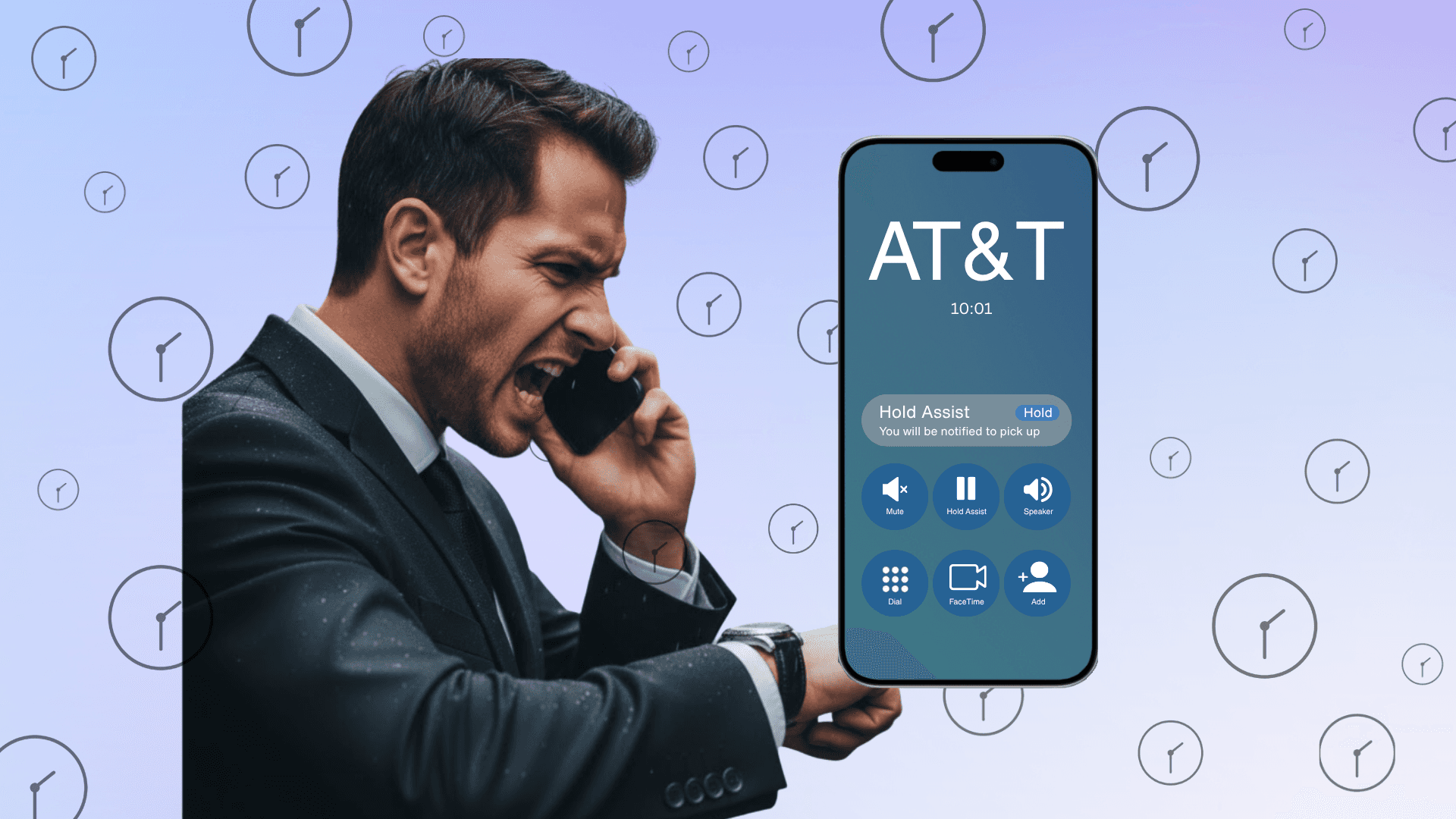
So you called AT&T because of a wrong billing issue. The automated voice tells you, “Your estimated wait time is 45 minutes.” Normally, you’d sigh, put your phone on speaker, and waste time listening to music.
But this time, with a simple tap of “Hold Assist.” Your iPhone takes over the waiting, and when an agent finally answers, your phone vibrates to let you know someone is ready to speak with you.
This feature, introduced with iOS 18, allows your iPhone to wait on hold for you. When a real person picks up, the phone instantly notifies you so you can return to the call without spending those minutes or hours listening to background music.
What is “Hold Assist” ?
“Hold Assist” is a built-in iPhone feature that automatically stays on the line during long hold times. It detects when the call is transferred from automated messages to a live person and then alerts you with a vibration or a notification sound.
The feature is available on iPhone 15 models and newer running on iOS 18 or later. For now, it works mainly with major customer service numbers in the United States, such as phone carriers, banks, and airlines. Apple specifies that “Hold Assist” uses device intelligence to recognize when the call is answered, meaning no audio is sent to Apple’s servers.
How to Use Hold Assist
Open the phone app and make your call. Once the automated system confirms you’ll be placed on hold, your iPhone will detect that situation.
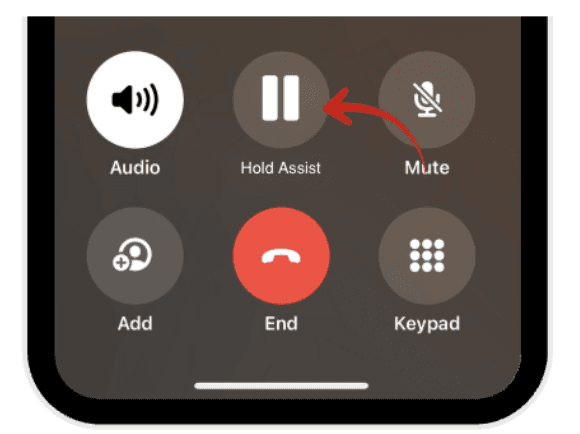
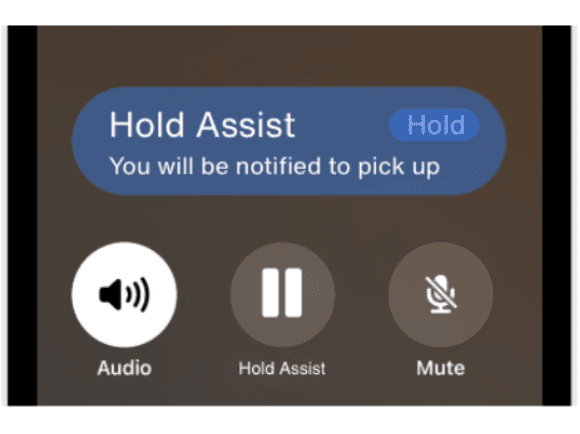
Activate Hold Assist by tapping the label. When the system announces that you’re on hold, an option labeled “Hold Assist” appears on your call screen.
Let Your iPhone Wait for You. After activation, your screen displays a message such as “You will be notified to pick up.” At this point, you can set your phone down, lock it, or switch to another app while the device stays connected to the call.
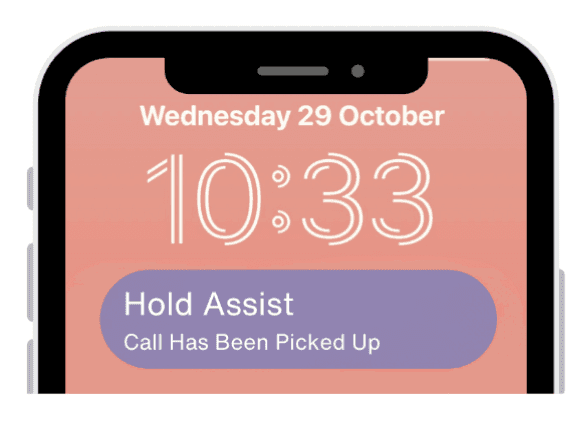
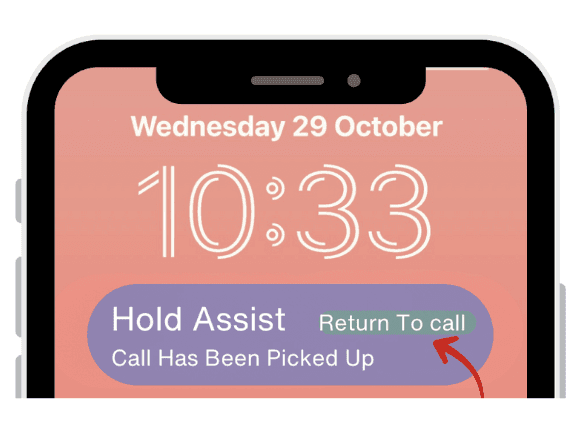
Get Notified When It’s Your Turn. When a real person finally picks up, a vibration, a sound, or an on-screen alert will appear and be heard.
Tap “Return to Call” to start the conversation immediately.
 |  |
|
|
 |  |
|
|
 | |
|
Additional Tips with Hold Assist feature
It's important to keep your phone within reach so you don’t miss the alert when the call connects.
Make sure Silent Mode or Do Not Disturb isn’t enabled, otherwise the vibration or sound might not be noticeable.
If you expect a particularly long hold time, plug in your phone or ensure the battery is charged.
Apple specifies that all audio processing occurs directly on the device, with no recordings being stored or transmitted outside it, ensuring that your information remains private and secure
When the Option Doesn’t Appear
If you don’t see the Hold Assist prompt, make sure your iPhone has the latest iOS update. The feature is still rolling out and might only be available in some regions. It mainly works with major toll-free or company service numbers, so smaller businesses may not be supported yet
Why bother using the Hold Assist feature?
“Hold Assist” removes one of the most annoying parts of customer-service calls. Instead of you waiting on hold, your iPhone stays on the line and alerts you when a real person is ready to talk. Whether you’re calling your internet provider, airline, or bank, this feature helps you save time and frustration
Conclusion
Waiting on hold has always been one of the most boring parts of dealing with customer service, making you postpone the call over and over again. But, with Hold Assist, your iPhone takes that burden away, quietly staying on the line until a real person is ready to talk.
The next time you hear “your estimated wait time is…” you won’t need to roll your eyes or keep your phone on speaker. Just tap Hold Assist, set your phone down, and get on with your day.
In other words, you’ll never have to wait on hold again, your iPhone will do it for you.
Leave a comment :
No comments yet. Be the first!