How to share data securely in Google Spreadsheets
Securely sharing Google Sheets is essential in office environments where sensitive data like budgets and client information are involved. This guide explains how to choose the right sharing settings, limit access to specific users, assign appropriate roles, and restrict downloading or copying. It also covers how to revoke access when needed. By applying these best practices, teams can collaborate efficiently while maintaining full control and protecting confidential information from unauthorized access or errors.
Use Restricted sharing to limit access to specific users for sensitive data
Assign correct roles (Viewer, Commenter, Editor) to control actions
Disable download, print, and copy to protect confidential information
Regularly review and update permissions to maintain security
Revoke access immediately when users no longer need it

1. Introduction
In a busy office, you often collaborate on spreadsheets containing sensitive data like budgets, client information, or project timelines. Sharing without proper precautions can lead to accidental leaks, incorrect edits, or unauthorized access. Secure sharing ensures that only the right colleagues see or modify the data while you stay in control.
2. Understanding Google Sheets Sharing Options
Google Sheets allows several sharing options, and in an office scenario, choosing the right one is important.
Option | Description | During Work example |
Restricted | Only specified users have access | Share the annual financial report only with your finance team |
Any One With Link | Anyone with the link can view or edit | Good for company wide read only reports, but not suitable for confidential projects |
On Domain | Only users in your organization can access | Share the project timeline across all department heads safely. |
Tip: For sensitive office documents, Restricted sharing is usually best.
3. How to Share a Spreadsheet Securely
3.1. Share with Specific People Only
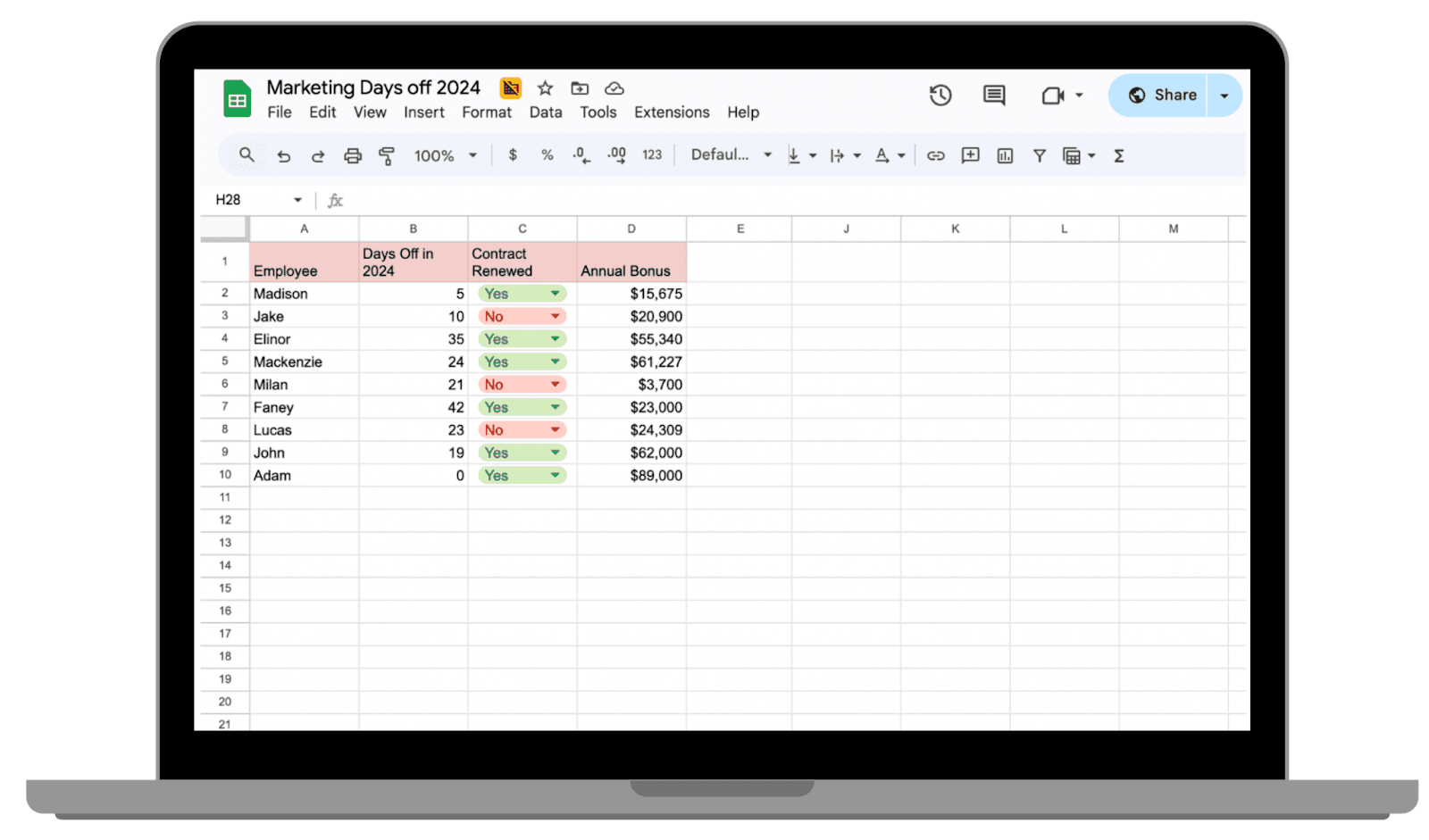
Open Google Spreadsheet.
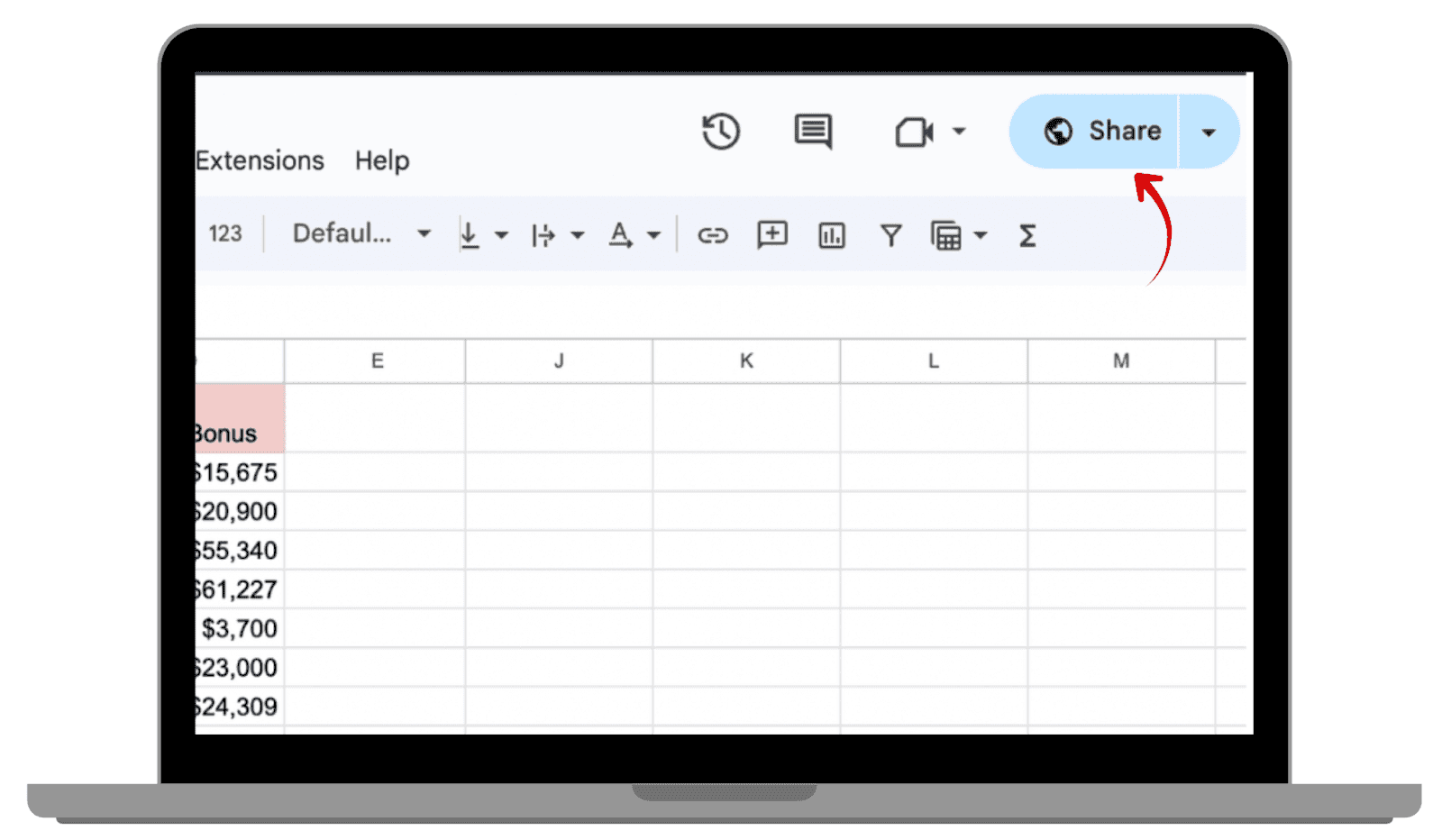
Click the Share button.
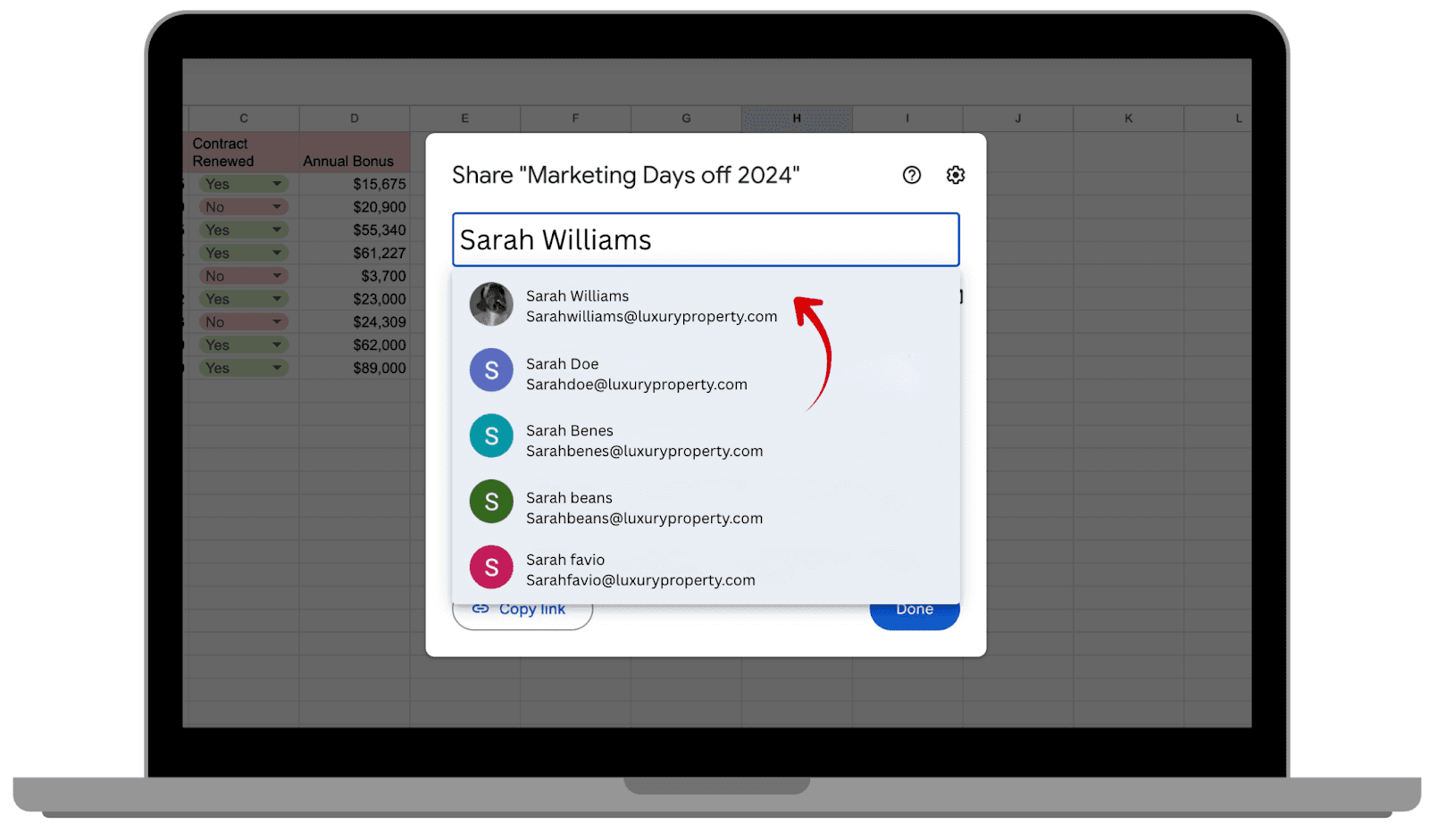
Enter the email addresses of coworkers who need access.
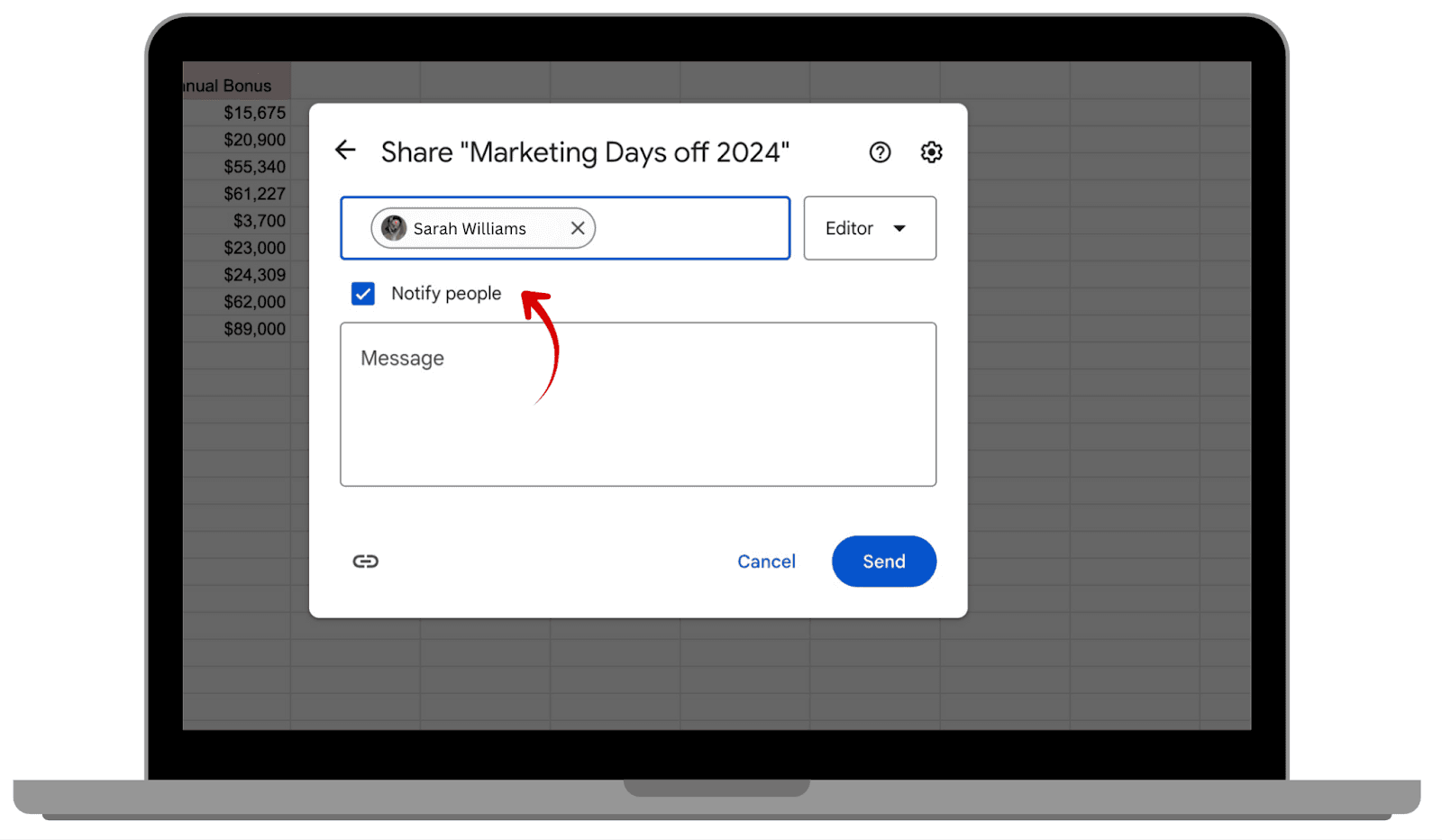
Check “Notify people” so they are aware of the shared file.
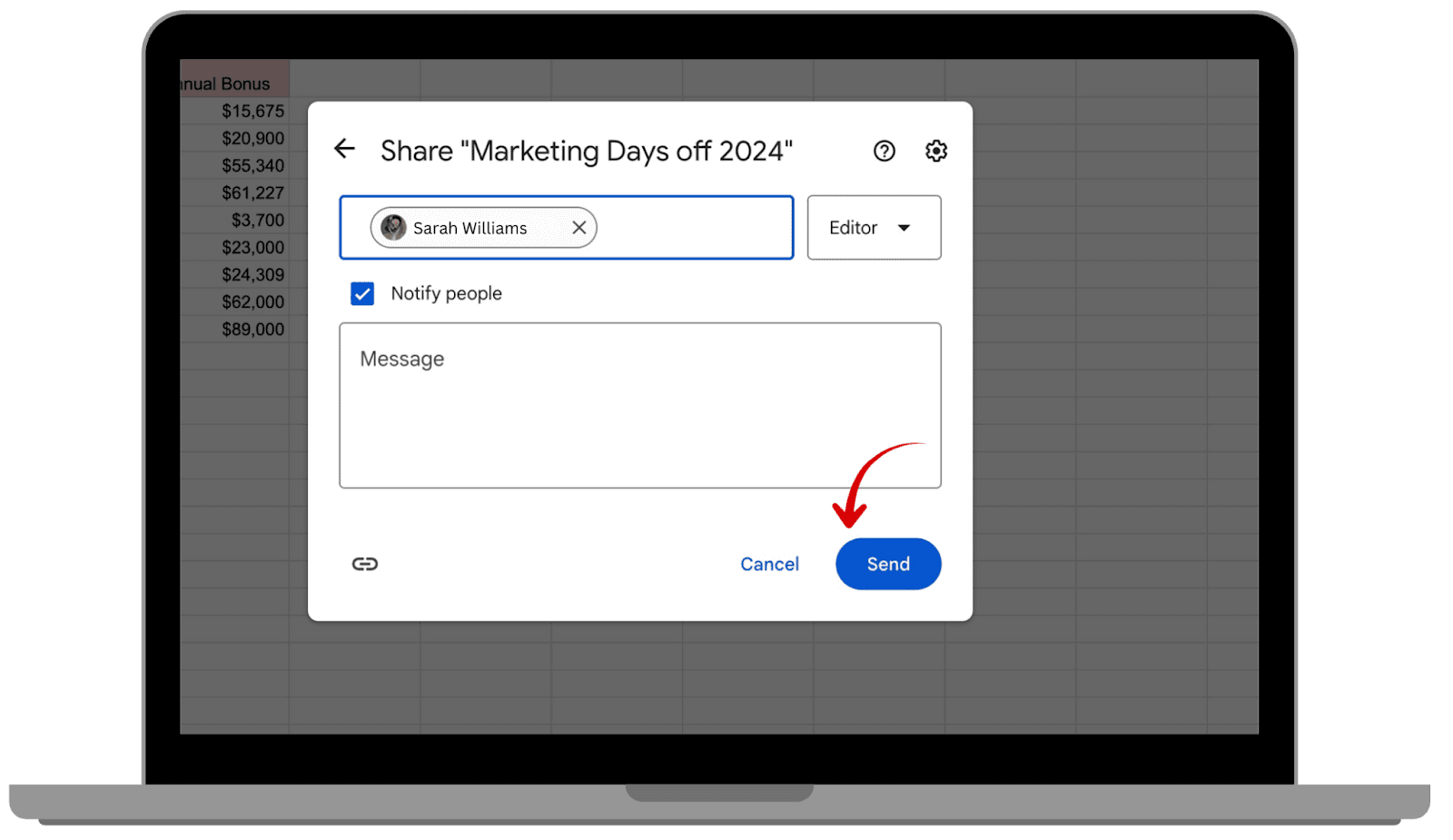
Click Send.
 |  |
|
|
 |  |
|
|
 | |
|
3.2. Control Access Levels
Assign the correct role depending on the colleague’s responsibility:
Viewer: Can only view the document
Commenter: Can leave comments without editing.
Editor: Can fully edit the spreadsheet
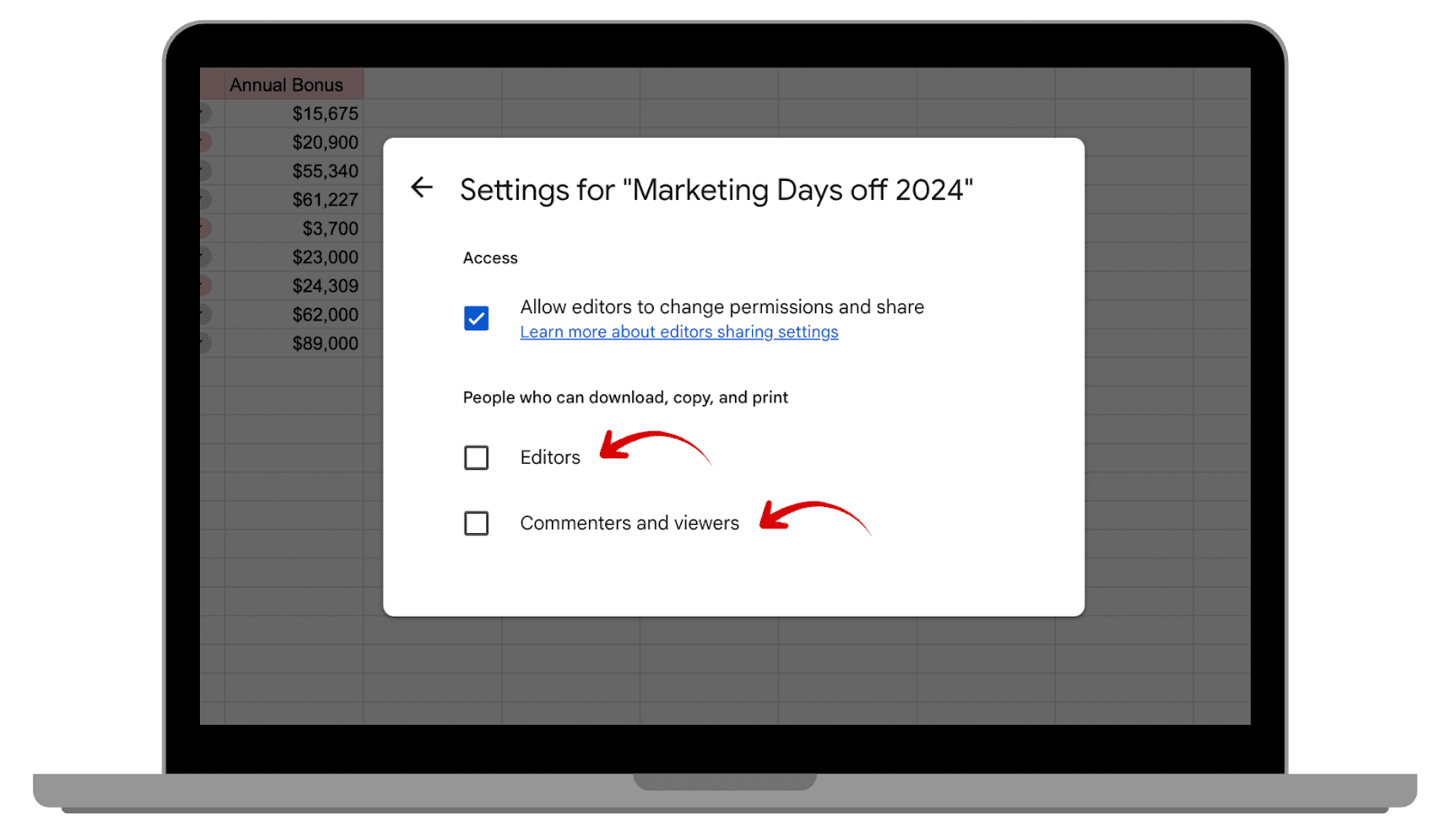
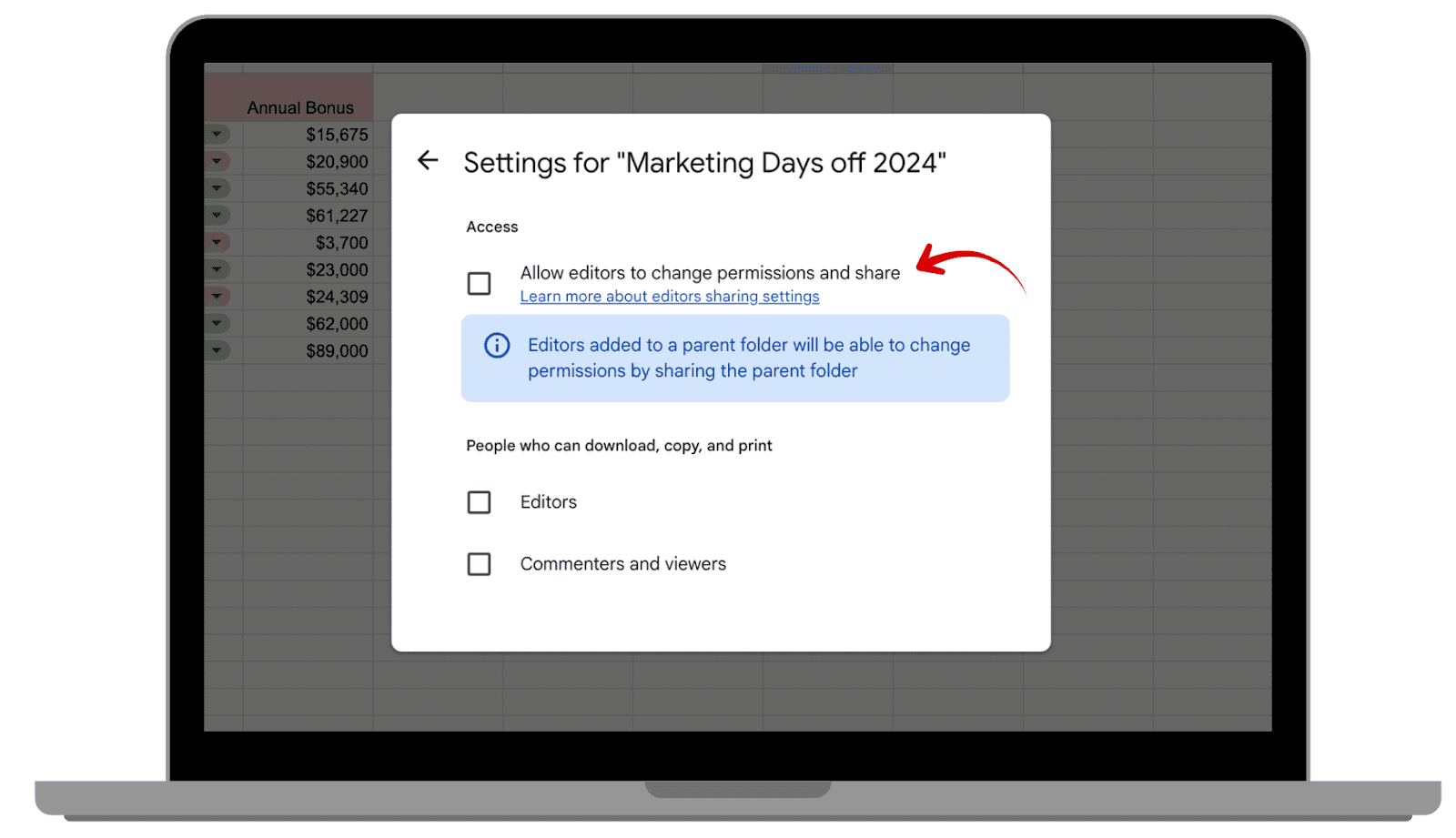
3.3. Restrict Downloading, Printing, and Copying
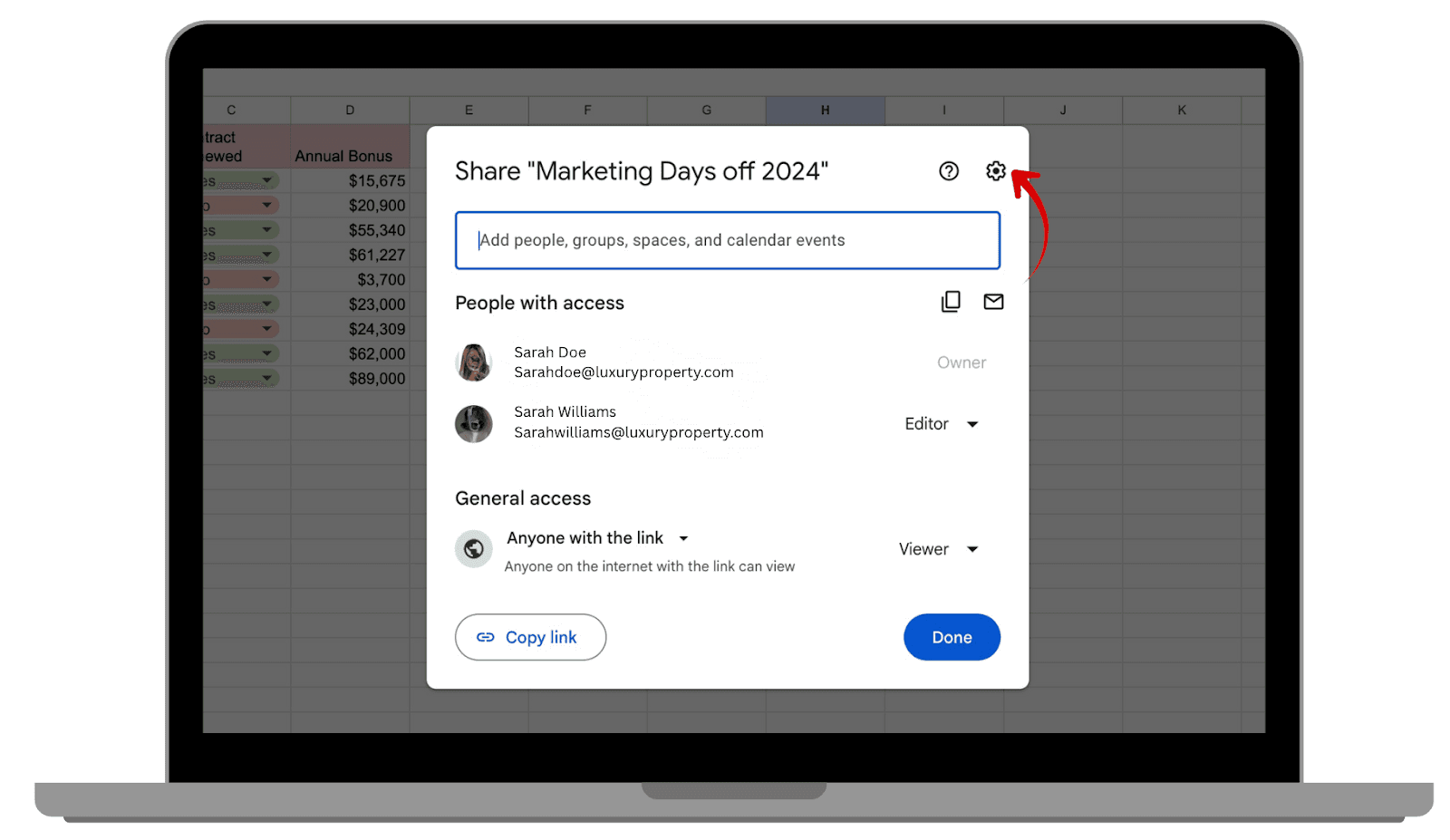
Click Share then Settings .
Uncheck options for editors, viewers, and commenters to download, print, or copy.
Uncheck editor options to prevent uncontrolled sharing.
 |  |
|
|
 | |
|
This would be beneficial for example, to protect a salary spreadsheet so employees cannot download or forward confidential information.
4. Revoking Access & Maintaining Control Over Shared Files
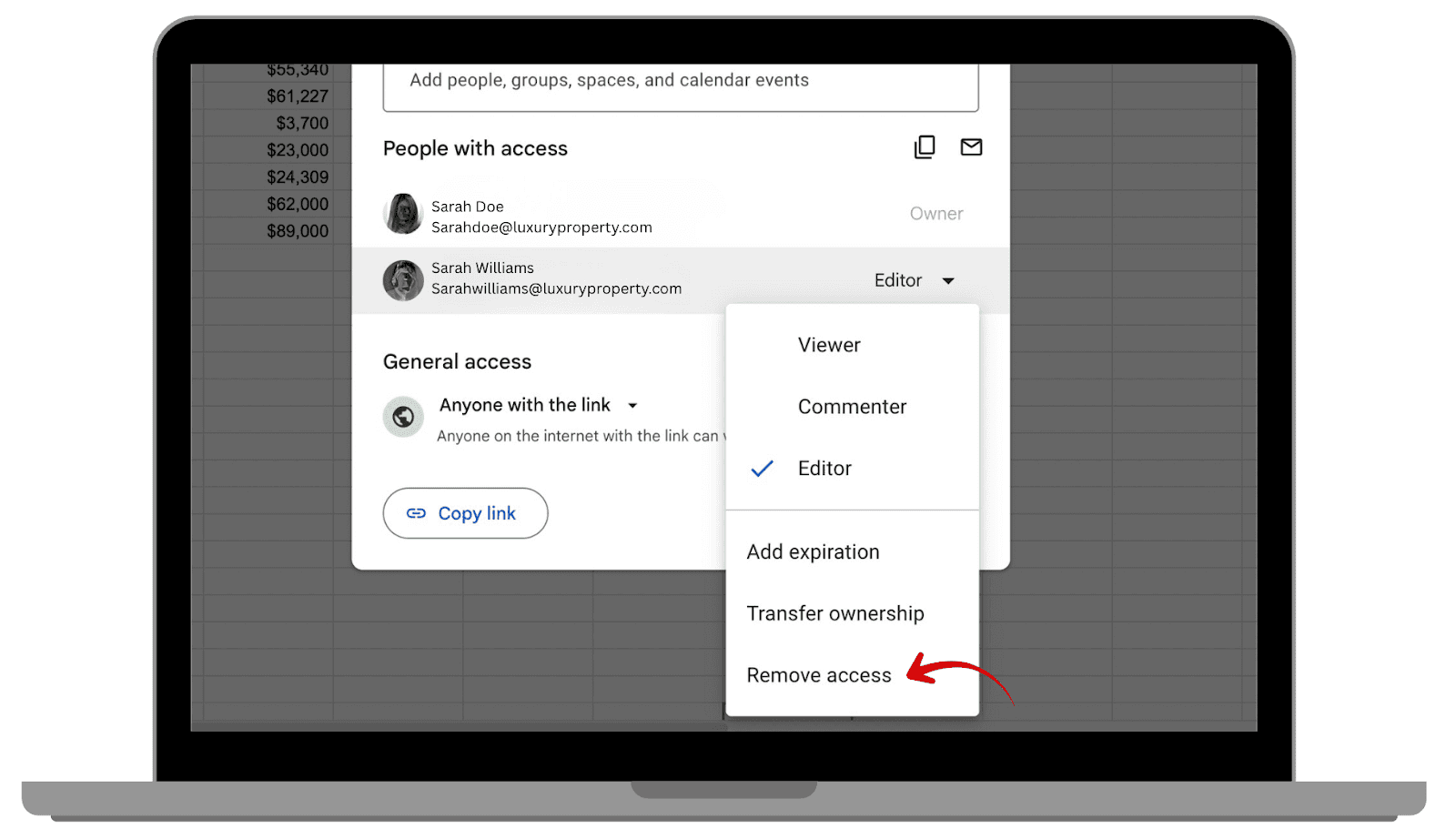
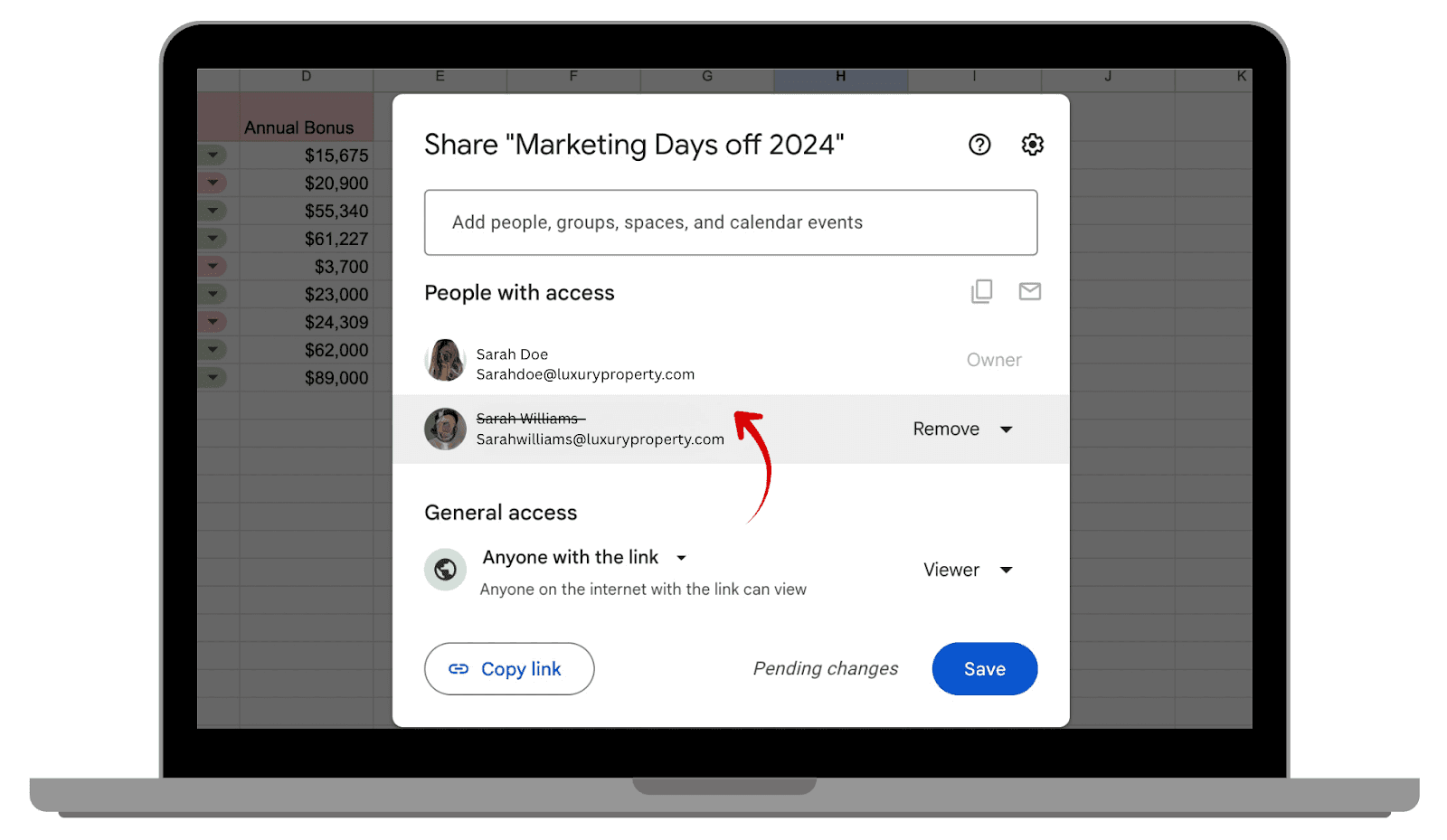
If you want to revoke access and maintain control over shared files:
Click Share, then next to a coworker’s name
Select Remove access.
 |  |
|
|
For example, if you need to evoke access to the financial forecast spreadsheet after a team member leaves the company, this method should be used.
Regularly review all shared files to ensure permissions are up to date. Check who currently has access, who no longer should, who can edit, download, or copy the files, and who has view-only access
Conclusion
In an office environment, securely sharing Google Spreadsheets ensures that sensitive data is only accessible to authorized colleagues, edits are tracked, and accountability is maintained. Using these methods, your team can collaborate efficiently without risking leaks or mistakes.
Leave a comment :
No comments yet. Be the first!