iPhones in Google Workspace: Best Practices
This guide explains how to effectively use an iPhone within a Google Workspace environment. It covers key advantages such as real-time synchronization, mobile security, and Gemini-powered productivity, along with step-by-step best practices. Learn how to configure Google apps, enable contact sync, manage notifications, secure your device, and optimize workflows to ensure a reliable, efficient, and fully connected mobile workspace.
Use Google apps (Gmail, Calendar, Contacts) instead of Apple defaults
Enable Google Contacts sync across your iPhone
Adjust notification settings to reduce distractions
Secure your device (Face ID, strong passcode, updates, Find My iPhone)
Separate work and personal Google accounts
Enable offline access for Drive, Docs, Sheets, and Slides
Use iPhone Shortcuts to speed up common actions
Take advantage of real-time sync across all Workspace apps
Use Gemini features to improve productivity on mobile

Introduction
When employees use their iPhones within a Google Workspace environment, they gain a powerful combination: Apple’s secure mobile hardware and Google’s productivity ecosystem. This guide walks you through the advantages of using Google Workspace on iPhone and the best practices to follow so your device stays secure, efficient, and optimized for work.
Why iPhones Work Well with Google Workspace
iPhones integrate smoothly with Google Workspace because both ecosystems prioritize speed, security, and reliability. Google develops fully optimized iOS versions of Gmail, Drive, Docs, Meet, Calendar, and Chat, ensuring each app runs smoothly and takes full advantage of Apple’s hardware and software capabilities. This means users can manage emails, access files, join video meetings, collaborate in documents, and stay connected with their teams, directly from their iPhone, without losing performance or functionality.
With real-time syncing, strong privacy protections, and a consistent user experience across devices, iPhones provide an ideal environment for Google Workspace. Whether switching from desktop to mobile, working remotely, or traveling, everything stays up-to-date and accessible. And with the addition of Gemini-powered intelligence, iPhone users benefit from a more efficient, informed, and responsive mobile workspace than ever before.
Key Advantages of Using Google Workspace on iPhone
3.1 One Unified Mobile Experience
iPhone users can install Google’s official apps such as: Gmail, Drive, Docs, Meet, Calendar, and Chat, creating a unified workflow across mobile and desktop. Everything stays synced no matter where you work. It simplifies your work process and keeps everything in one place.
3.2 Strong Security and Privacy Features
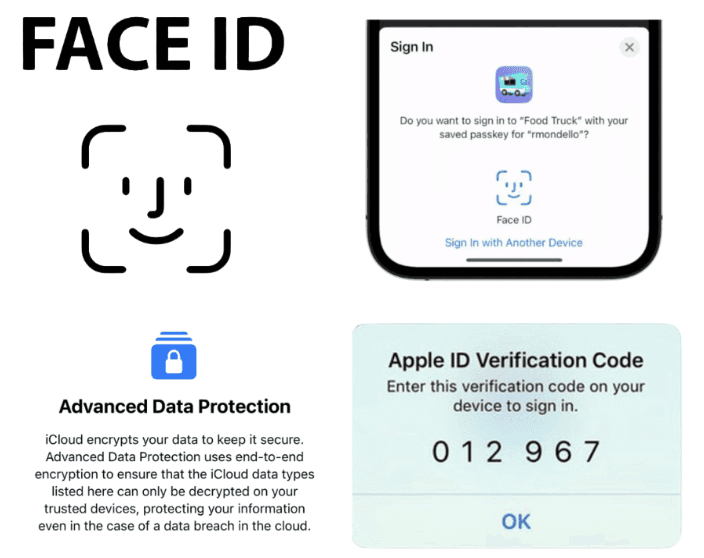
iPhones offer built-in protections like Face ID, hardware-level encryption, passkeys, and automatic security updates. Together with Google Workspace security (2-step verification), this creates a robust security layer for professional use.
3.3 Real-Time Synchronization
Google apps on iPhone sync instantly:
Emails arrive without delay.
Calendar events update across devices.
Contacts and labels stay organized.
Files in Drive are instantly accessible.
This helps teams stay aligned even when working remotely.
3.4 Mobile Intelligence (Powered by Gemini)
With Gemini integrated into Workspace apps, iPhone users can:
Summarize emails.
Draft documents or responses.
Prepare for meetings.
Generate ideas while on the go.
This gives mobile workflows a measurable productivity boost.

4. Best Practices for Using Google Workspace on iPhone
4.1 Use Google Apps Instead of Apple Defaults
For reliable syncing across your iPhone and Google Workspace, use Google’s apps rather than Apple’s built-in options.
Install and use:
Gmail instead of Apple Mail.
Google Calendar instead of Apple Calendar.
Google Contacts instead of iCloud Contacts.
Using Google’s native apps ensures full compatibility with Workspace features and with your organization’s admin settings.
If you need help setting things up, click the following links to our different guides:
To learn how to configure Gmail on your iPhone, click here.
You can also explore how to sync or separate your Google and iCloud contacts.
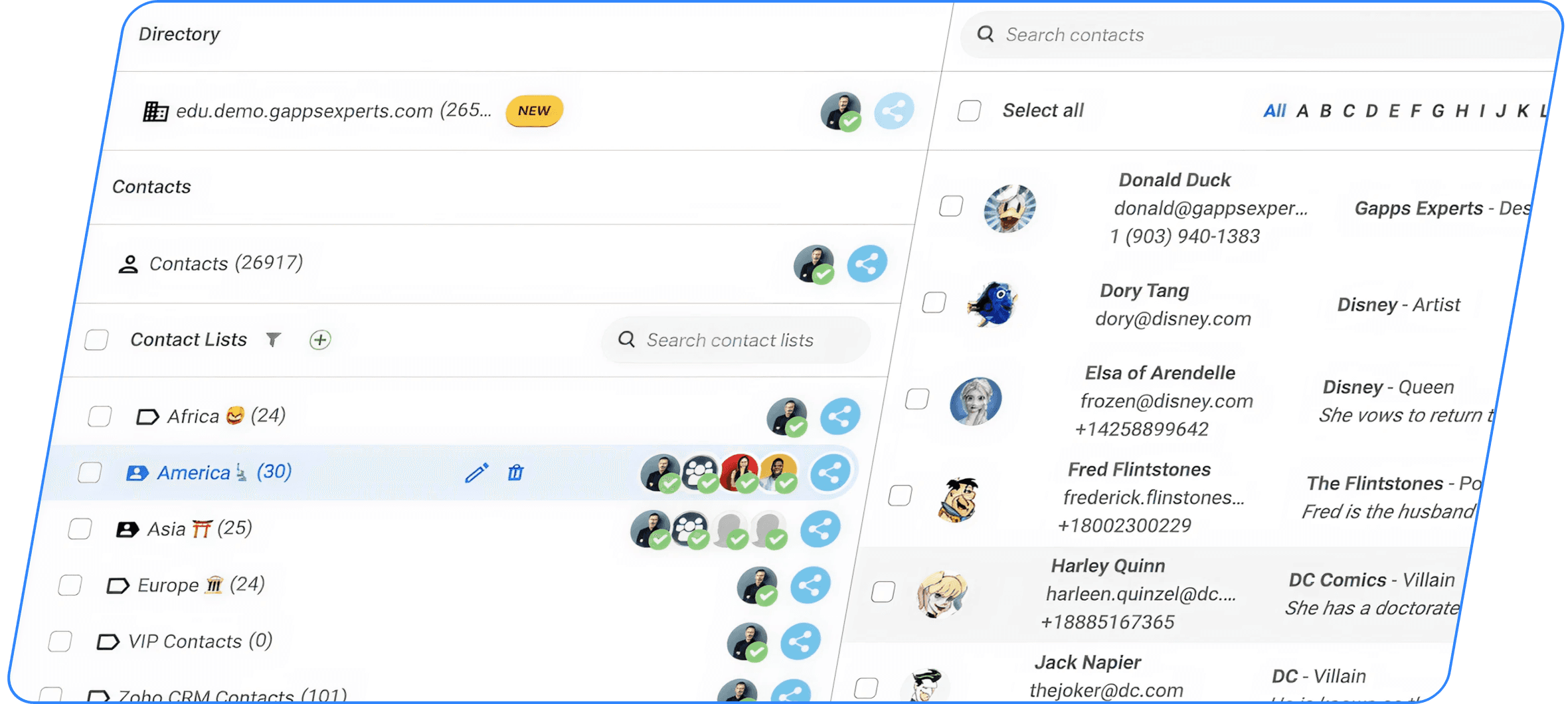
4.2 Enable Google Contacts Sync:
Inside the Gmail app, activate contact sync so your Workspace contacts appear in:
iPhone contact list
Caller ID
WhatsApp
Phone dialer
Any app that uses the phone’s contact database
This ensures you always know who’s calling.
To do this:
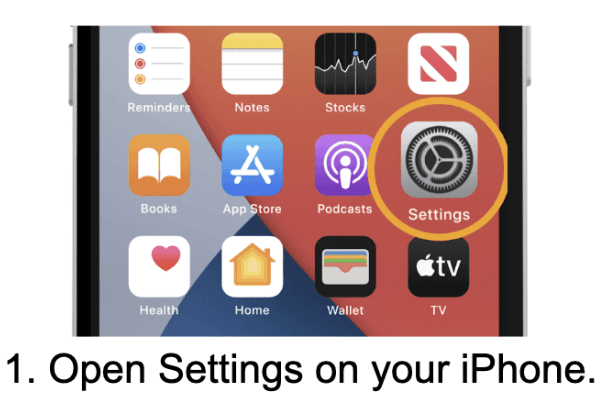
Open Settings on your iPhone.
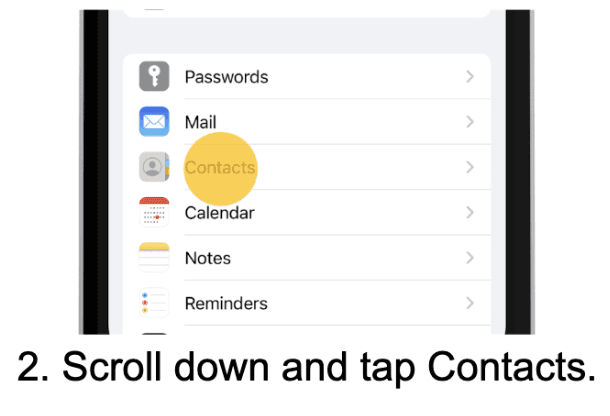
Scroll down and tap Contacts.
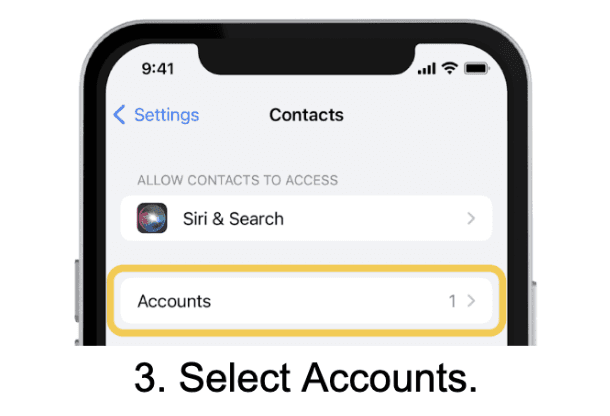
Select Accounts.
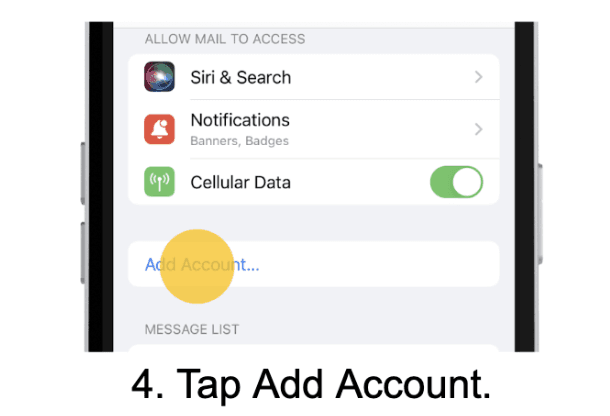
Tap Add Account.
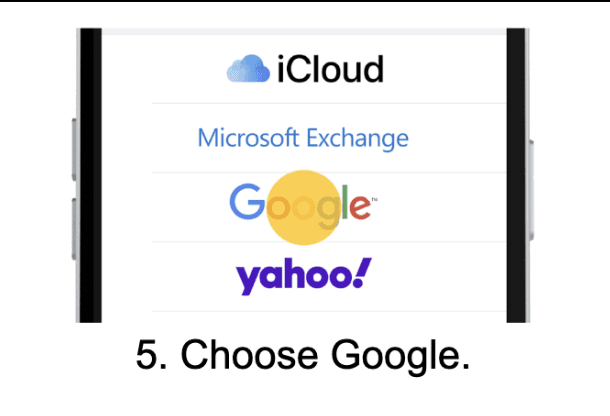
Choose Google.
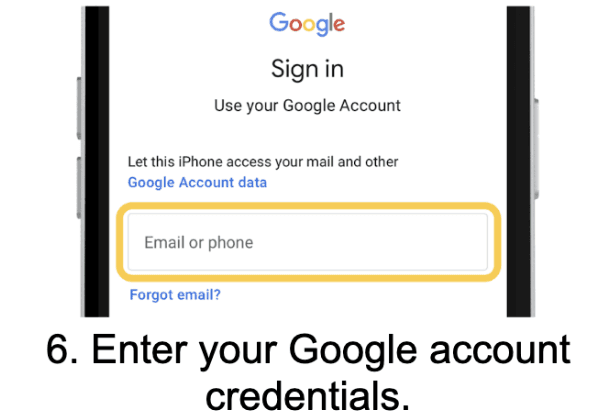
Enter your Google account credentials.
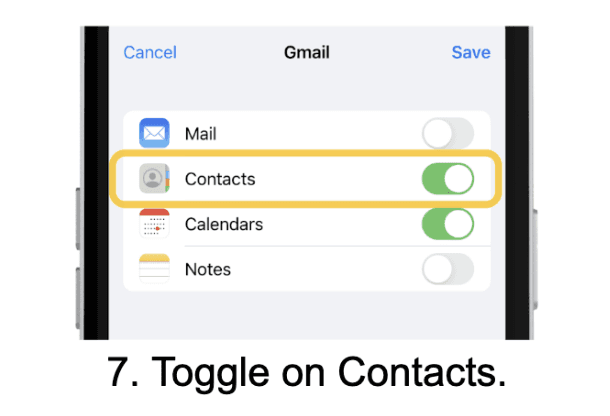
Toggle on Contacts.
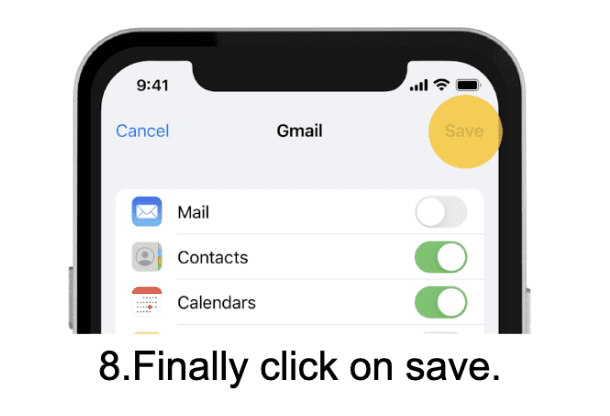
Finally click on Save.
 |  |
 |  |
 |  |
 |  |
4.3 Optimize Notification Settings
Too many alerts can be distracting. Adjust your settings so you only get what matters:
Email categories.
Calendar event reminders.
Google Chat alerts.
Drive file updates.
Choose the essential ones so your iPhone stays useful without becoming noisy.
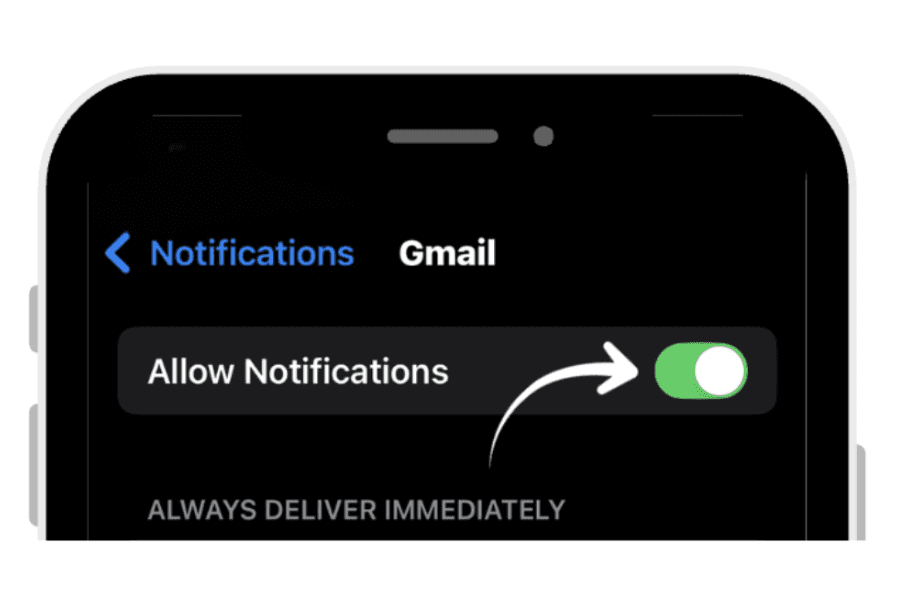
To control your notifications on iPhone you:
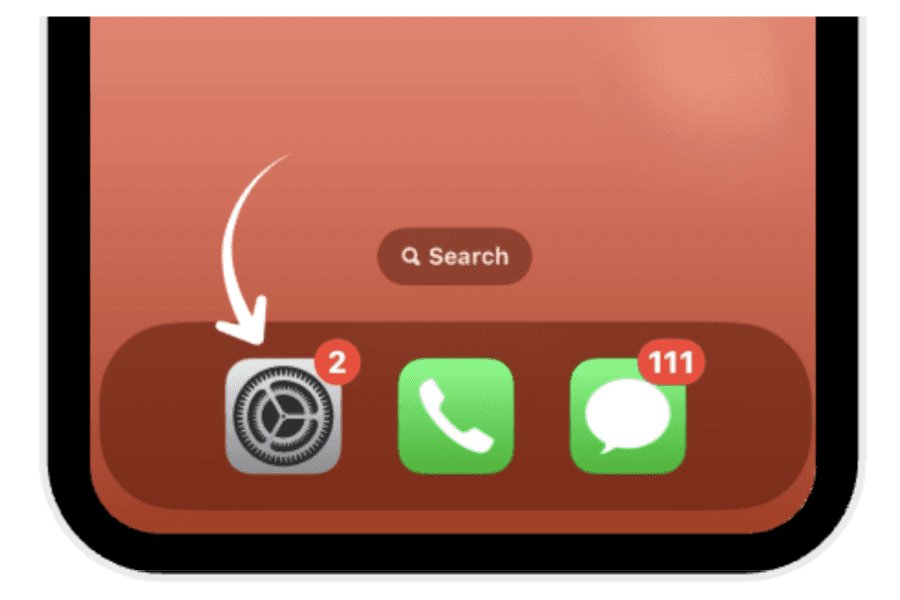
Open Settings.
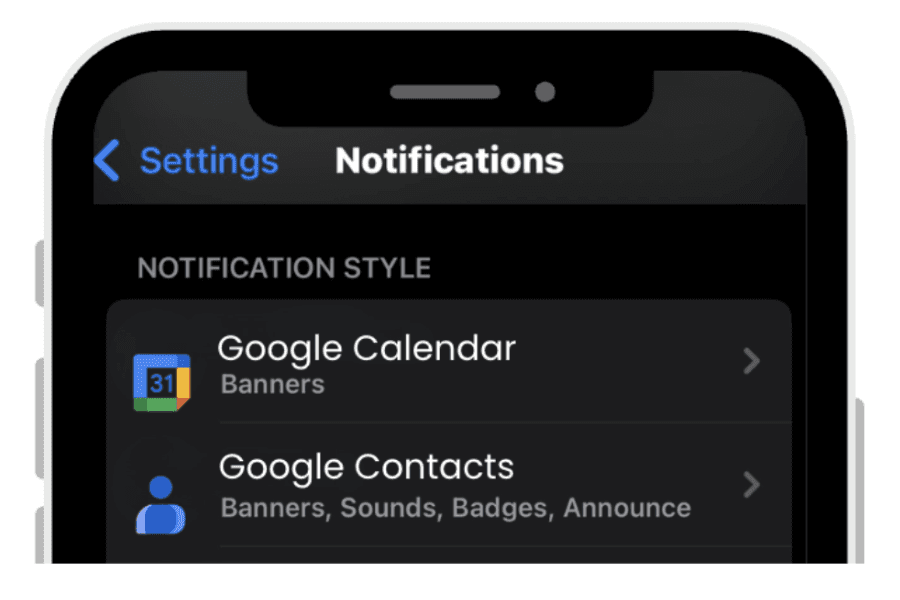
Tap Notifications.
You’ll see a list of all apps that can send notifications, toggle the on and off buttons to match your preference.
 |  |
|
|
 | |
|
4.4 Strengthen Device Security
Protecting your iPhone is essential for keeping Google Workspace data safe. A few built-in iOS features make a major difference:
Enable Face ID
This ensures only you can unlock your device and access your work apps and notifications.Use a strong passcode
Choose a longer numeric code or a letters and numbers as a password to prevent unauthorized access if Face ID fails or the device restarts.Turn on automatic iOS updates
Keeping your iPhone updated ensures you always have the latest security patches and protections.Keep “Find My iPhone” enabled
If your device is ever misplaced or stolen, you can locate it, lock it, or erase it remotely to protect your Workspace accounts.
Together, these settings help keep your work data protected even if your iPhone is lost or accessed by someone else.
If you want step-by-step guidance on securing your device and preventing iPhone theft, click here
4.5 Separate Work and Personal Google Accounts
Keeping your work and personal Google accounts separated on your iPhone helps you stay organized and avoid mixing emails, files, and notifications. This makes it easier to focus during work hours while keeping your personal content separate.
You can do this directly in Google apps like Gmail and Calendar:
To separate work and personal accounts in Gmail:
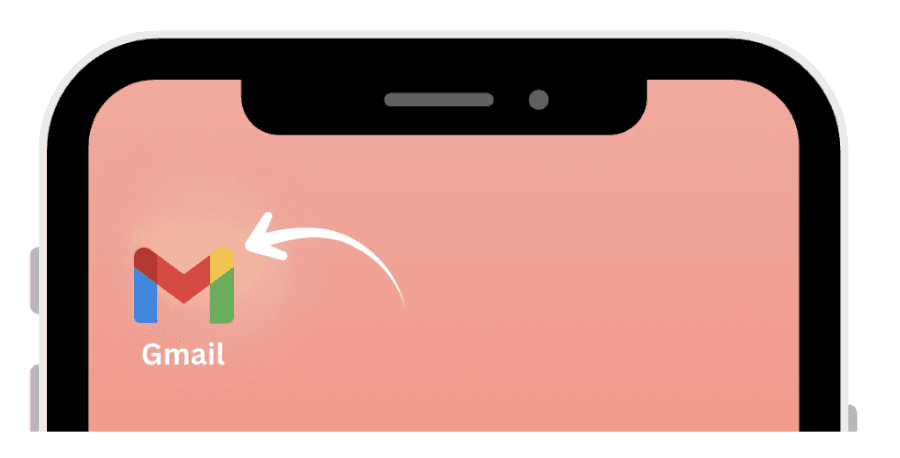
Open the Gmail app on your iPhone.
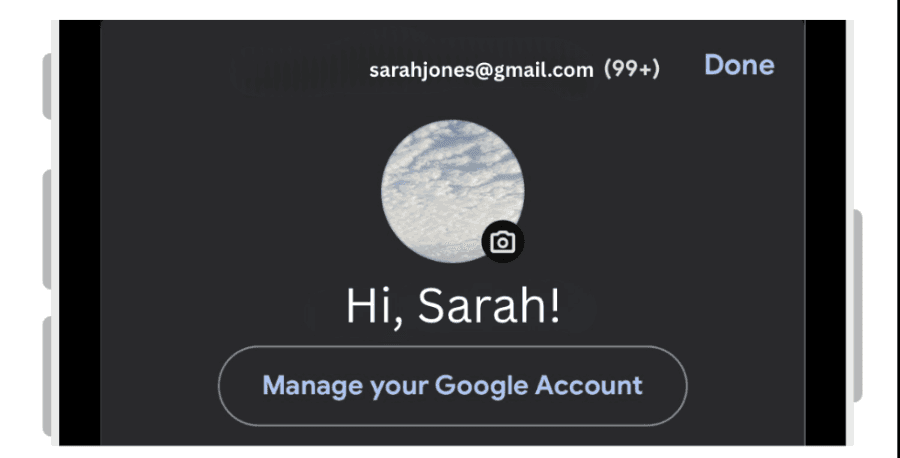
Tap your profile picture in the top-right corner.
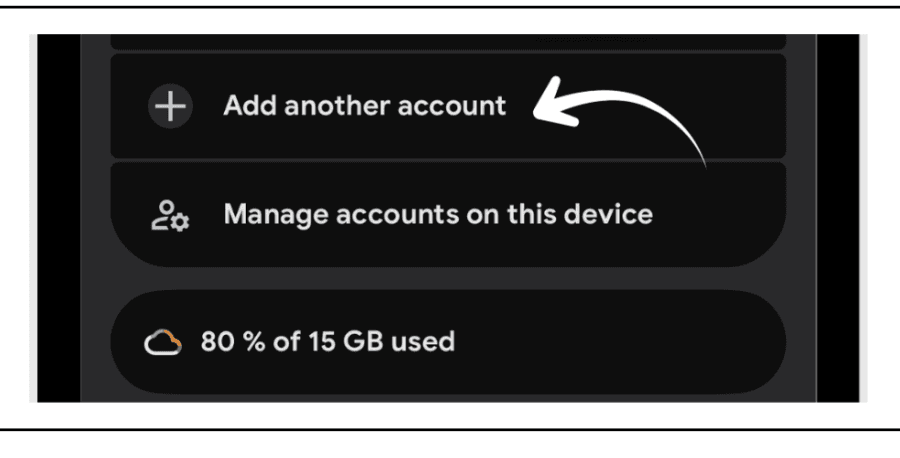
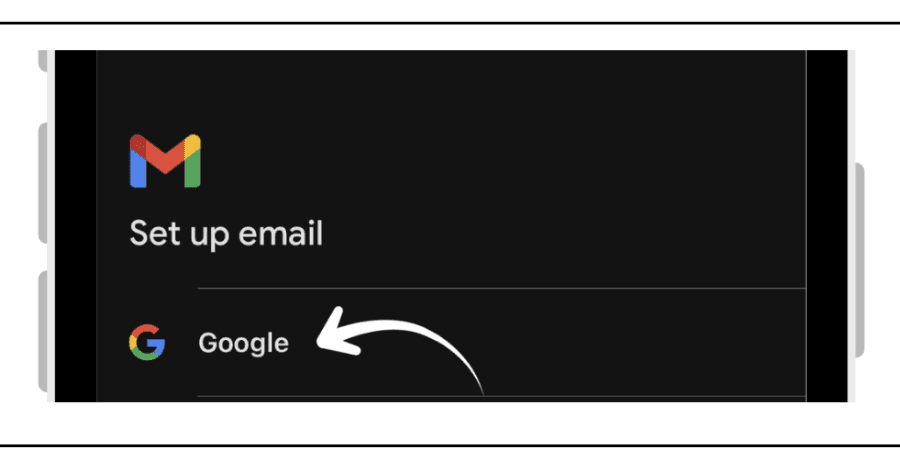
Tap Add another account.
Select Google.
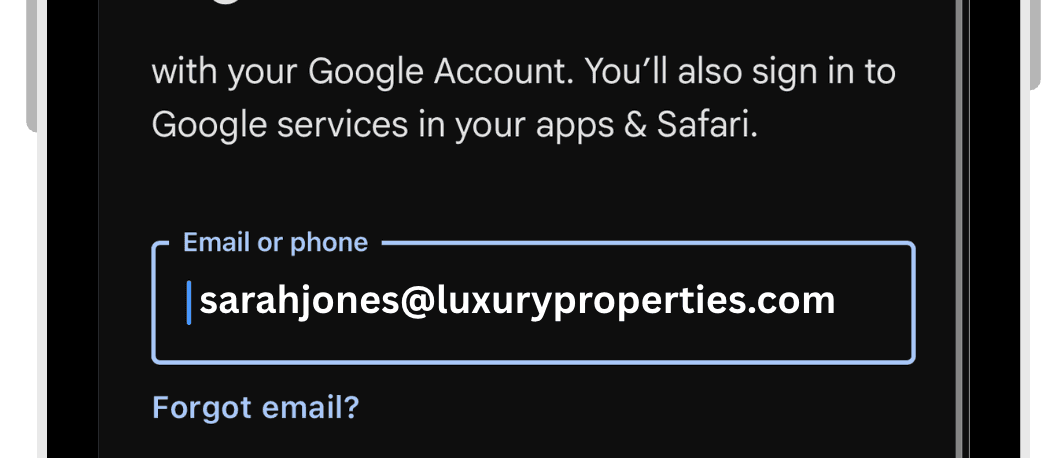
Sign in with your Google Workspace account.
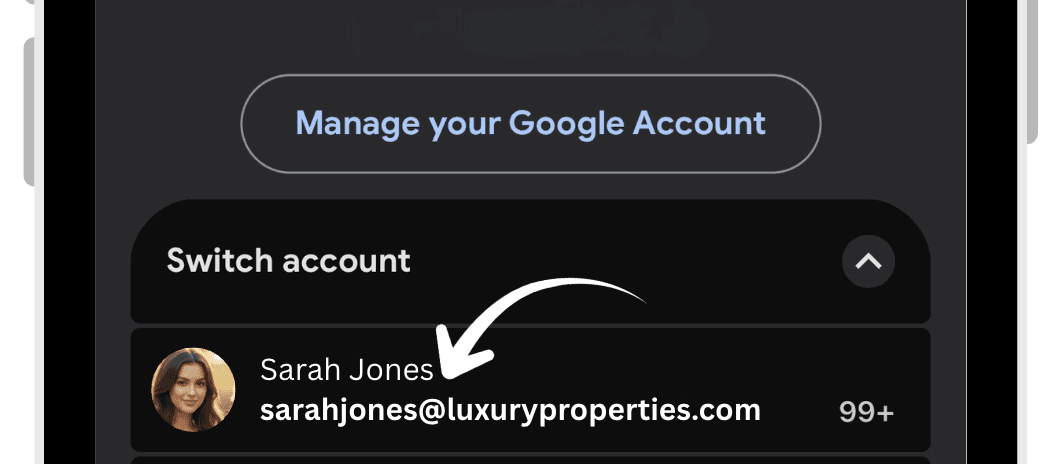
Once added, you can switch accounts by tapping your profile picture and choosing the account you want.
 |  |
|
|
 |  |
|
|
 |  |
|
|
You can repeat similar steps in Google Calendar, Drive, and other Google apps to clearly separate work and personal accounts while still keeping both accessible.
4.6 Enable Offline Access for Drive, Docs, Sheets, and Slides
Offline access is useful when you are traveling, have poor connectivity, or need to work on important documents on the go. By enabling offline mode, you can open and edit key files even without internet access.
To make individual files available offline in Google Drive:
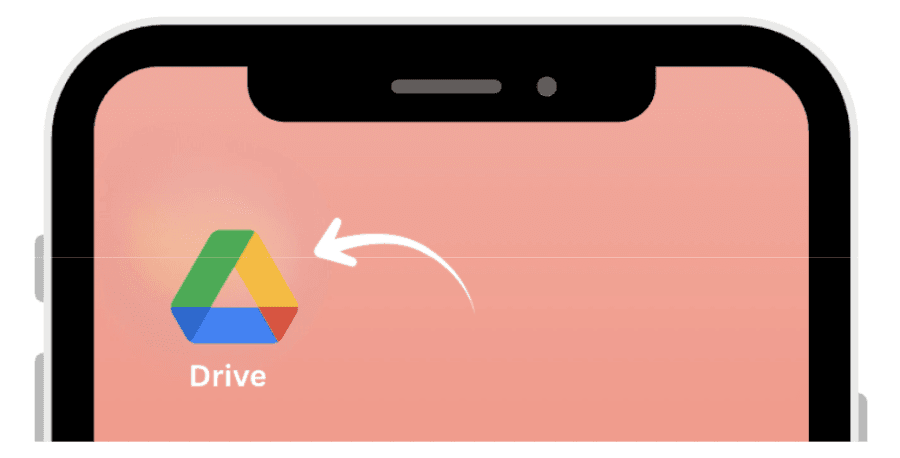
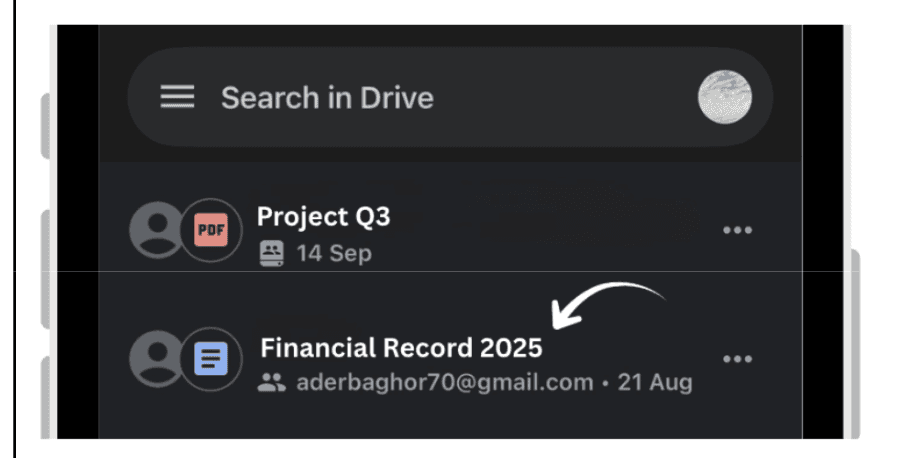
Open the Google Drive app on your iPhone.
Find the file you want to access offline (Doc, Sheet, Slide, PDF, etc.).
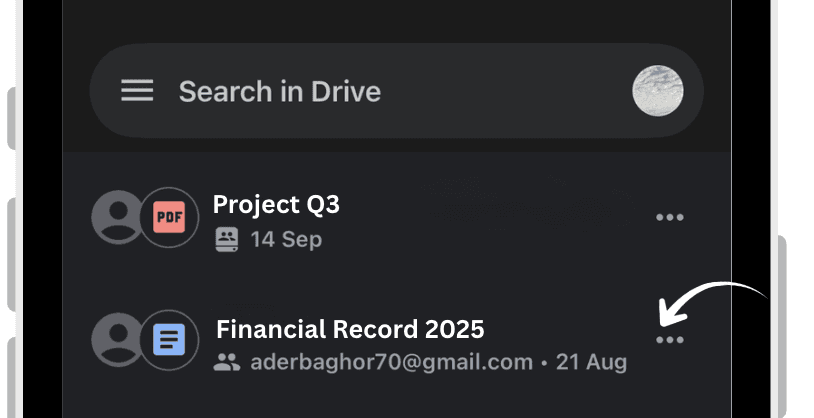
Tap the three dots (⋯) next to the file name.
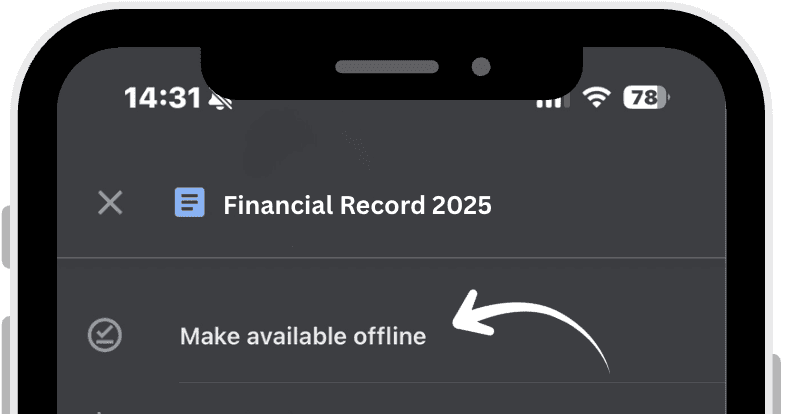
Toggle or tap Available offline.
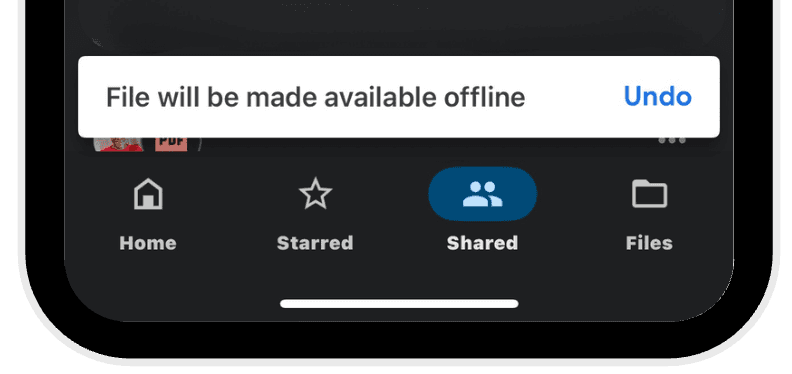
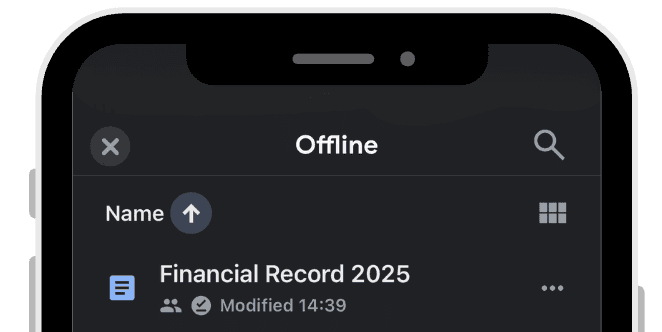
The file will be downloaded and accessible from the Offline section in Drive, even without a connection.
 |  |
|
|
 |  |
|
|
 | |
|
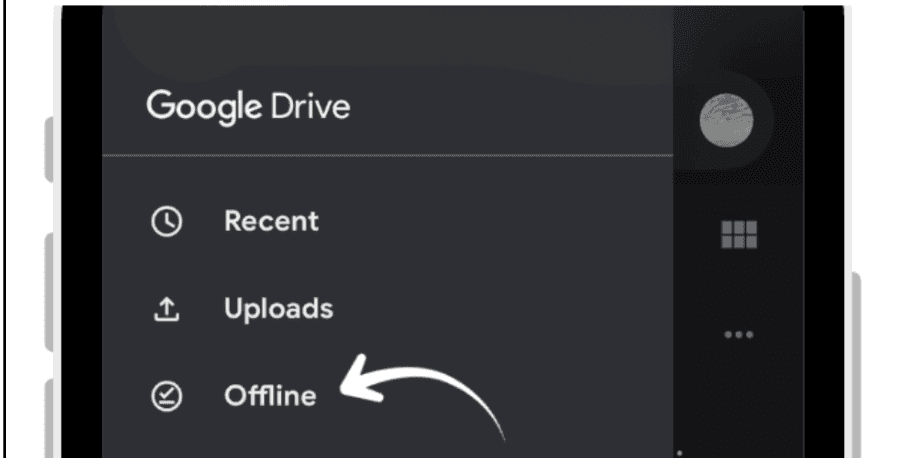
To quickly see your offline files:
Open Google Drive.
Tap the menu icon (three lines) or the Offline tab (depending on your version).
All files marked as Available offline will appear in this list.
|  |
|
|
 | |
|
This ensures that important documents remain accessible and editable when you’re away from a stable network.
4.7 Use iPhone Shortcuts with Google Workspace
You can use the Shortcuts app on iPhone to create quick actions that open Google Workspace tools faster, such as starting a Meet call, opening a specific Drive folder, or composing a Gmail message.
Here’s a simple example using a shortcut to open a specific Drive folder or Google Doc:
To create a shortcut that opens a Workspace link:
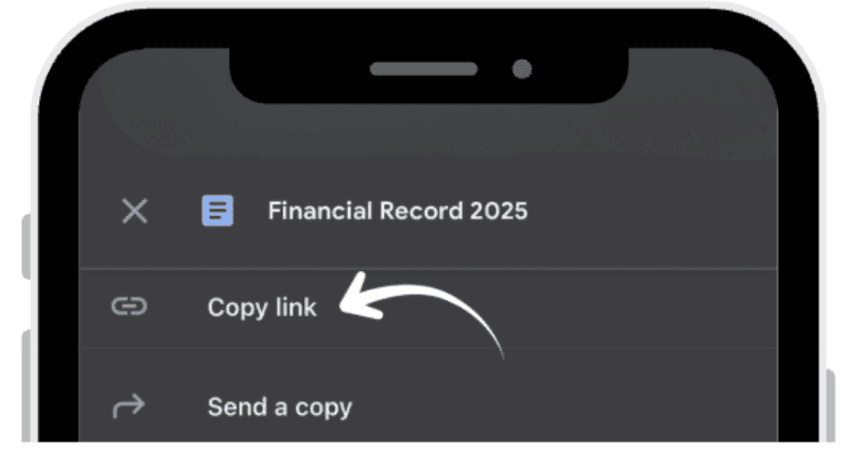
Open Google Drive App and navigate to the file or folder you use frequently.
Tap the share icon and choose Copy link.
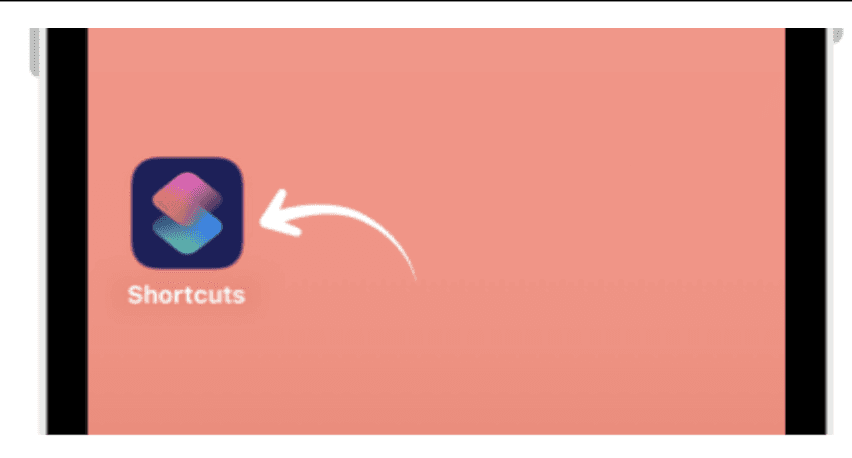
Open the Shortcuts app.
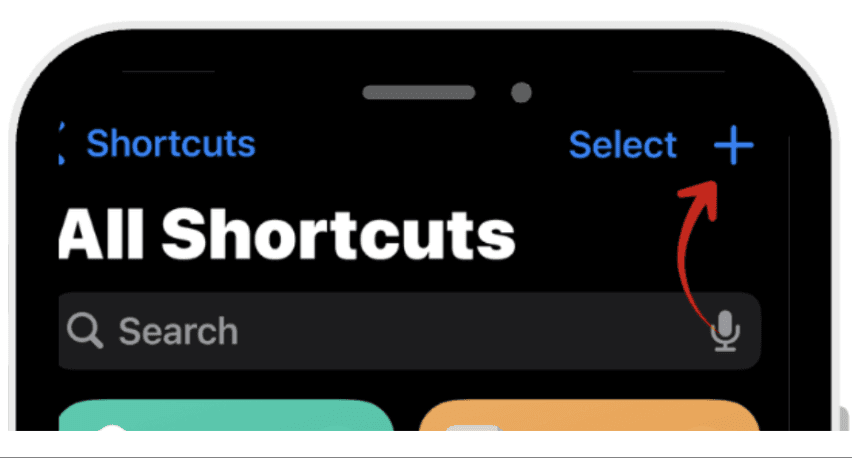
Tap the + icon to create a new shortcut.
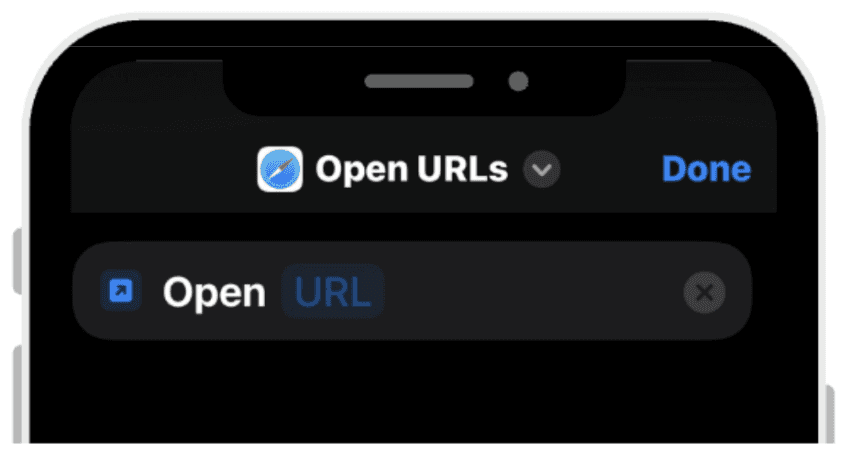
In the search bar, type Open URL and tap Open URL.
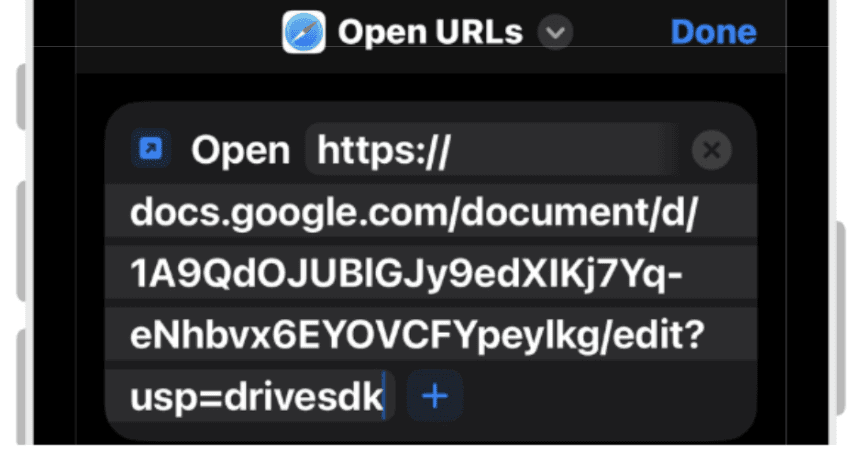
Tap the URL field and paste the Drive link you copied
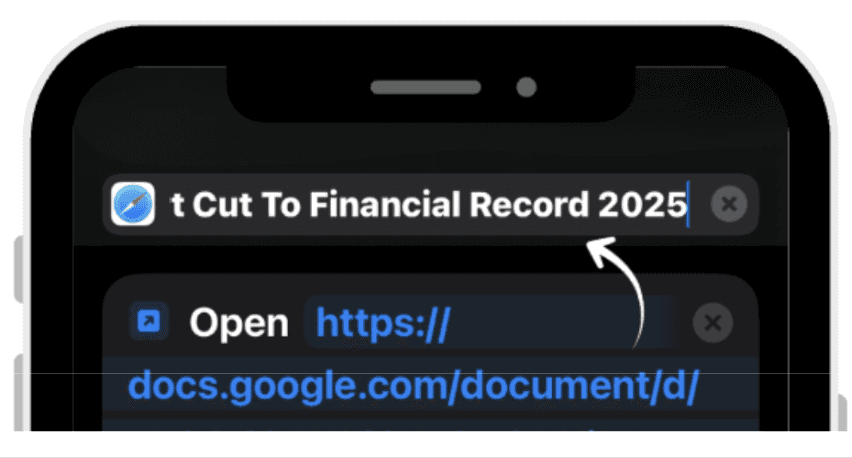
Tap the shortcut name at the top and rename it
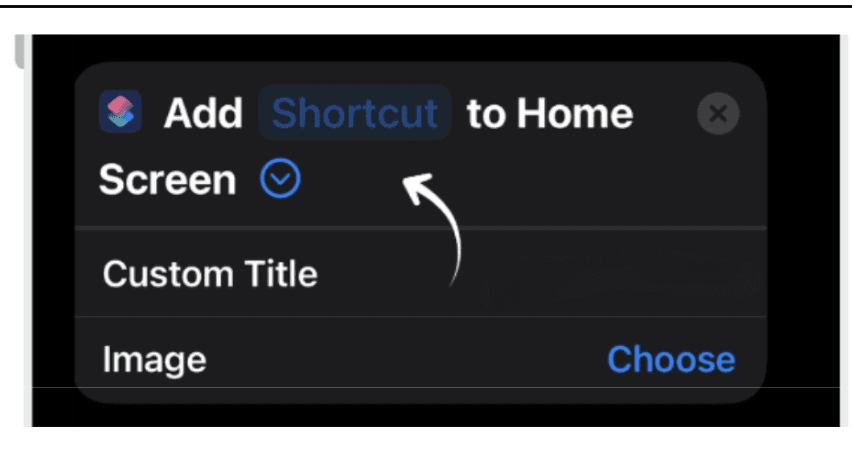
Optional: Tap Add to Home Screen to create a direct icon on your iPhone Home Screen.
|  |
|
|
 |  |
|
|
 |  |
|
|
 |  |
|
|
Now, with one tap on the shortcut or Home Screen icon, you can open a key Google Workspace resource instantly, saving time and clicks.
5. Why iPhone + Google Workspace Is a Powerful Combination
iPhones offer consistent performance, strong privacy protections, and excellent reliability. Google Workspace provides the collaboration tools modern teams depend on. Together, they create a secure, efficient, and intelligent mobile workspace, ideal for today’s hybrid and remote teams.
6. Conclusion
By following these best practices, you unlock the full potential of Google Workspace on your iPhone. With the right setup, your device becomes a secure, fast, and intelligent extension of your professional environment, always ready for work, wherever you are.
Moreover, using Google’s mobile apps, enabling contact and Calendar sync, and strengthening your device’s security settings ensures that your iPhone remains fully aligned with your organization’s workflows. Combined with real-time synchronization, mobile ready collaboration tools, and Gemini-powered intelligence, your iPhone becomes a reliable work companion capable of supporting meetings, communication, file management, and decision making throughout the day.
By preparing your device correctly and keeping your Workspace apps updated, you can work confidently from anywhere. Whether you’re at the office, traveling, or working remotely. Ultimately, iPhones and Google Workspace together create a flexible, modern, and highly efficient mobile workspace that helps you stay productive and connected at all times.
By following the best practices outlined here, you’ll ensure your iPhone is always optimized for Google Workspace, offering a seamless, secure, and efficient mobile experience tailored for today’s modern workforce.
Leave a comment :
No comments yet. Be the first!