How to remote control your iPhone when it’s lost using Shortcuts
You cannot fully remote control a lost iPhone, especially if the device is powered off or unable to receive messages. However, you can prepare your iPhone in advance using Apple’s Shortcuts and Voice Memos apps. By creating a Message-triggered automation, your iPhone can detect a predefined keyword, increase its media volume, and play a pre-recorded recovery message. This guide explains how to set up, test, and use the automation, its limitations, and why Apple’s Find My should remain your primary tool for locating and securing a lost iPhone.
You cannot create a new iPhone automation remotely after your iPhone is already lost.
You can prepare a Shortcuts automation before losing your iPhone.
The automation can be triggered when your iPhone receives a message containing a specific keyword.
Your iPhone can then increase its volume and play a pre-recorded audio message.
The iPhone must be able to receive the message and run the automation.
Find My should still be your primary tool for locating, locking, or remotely erasing a lost iPhone.


Introduction
Losing your iPhone can be stressful, especially when you suddenly realize that you are not sure whether Find My was properly set up.
Can you remotely control a lost iPhone?
The short answer is: not completely.
Apple does not allow you to remotely create a new Shortcut or personal automation on an iPhone after the device has already disappeared. If the iPhone is powered off and cannot receive data, an automation cannot immediately react to a message either.
However, you can prepare your iPhone before it gets lost.
Using Apple’s built-in Shortcuts and Voice Memos apps, you can create an automation that reacts when your iPhone receives a message containing a secret keyword.
For example, you could use the keyword:
TAKEN
When the message reaches your iPhone, the automation can increase the phone’s volume and play a pre-recorded audio message.
The message could ask the person who found your iPhone to return it or explain how to contact you.
Is it guaranteed to recover a stolen iPhone?
No.
But if someone finds your misplaced phone, this simple iPhone automation may give your device another way to communicate with them.
It’s worth a shot, right?
Why This iPhone Shortcut Automation Works
Apple’s Shortcuts app supports communication triggers.
A personal automation can be configured to react when your iPhone receives a message that matches specific conditions.
For example, you can create a Message automation that looks for the keyword TAKEN.
If the trigger conditions are met and the automation is configured to run automatically, the actions inside your automation can run in sequence.
In this setup, the iPhone increases its media volume and plays an audio file containing your recovery message.
There is an important limitation.
Your iPhone must actually receive the triggering message for the Message automation to react. If the device is powered off, disconnected, or otherwise unable to receive the message, the automation cannot immediately trigger.
This is not a replacement for Find My.
It is an additional iPhone recovery setup you can prepare in advance.
What You’ll Need
To make this work, you’ll only need a few things: an iPhone 8 or newer, the Shortcuts app, and the Voice Memos app (both are built in). It’s also a good idea to have Find My iPhone enabled as a backup, since it lets you play a sound or display a message remotely if your phone is online.
Step 1: Record a lost iPhone recovery message
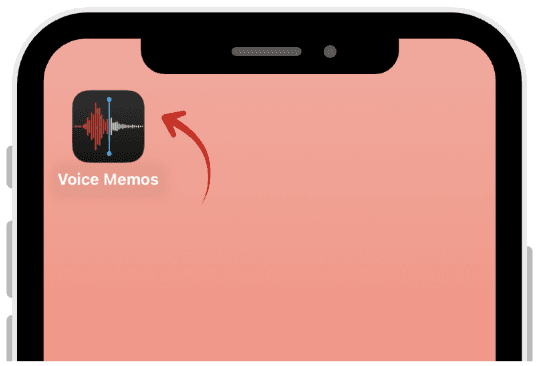
Open the Voice Memos app.
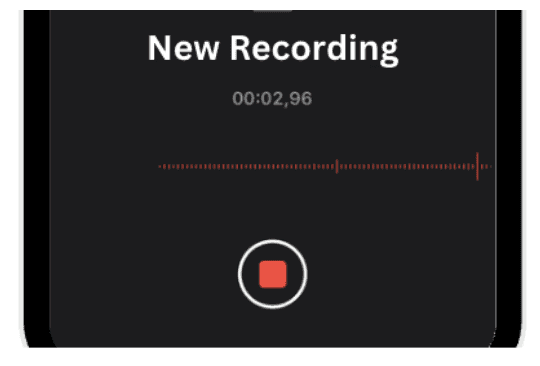
Tap the red Record button and speak your message.
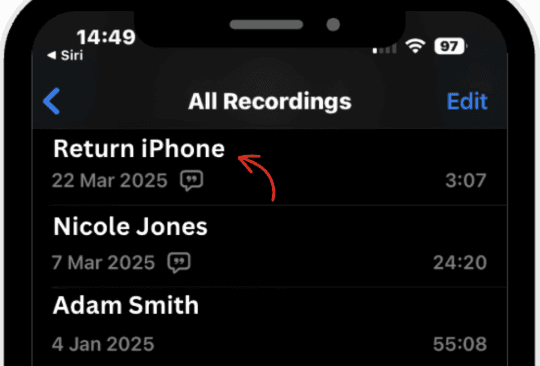
When you’re done, tap Stop and rename your recording to something easy to find, like Return Phone.
Tap the three dots beside your recording, select Share, and choose Save to Files. (This makes it easier to locate in the next step.)
 |  |
|
|
 |  |
|
|
Step 2: Create the message automation in Shortcuts
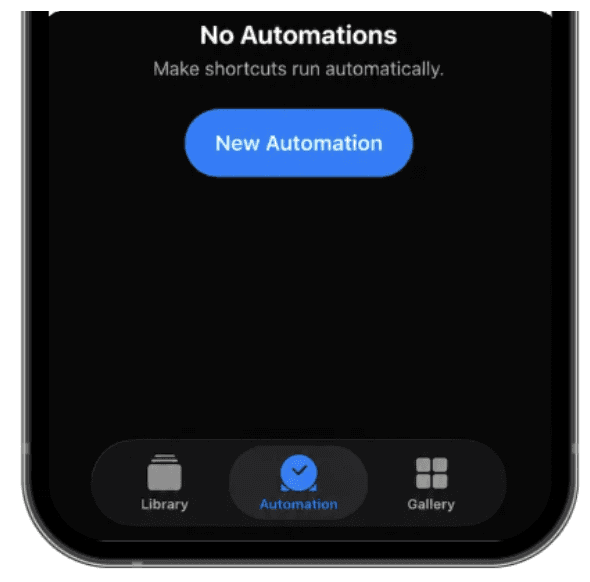
Open the Shortcuts app and tap Automation.
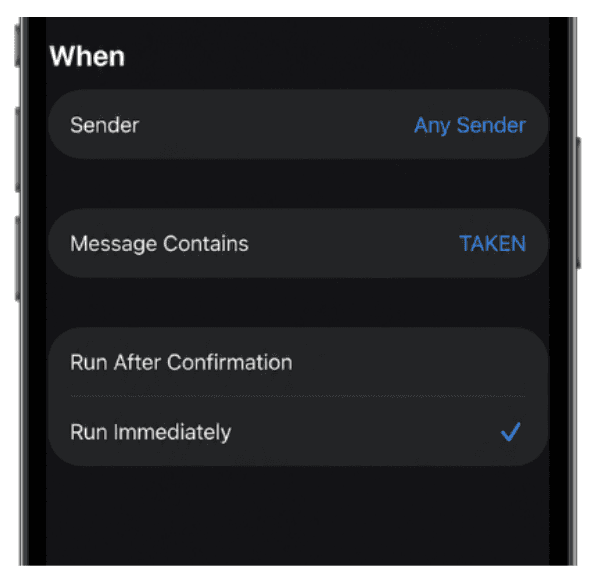
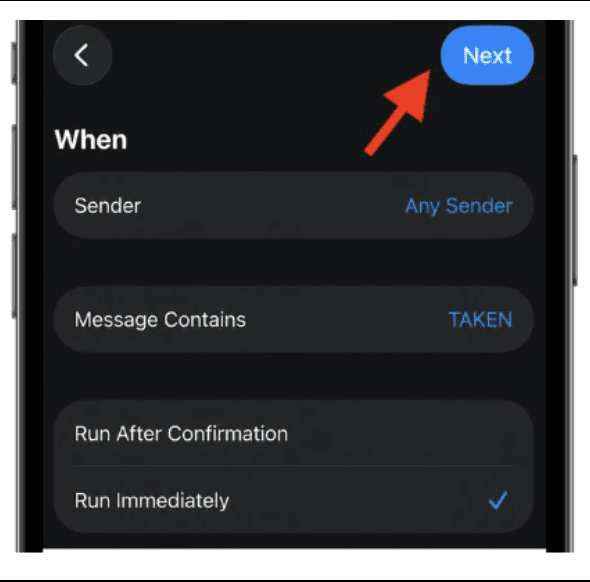
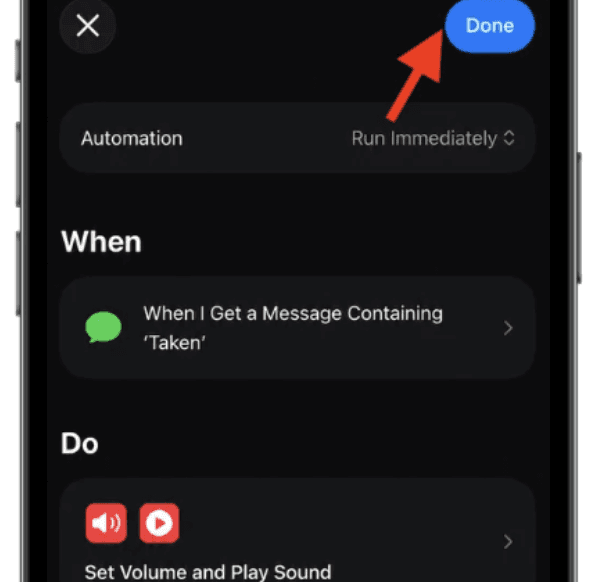
In Search Action, search for Message, and set Sender as any and the message contains TAKEN.
Select Run Immediately. (This is important because the goal is for the automation to run without you manually approving it on the missing iPhone.)
Tap Next and select New Blank Automation.
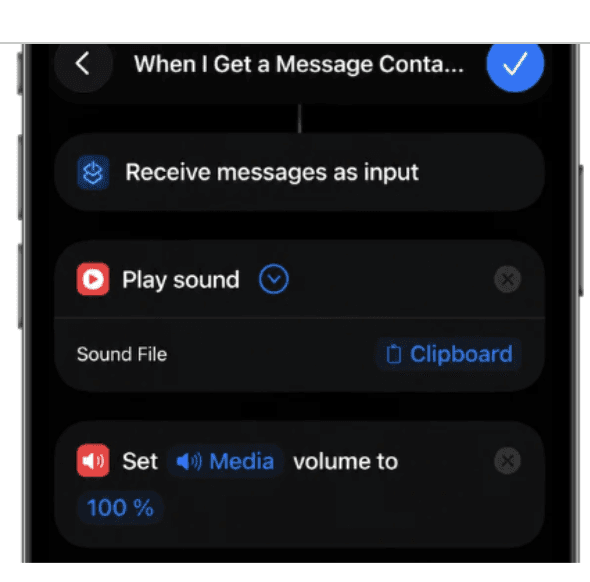
Add section: Play Sound and Set Volume to 100%
Tap Done and rename the Shortcut, so you can find it easier
 |  |
|
|
 |  |
|
|
 | |
|
Conclusion
You cannot suddenly create a remote-control Shortcut after your iPhone is already lost. But you can prepare your iPhone to react automatically to a predefined message trigger.
By combining Message automation, a secret keyword, maximum media volume, and a pre-recorded recovery message, you can give your iPhone a way to play a message to whoever finds it.
It is a small preparation that could be useful when a misplaced iPhone ends up in someone else’s hands. Most importantly, do not treat this Shortcut as a replacement for Apple’s official lost-device tools.
Enable Find My, test your automation in advance, and know what to do before your iPhone disappears.
To learn more about prevention tips and what to do if you ever lose your iPhone, check out our complete guide here, you’ll thank us later!
Leave a comment :
No comments yet. Be the first!